
Tada Partner Web
How to Login
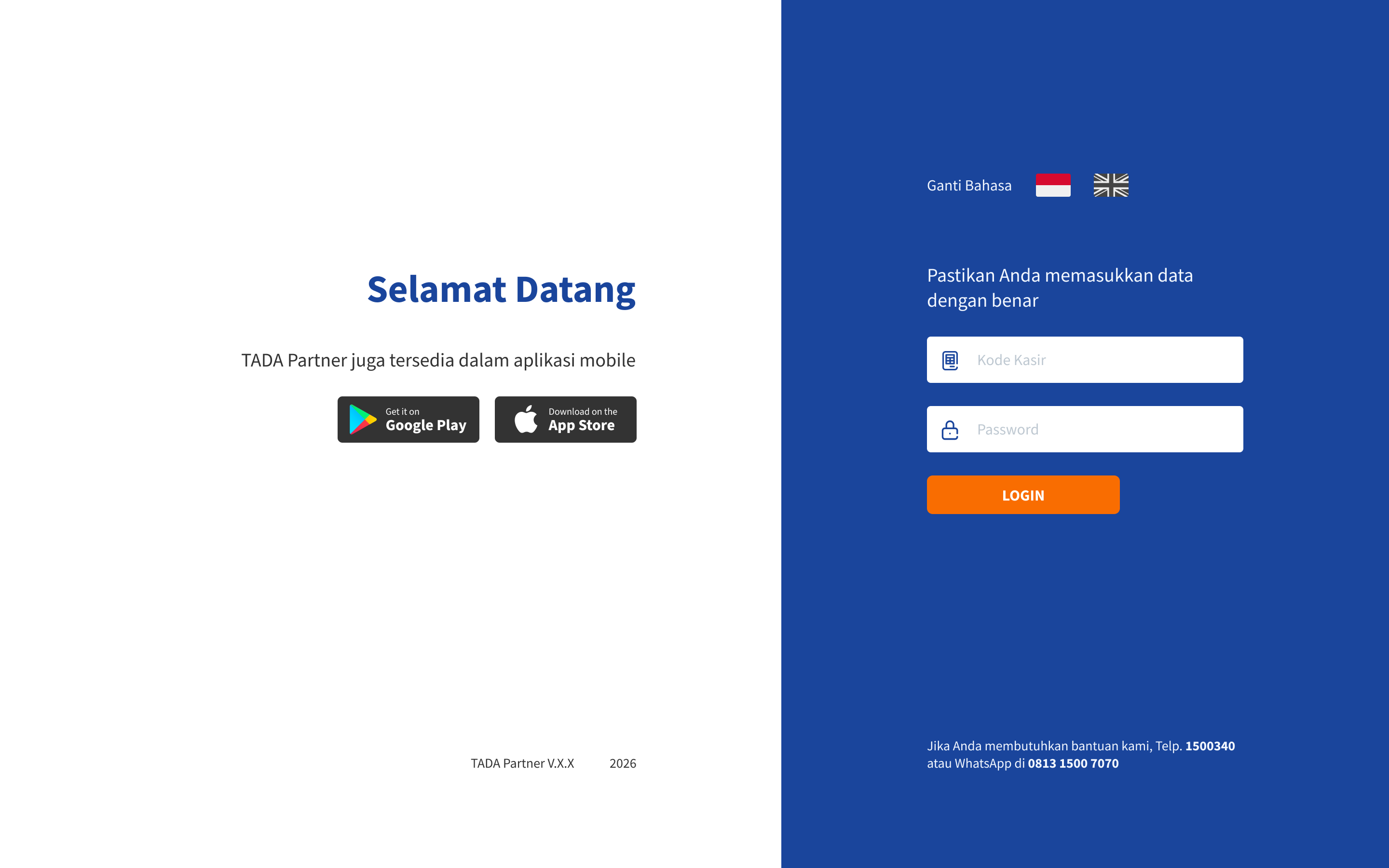
1. Open partner.usetada.com on your browser.
2. Enter your Cashier Code and Password.
3. Click Login.
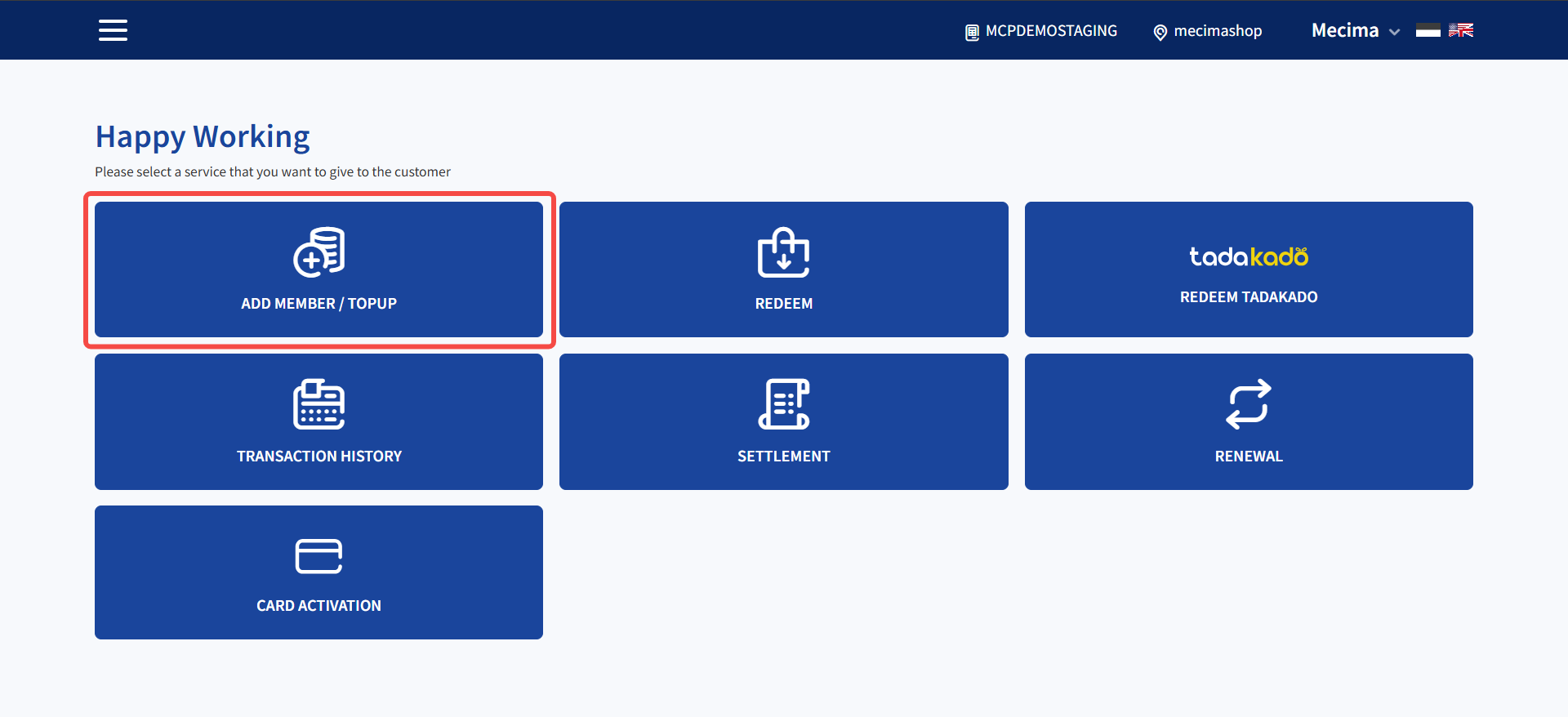
How to Add New Member
1. Click “Add Member/Top Up” in the main menu.
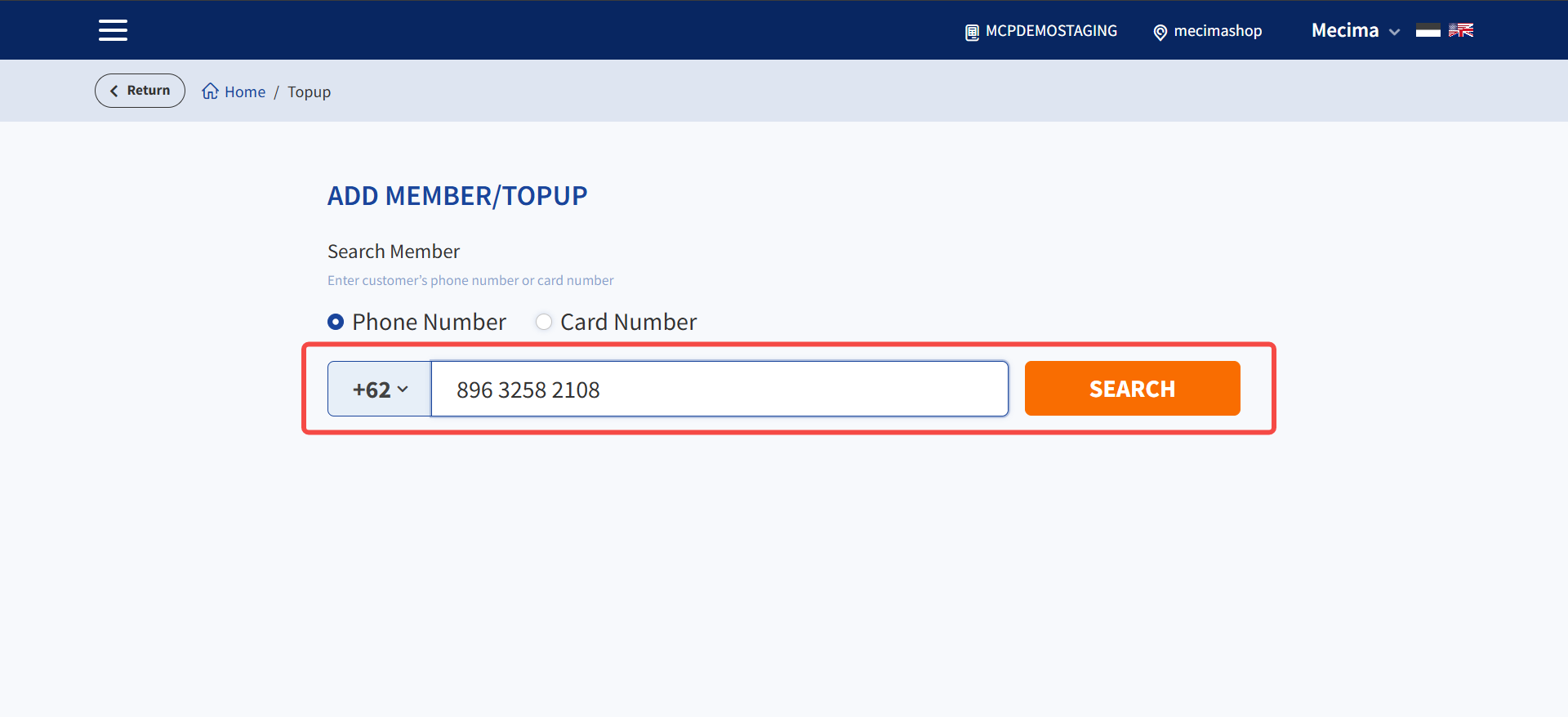
 2. Enter the customer’s phone number who wants to become a member, then click “Search.”
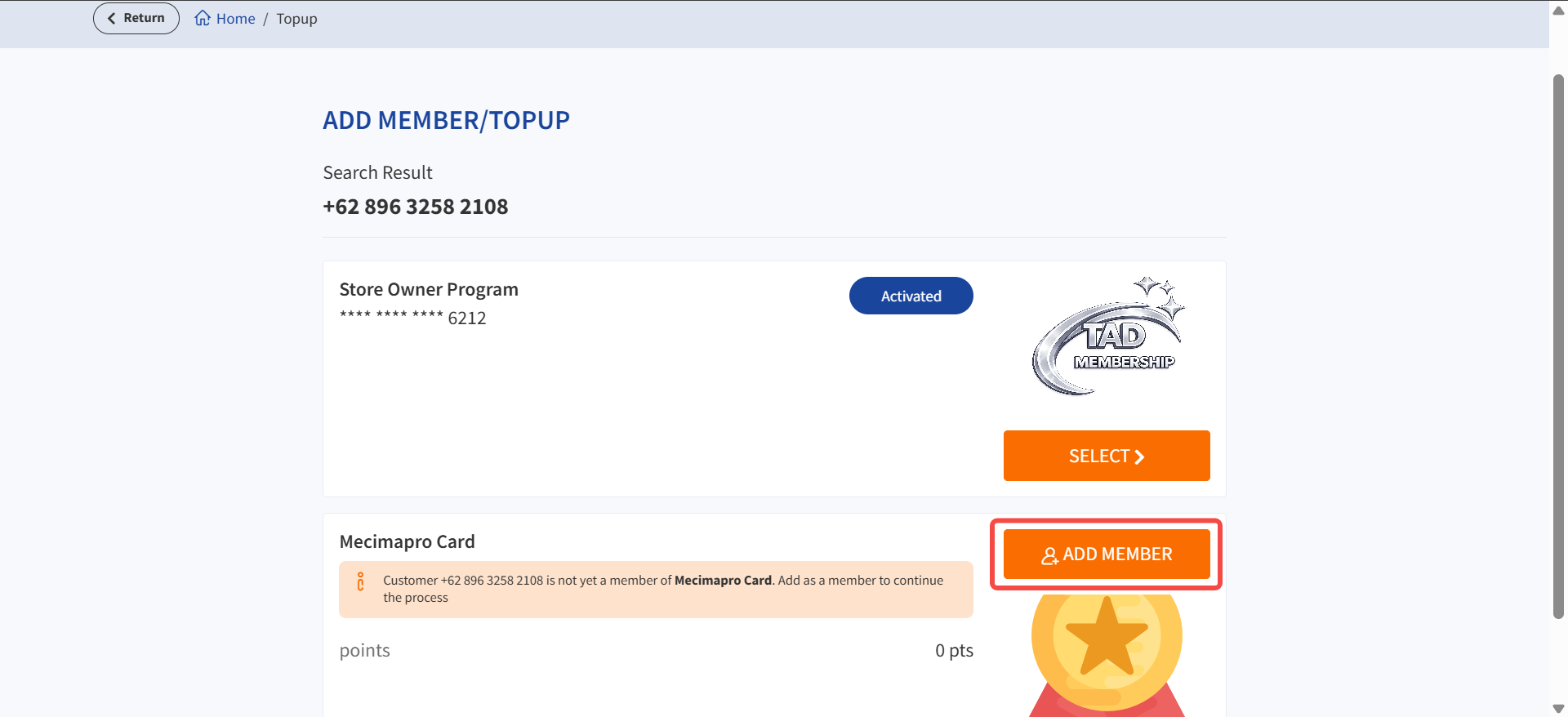
 3. Click “Add Member” to register a new member. The “Add Member” option will only be displayed for customers who are not yet members.
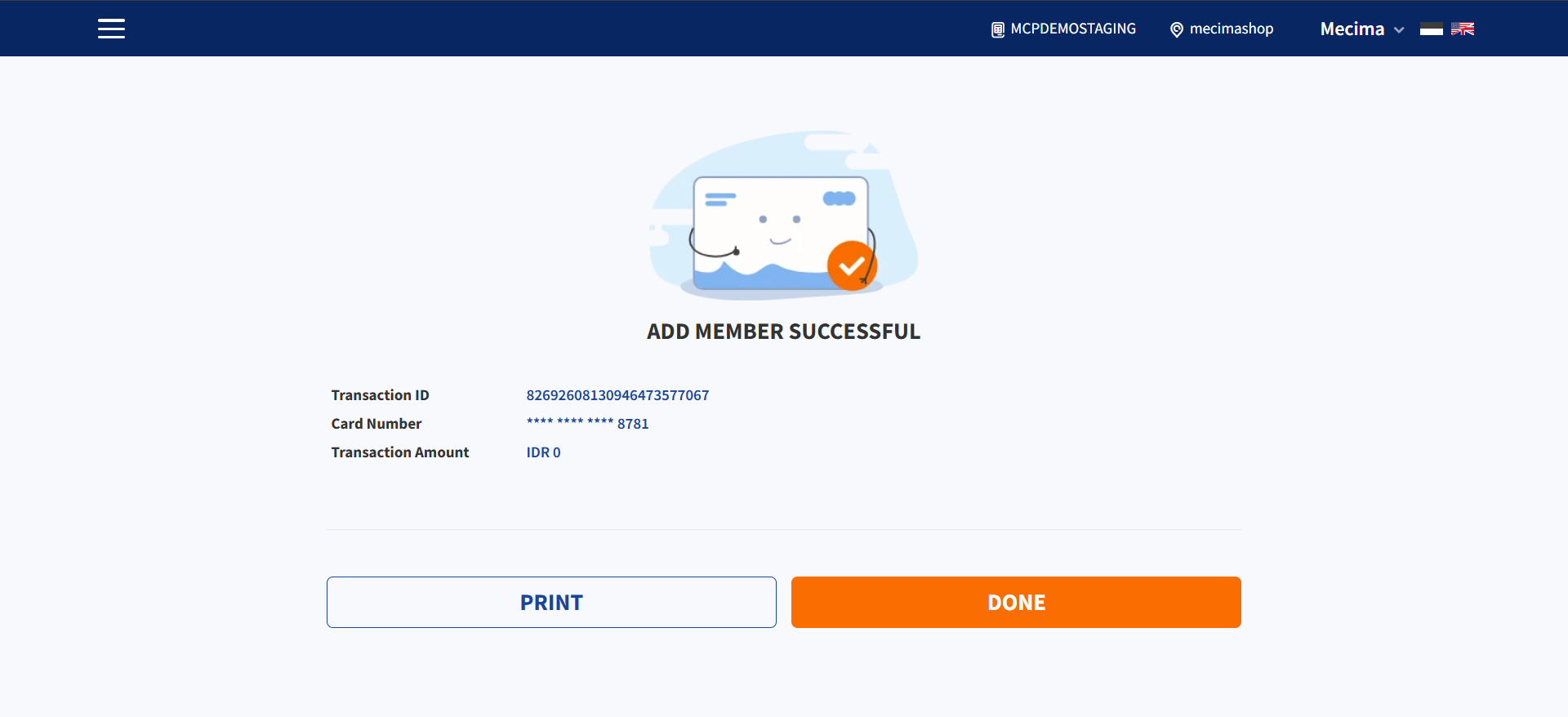
 4. The member has been successfully added. Click “Done” to return to the main menu.
How to Top Up
1. Click “Add Member/Top Up” in the main menu.
2. Enter the customer’s phone number, then click “Search.”
3. If the member has more than one card, select the card you want to top up.
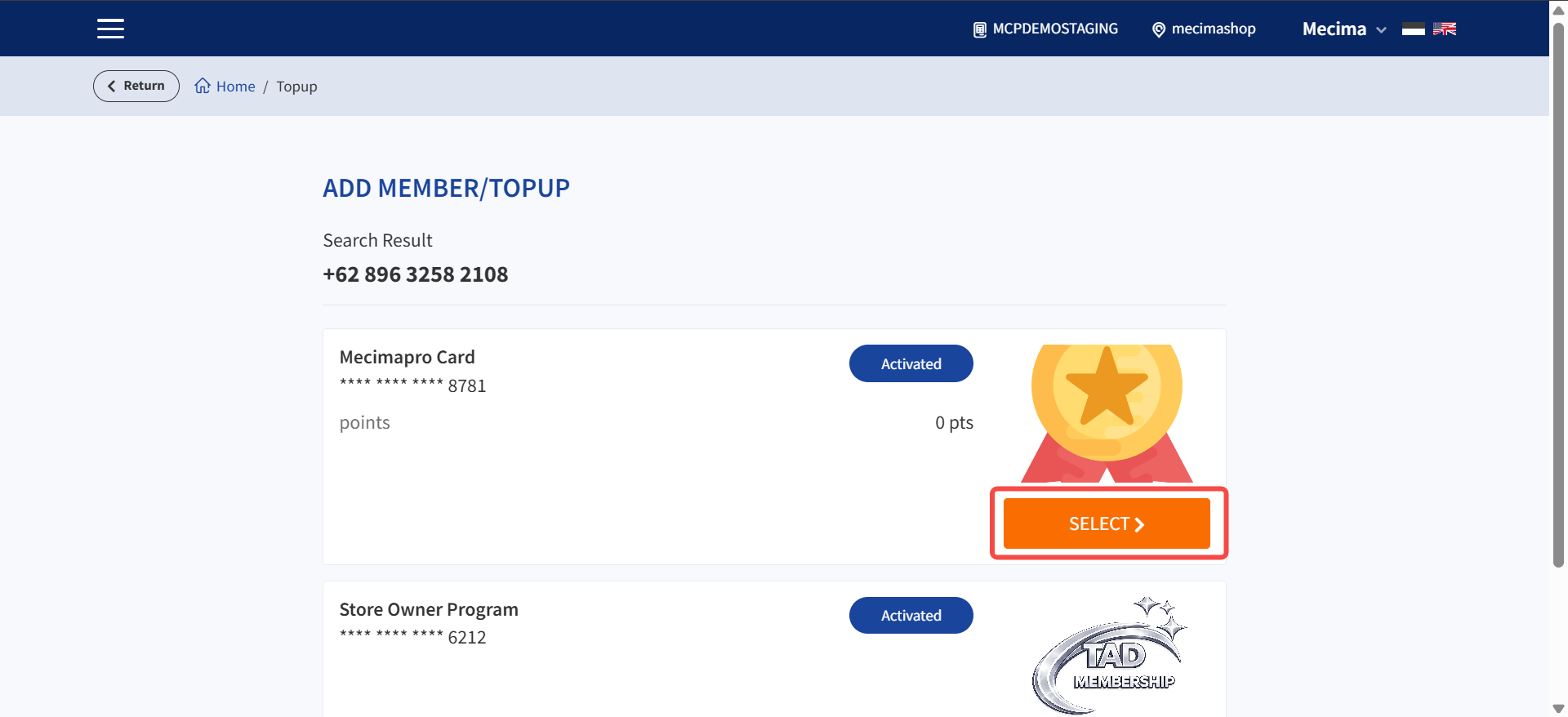 4. Select the wallet you want to top up.
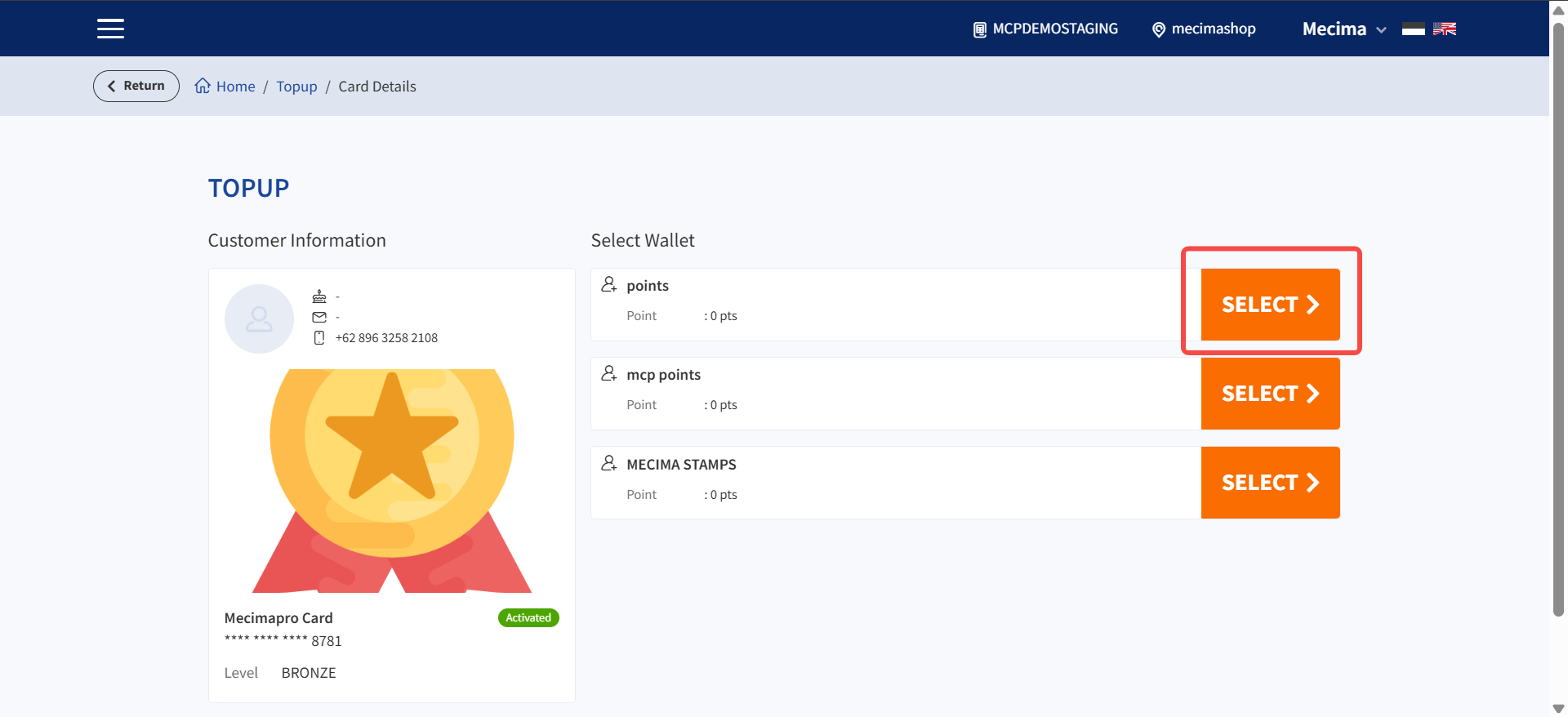 5. Enter the transaction amount and bill number.
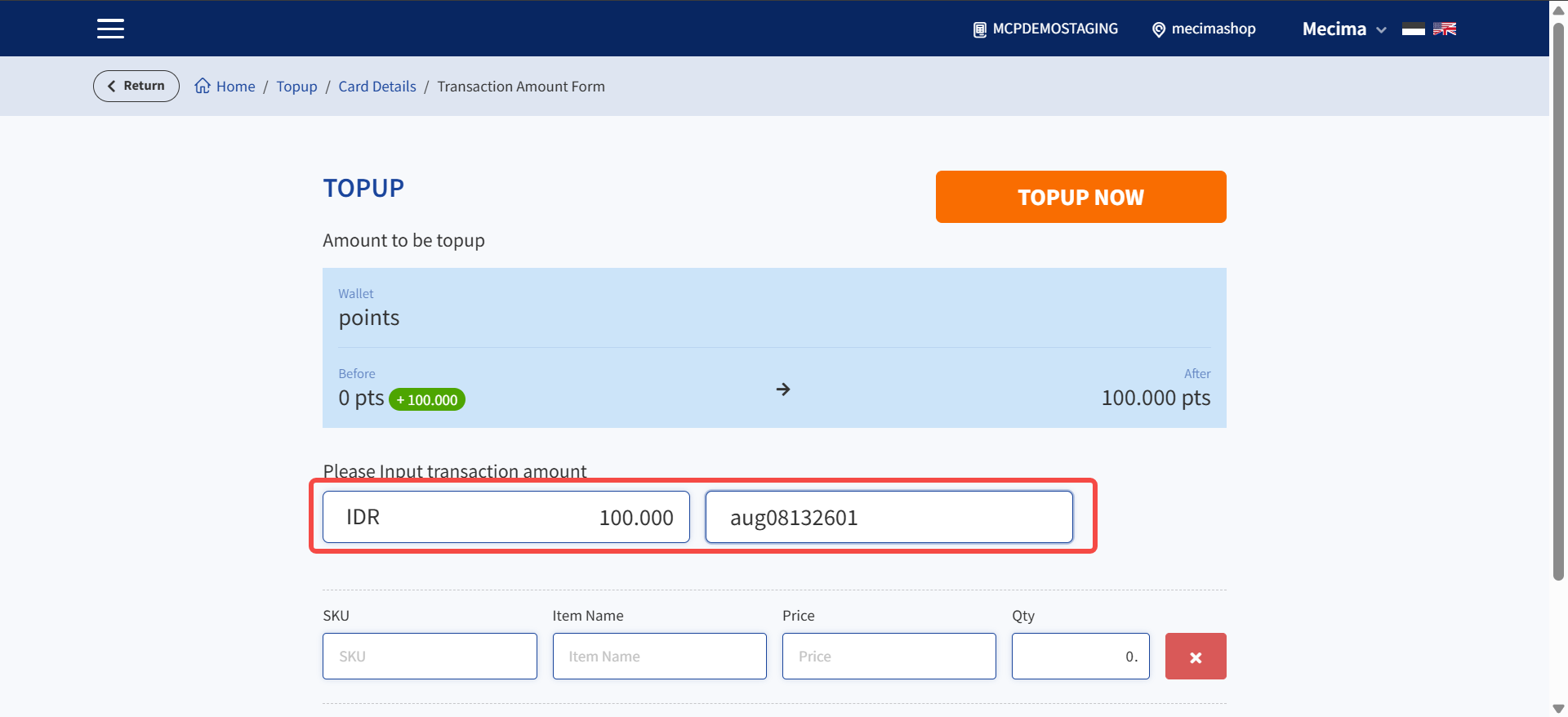 6. Enter the SKU details.
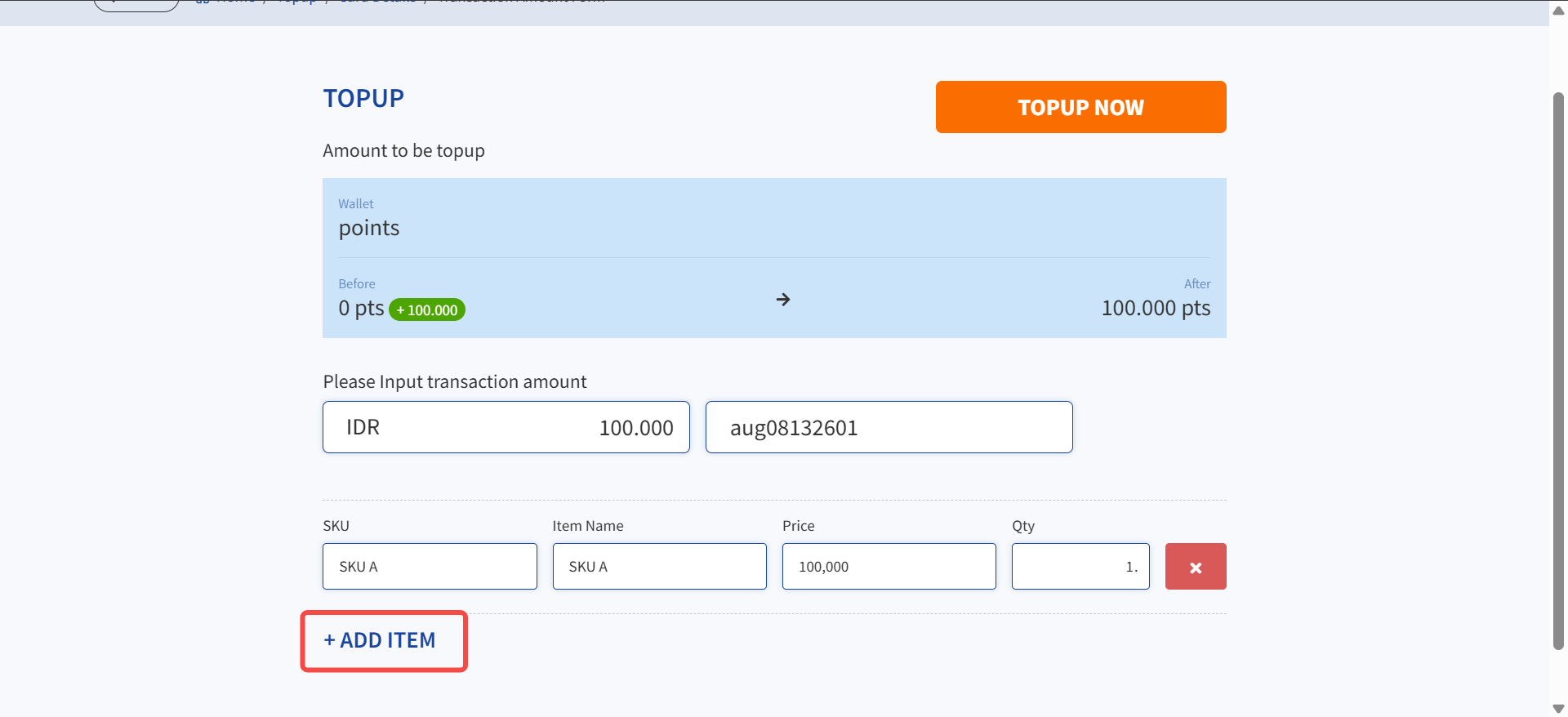
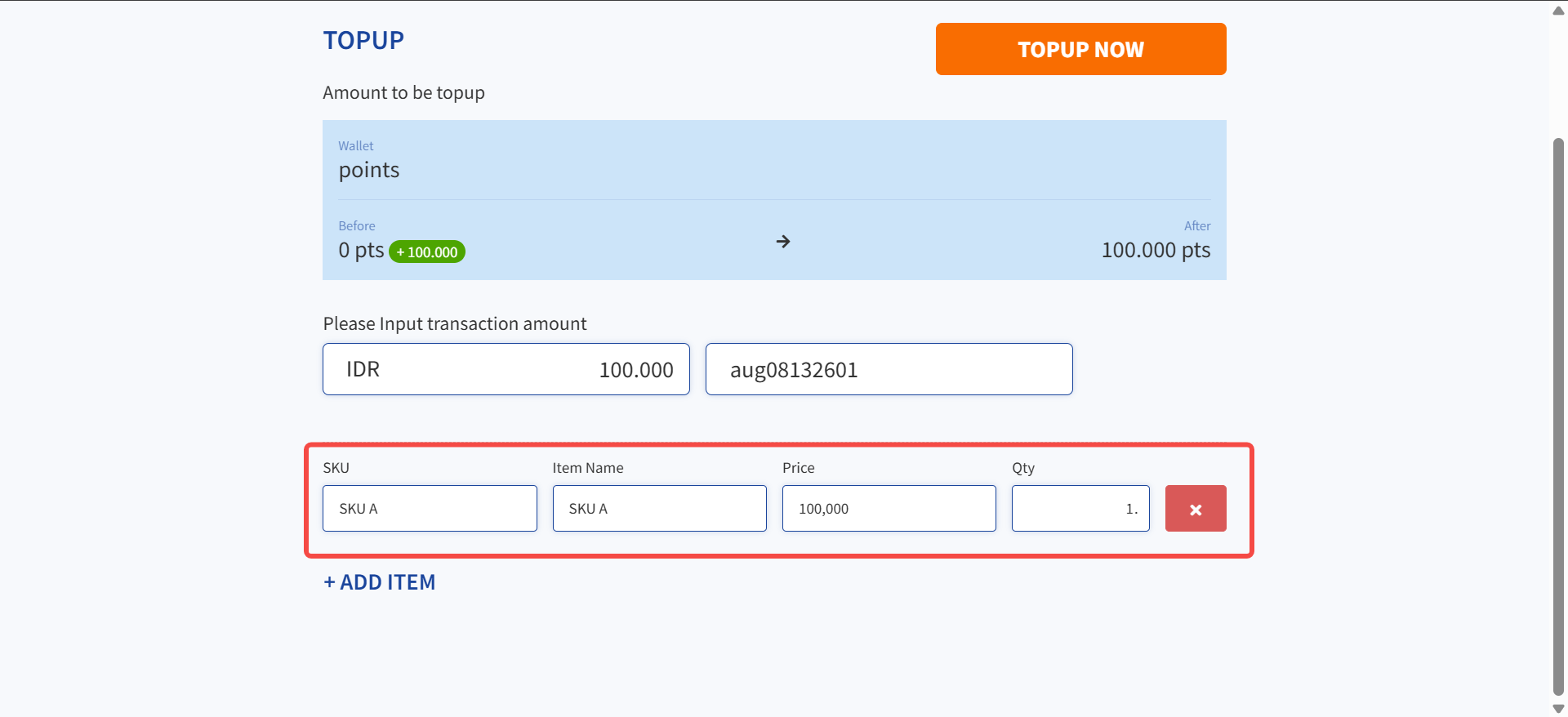 7. Click “Add Item” to add more SKU details to the transaction.
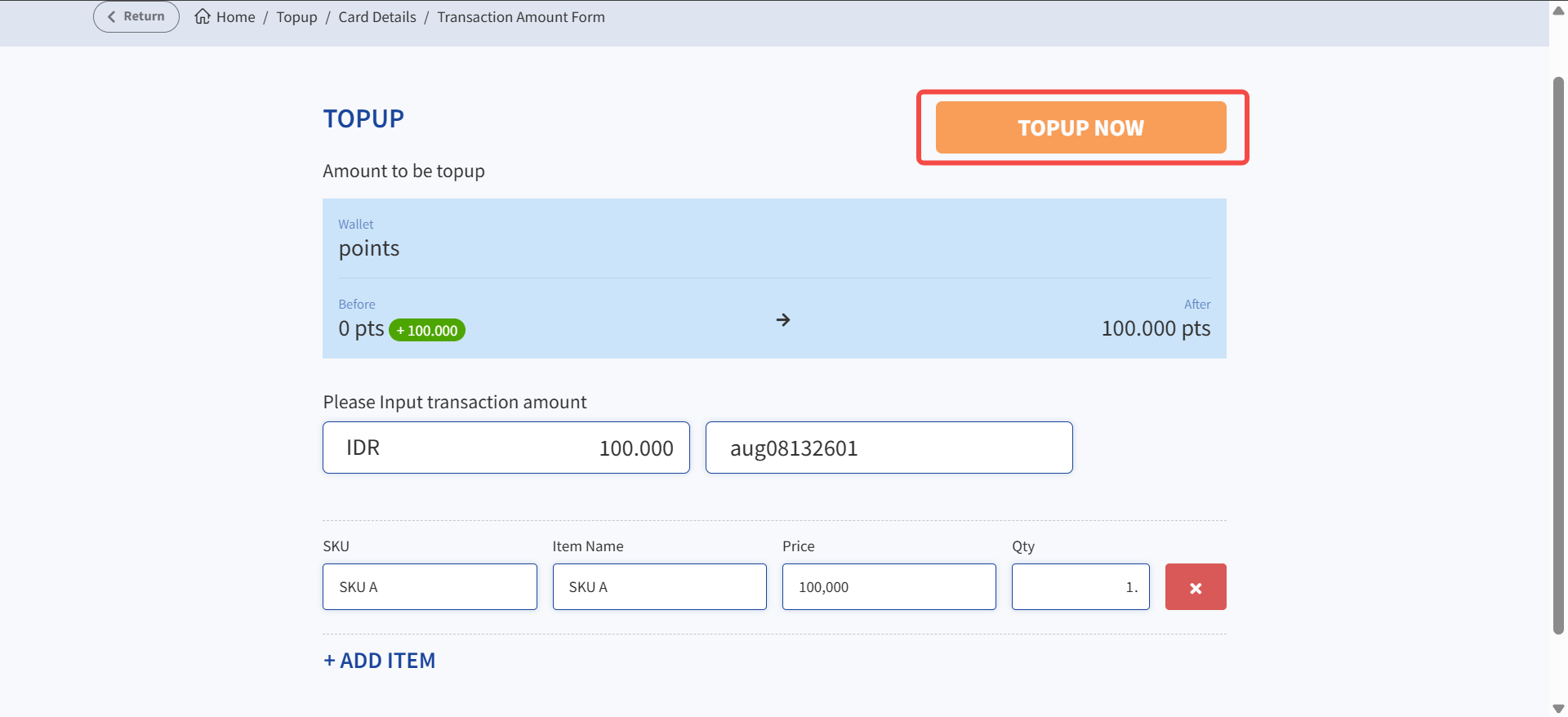
 8. Click “Top Up Now” to submit the transaction.
 9. Enter the cashier PIN (if activated), then click “OK” to continue.
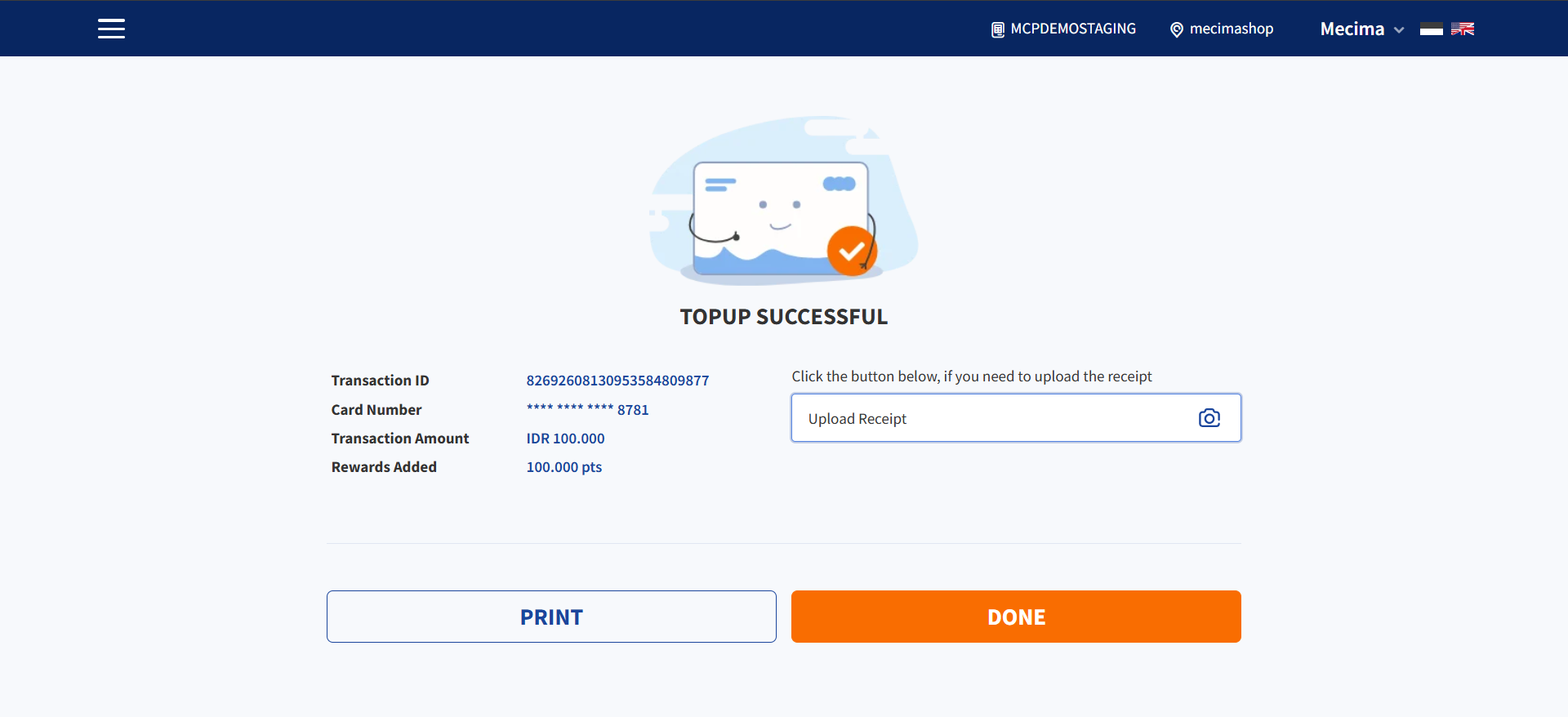
10. The top-up is successful. On this page, you can upload the payment receipt and print the transaction receipt. Click “Done” to return to the main menu.
How to Redeem Points
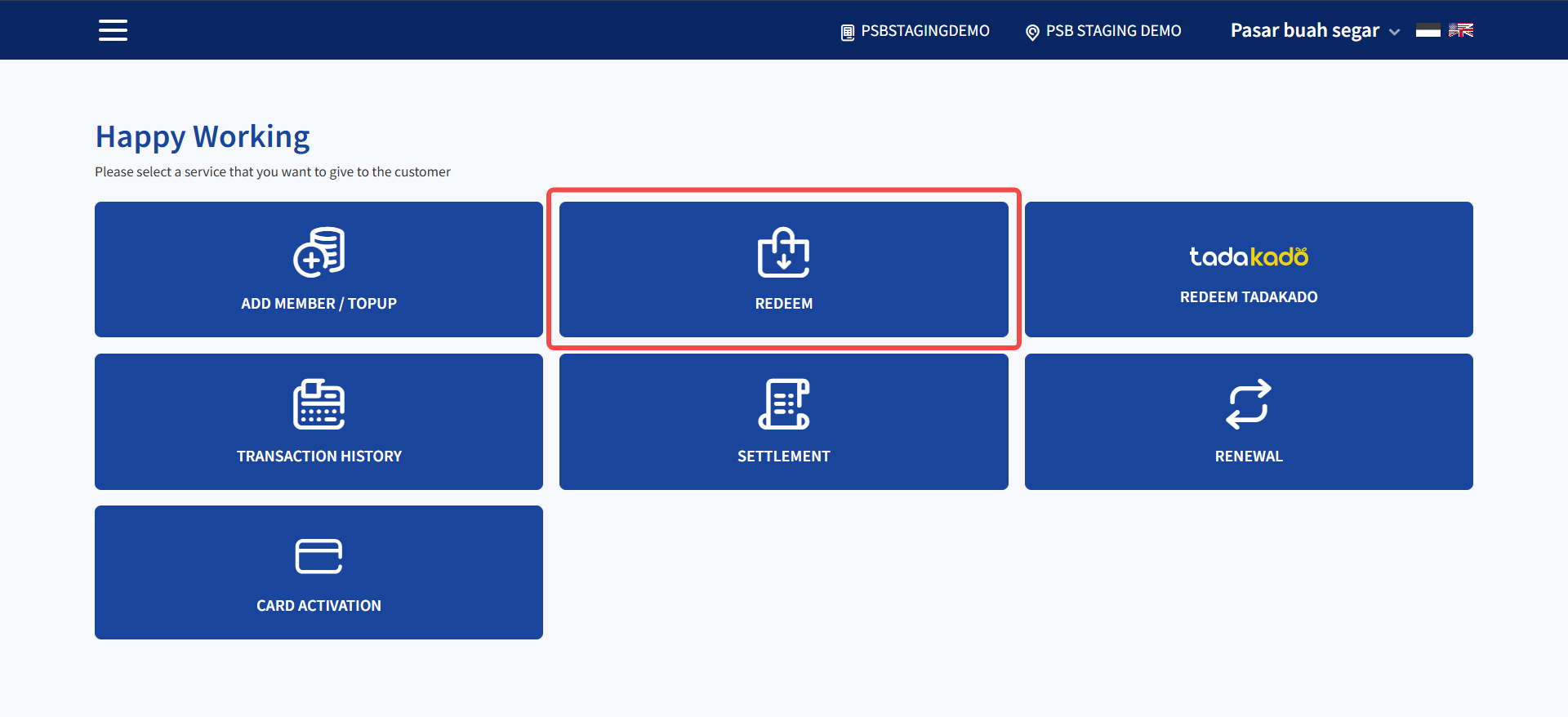
1. Click Redeem on the main menu.
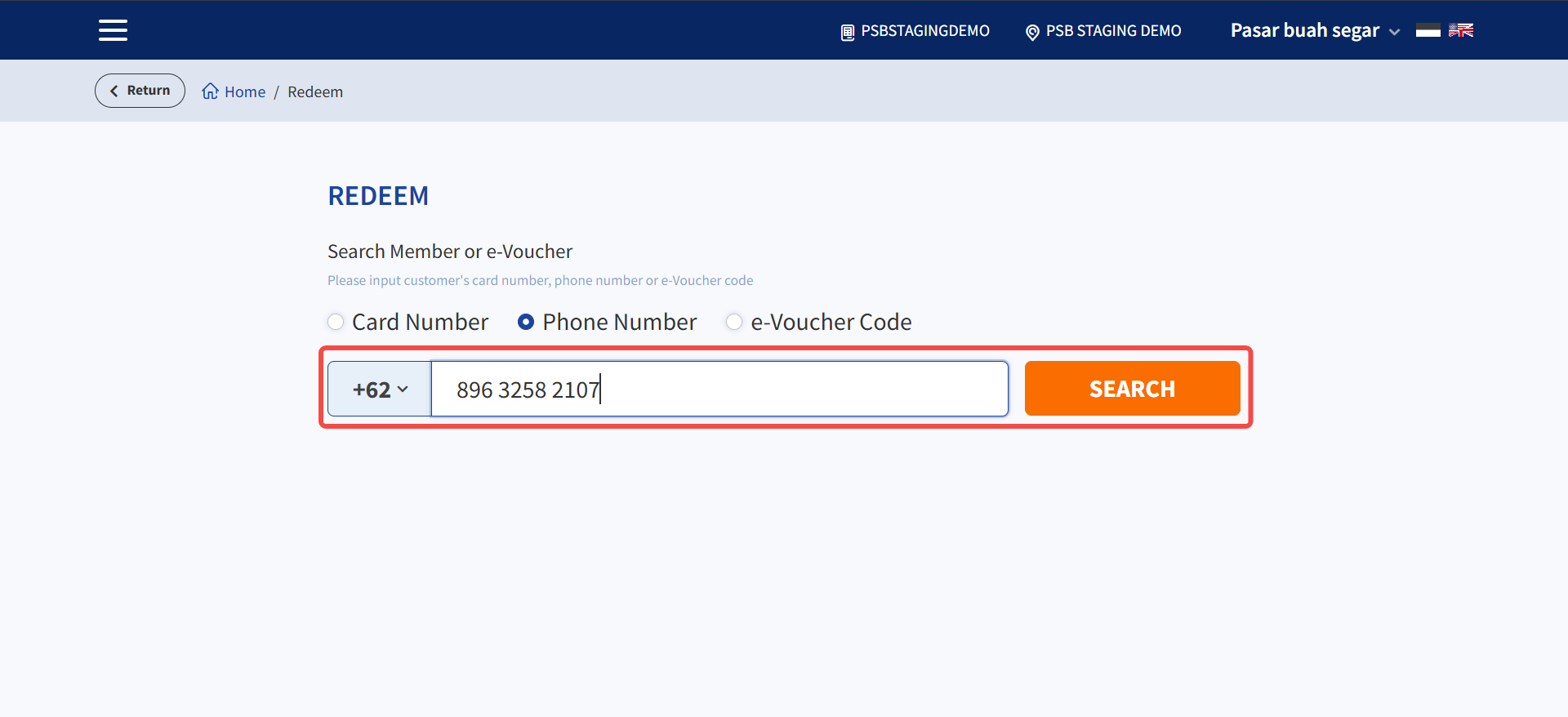
 2. Enter the customer’s card number or phone number, then click Search.
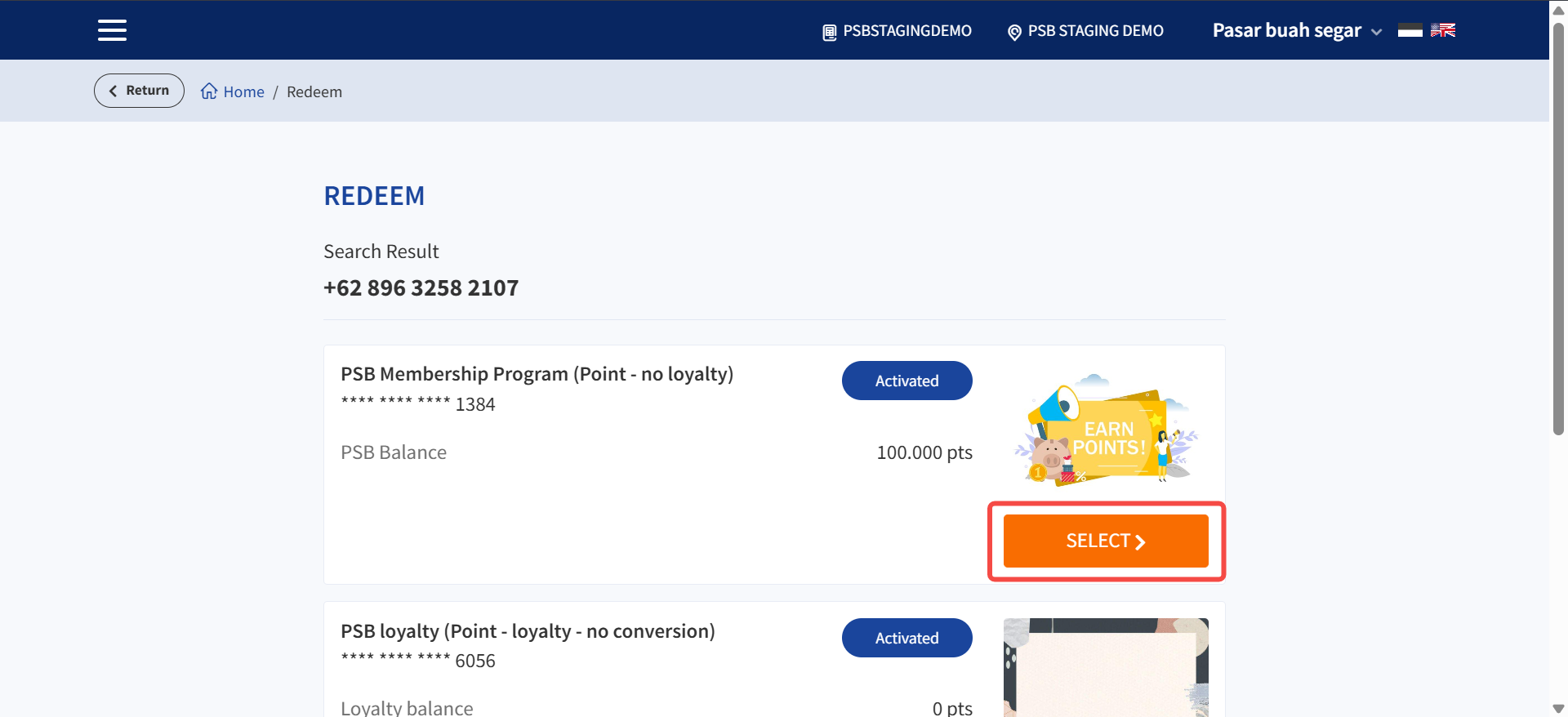
 3. Select the card that you want to redeem from.
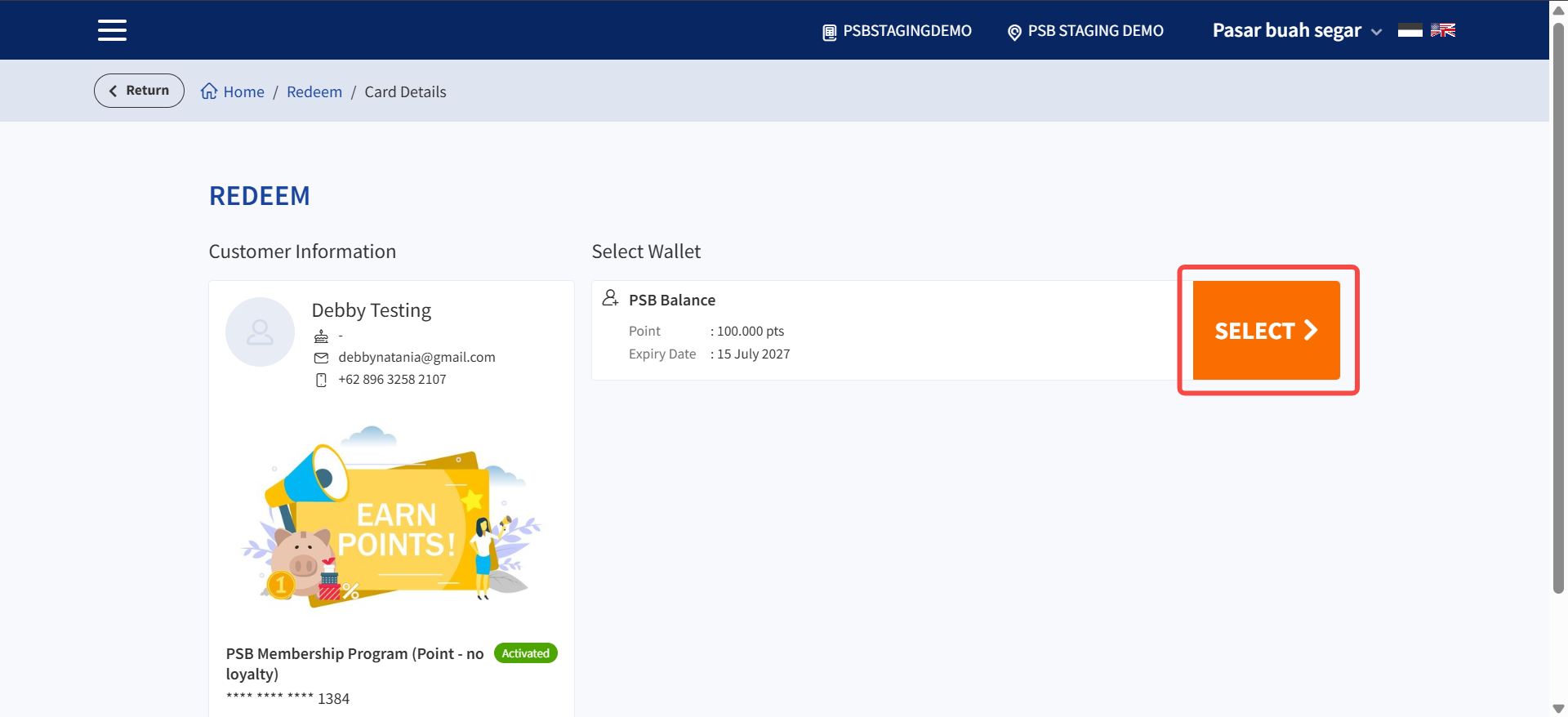
 4. Select the wallet that you want to redeem from.
 5. Enter the transaction amount, bill number, and item details.
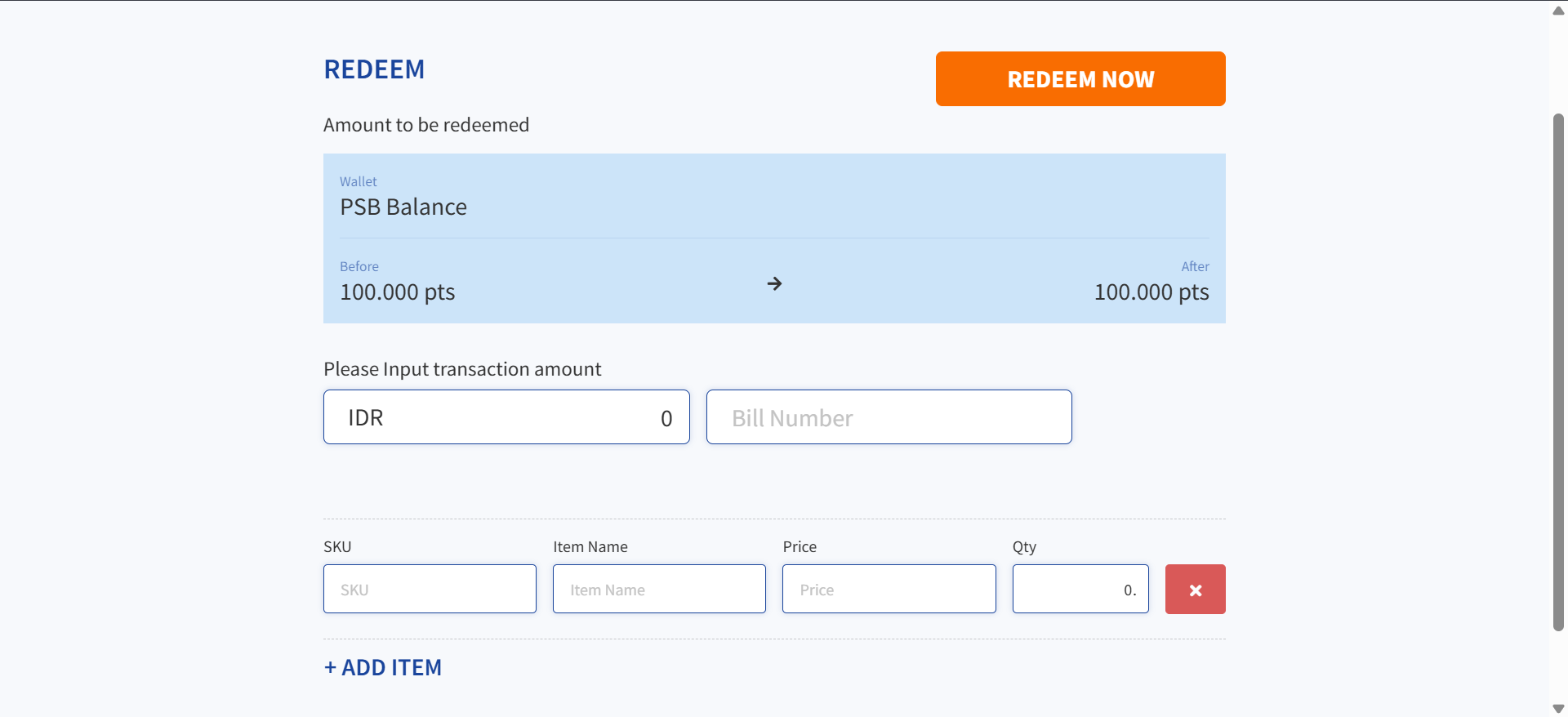 6. Click Redeem.
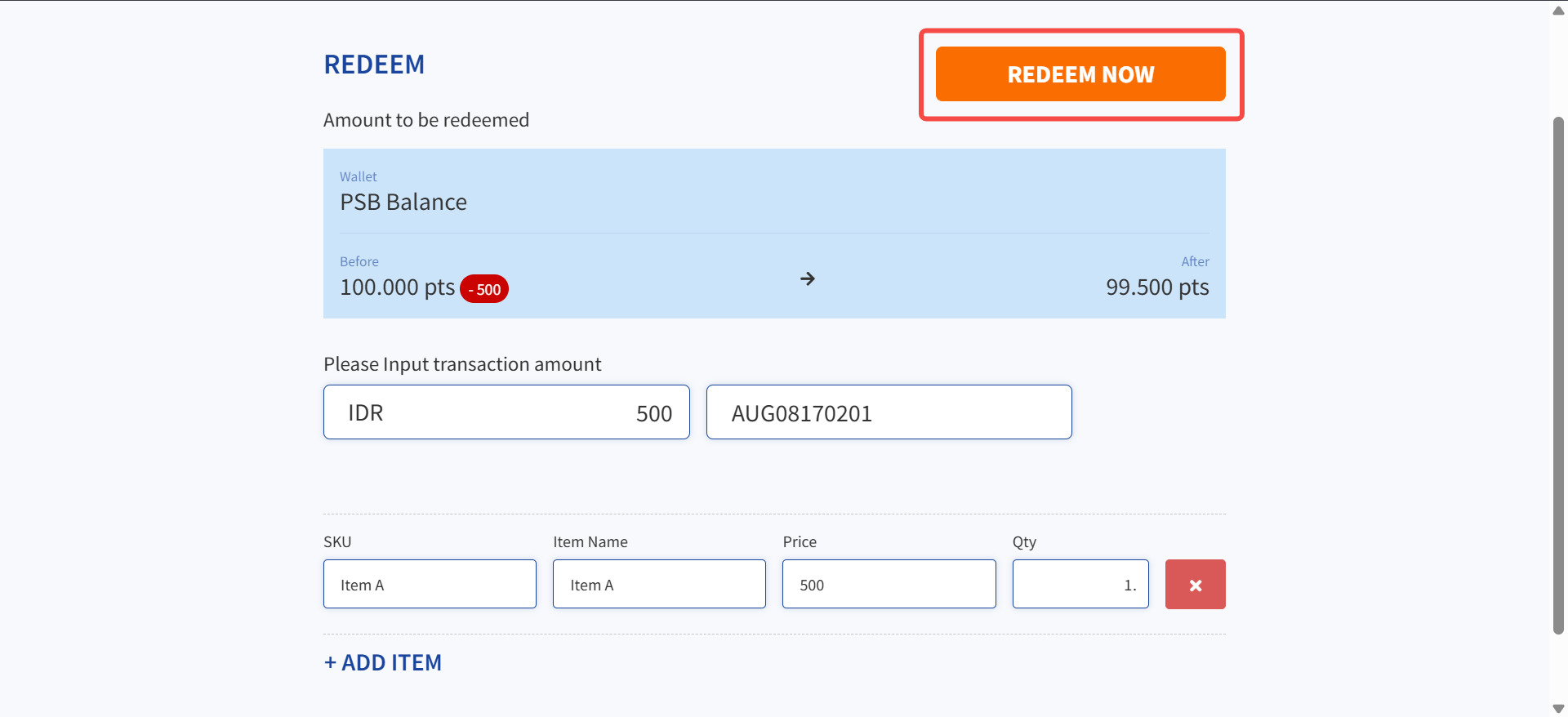 7. If the customer was searched using a phone number, enter the OTP sent to the customer’s phone number.
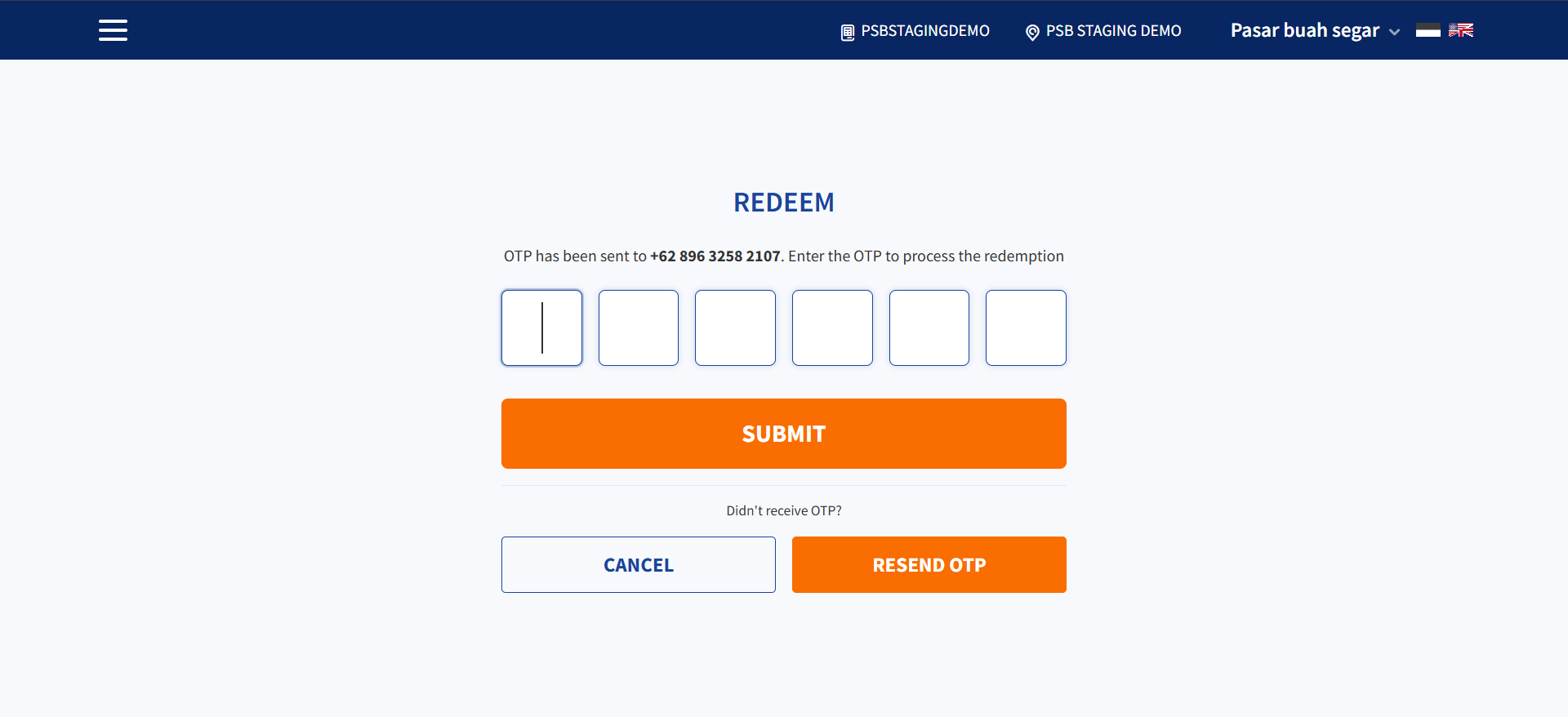 8. Submit the OTP to continue the transaction.
9. Once the redeem transaction is successful, you can upload the payment receipt and print the transaction.
10. Click Done to return to the main menu.
How to Redeem E-Voucher
1. Click Redeem on the main menu.
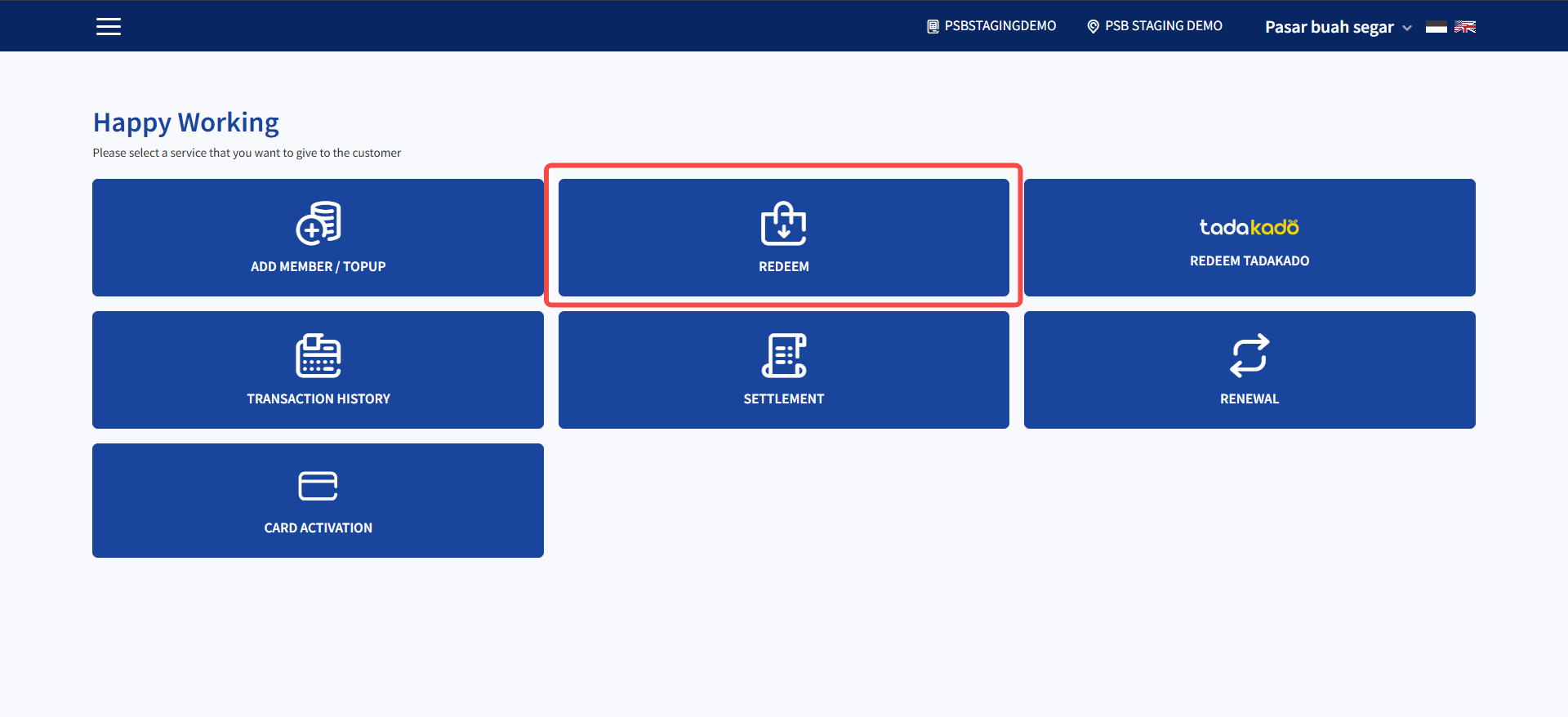 2. Select e-Voucher Code.
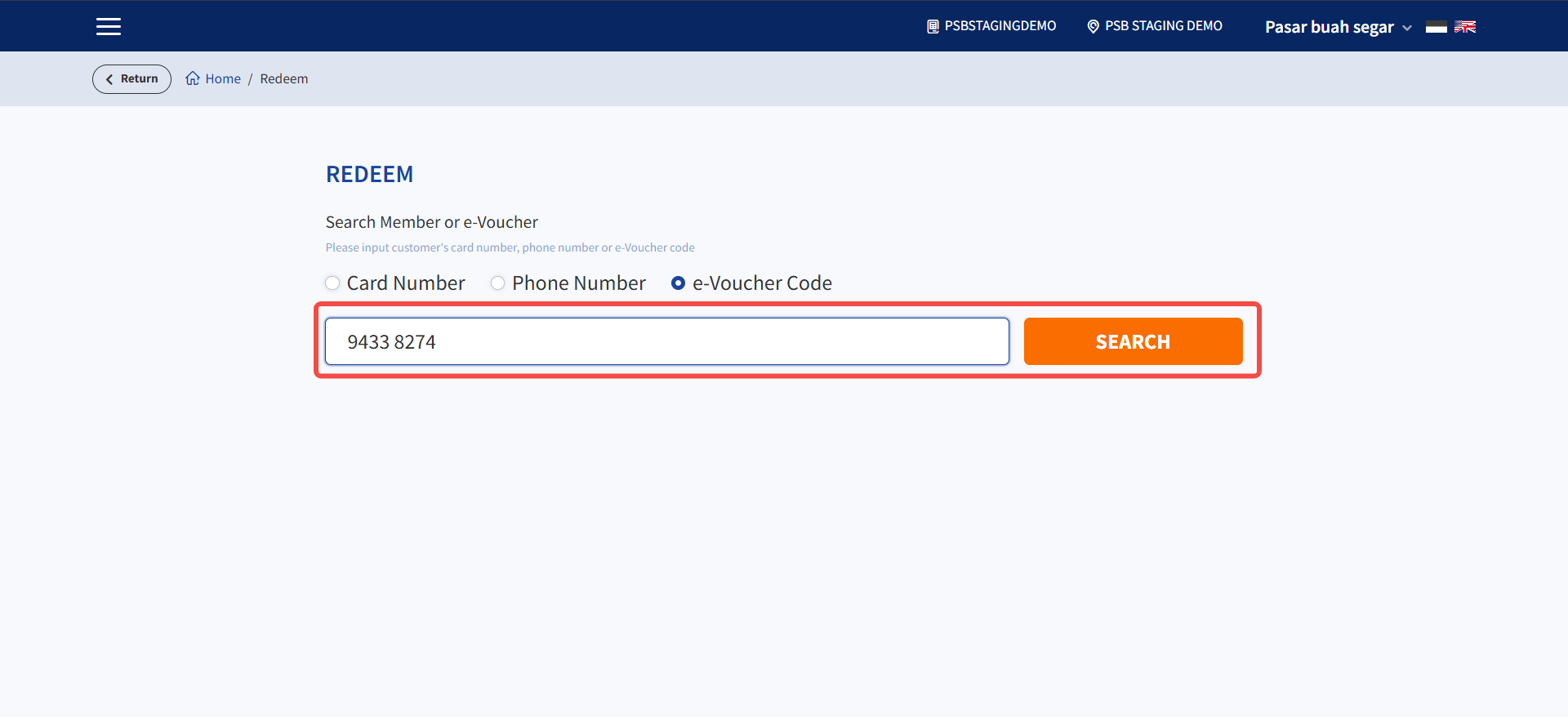
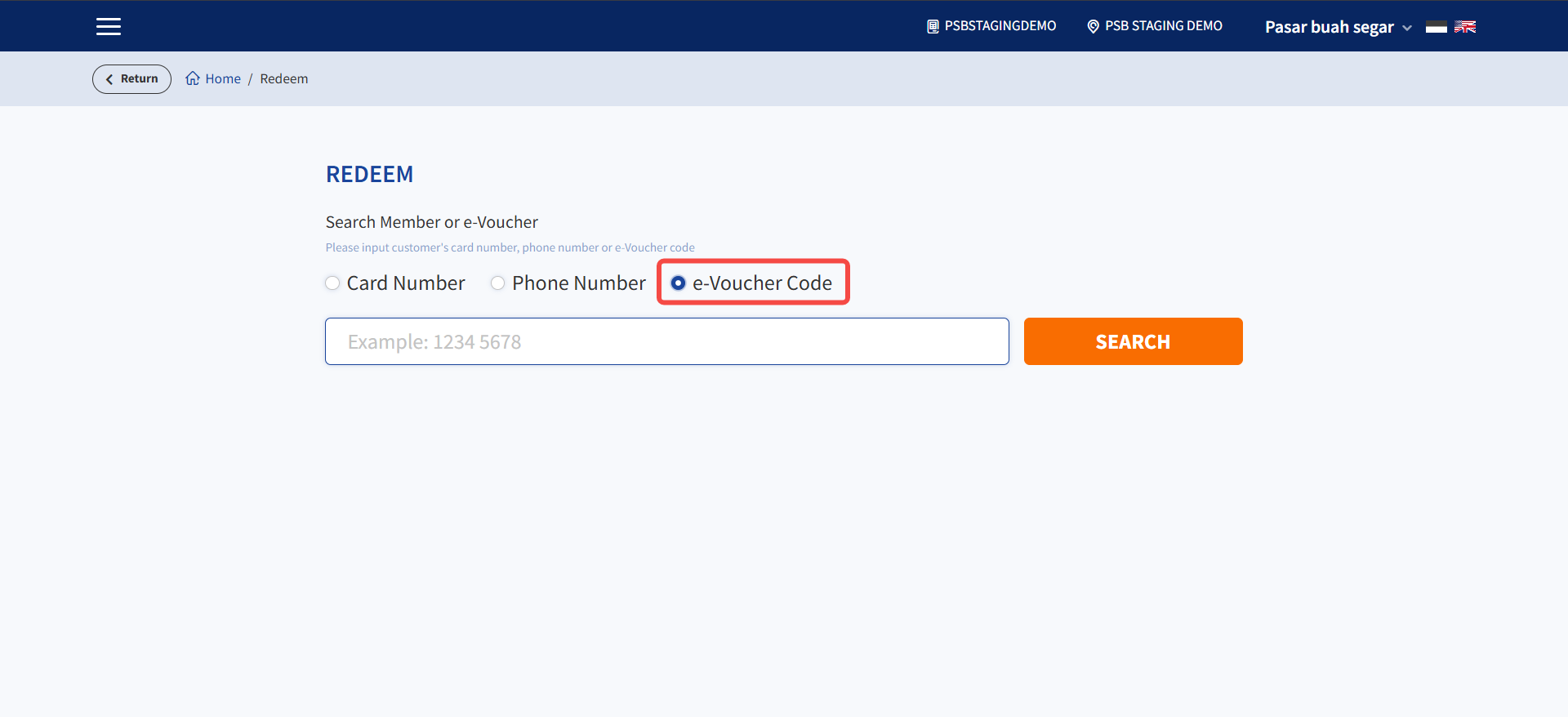 3. Enter the customer’s e-Voucher code, then click Search.
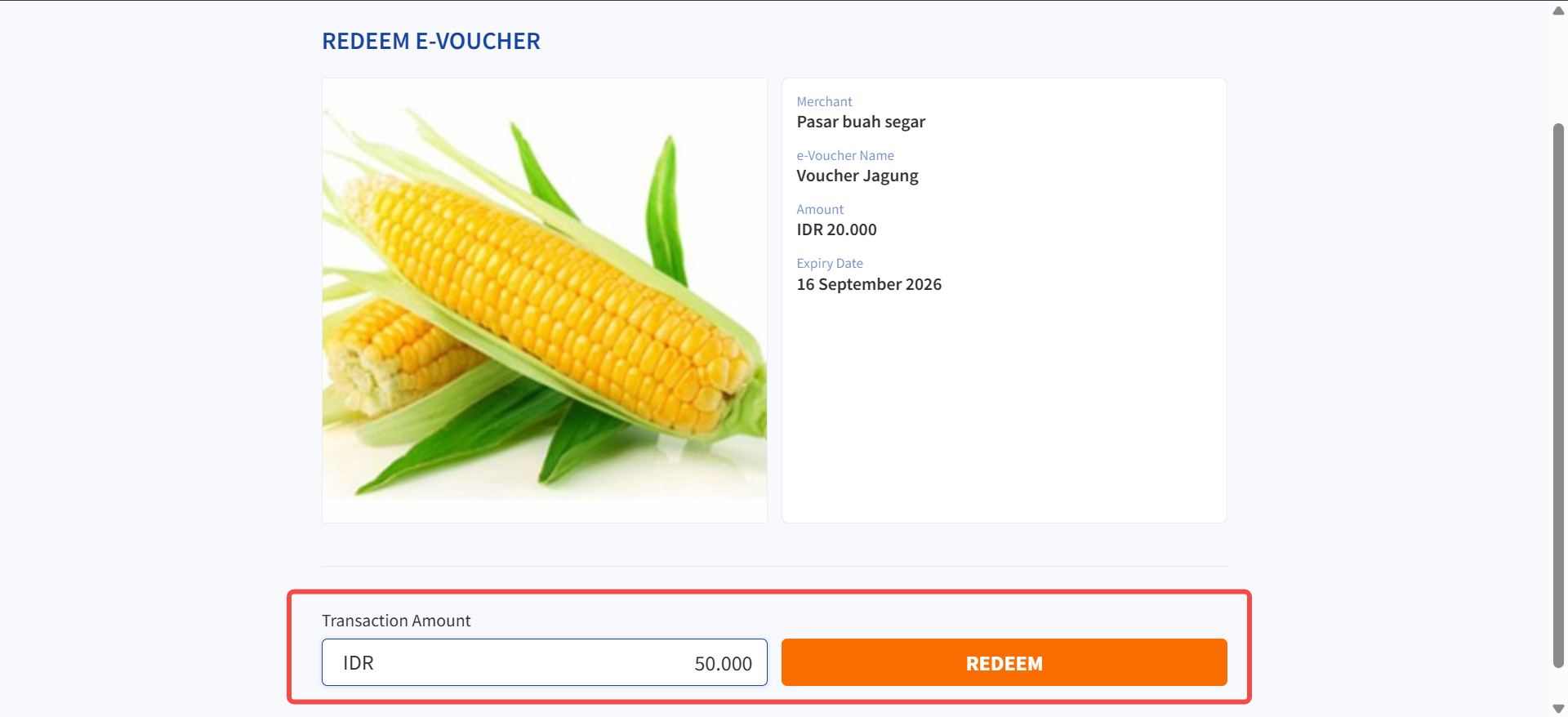
 4. Enter the transaction amount and click Redeem to use the e-Voucher.
 5. Once the redemption is successful, you can print the transaction.
6. Click Done to return to the main menu.
Note: Once an e-Voucher has been redeemed, its status will become Expired.
How to View Transaction History
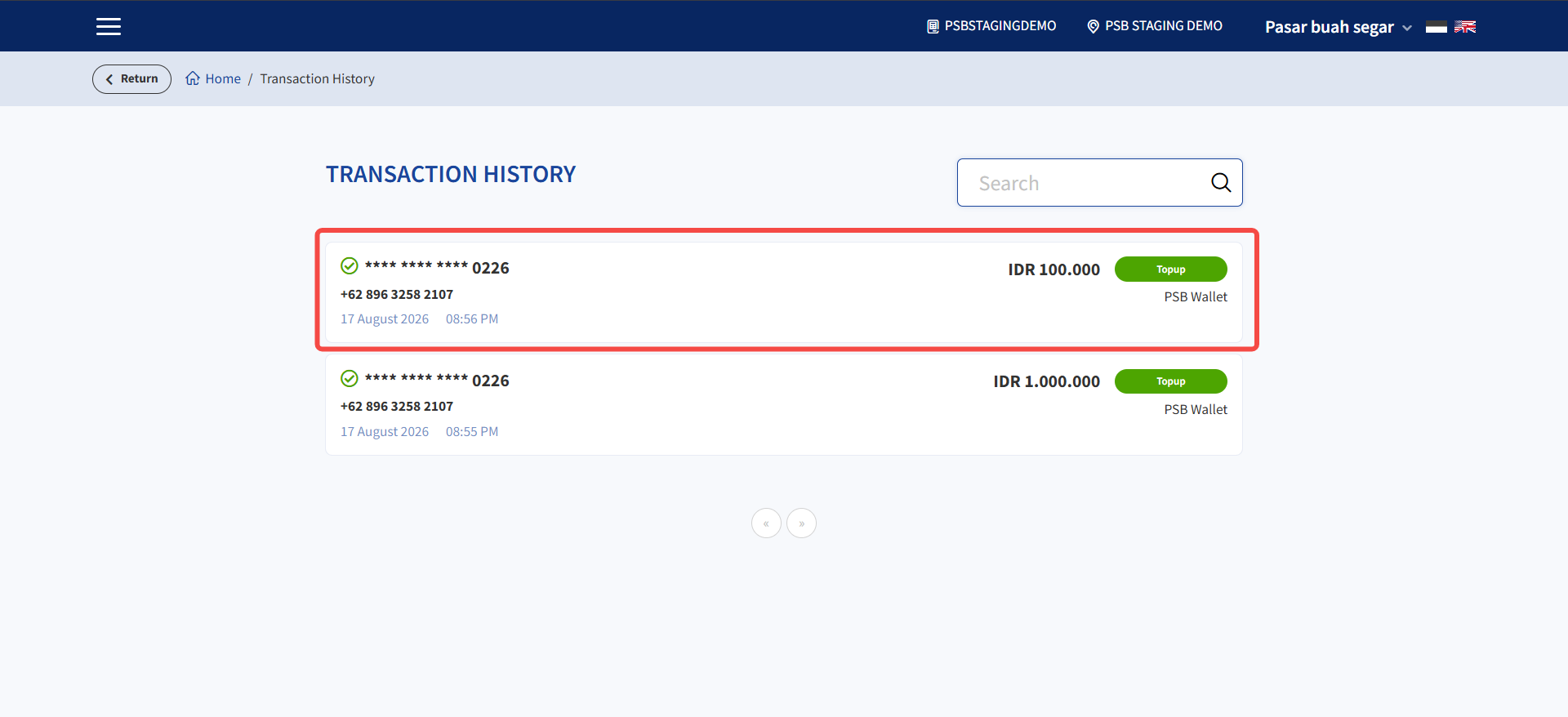
1. Click Transaction History on the main menu.
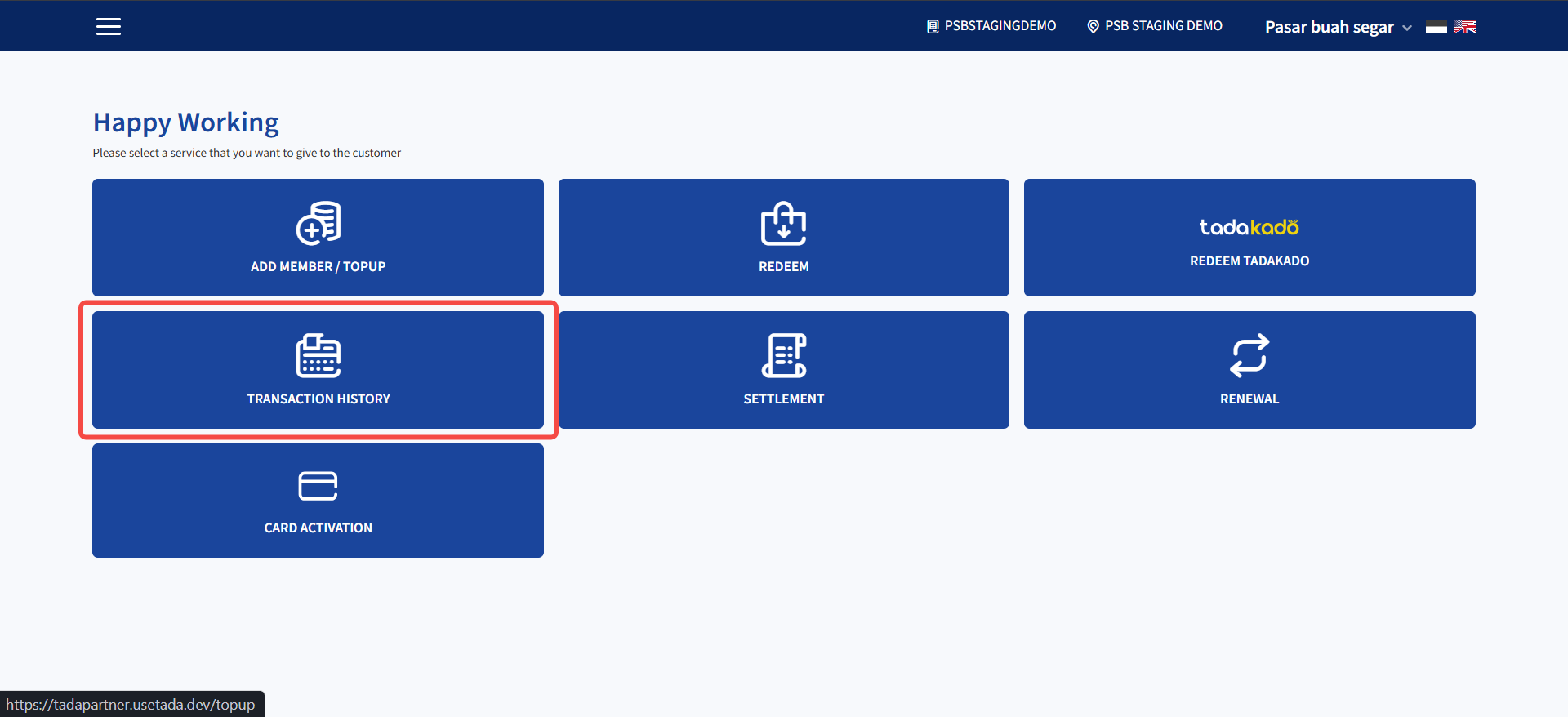 2. Select the transaction that you want to view.
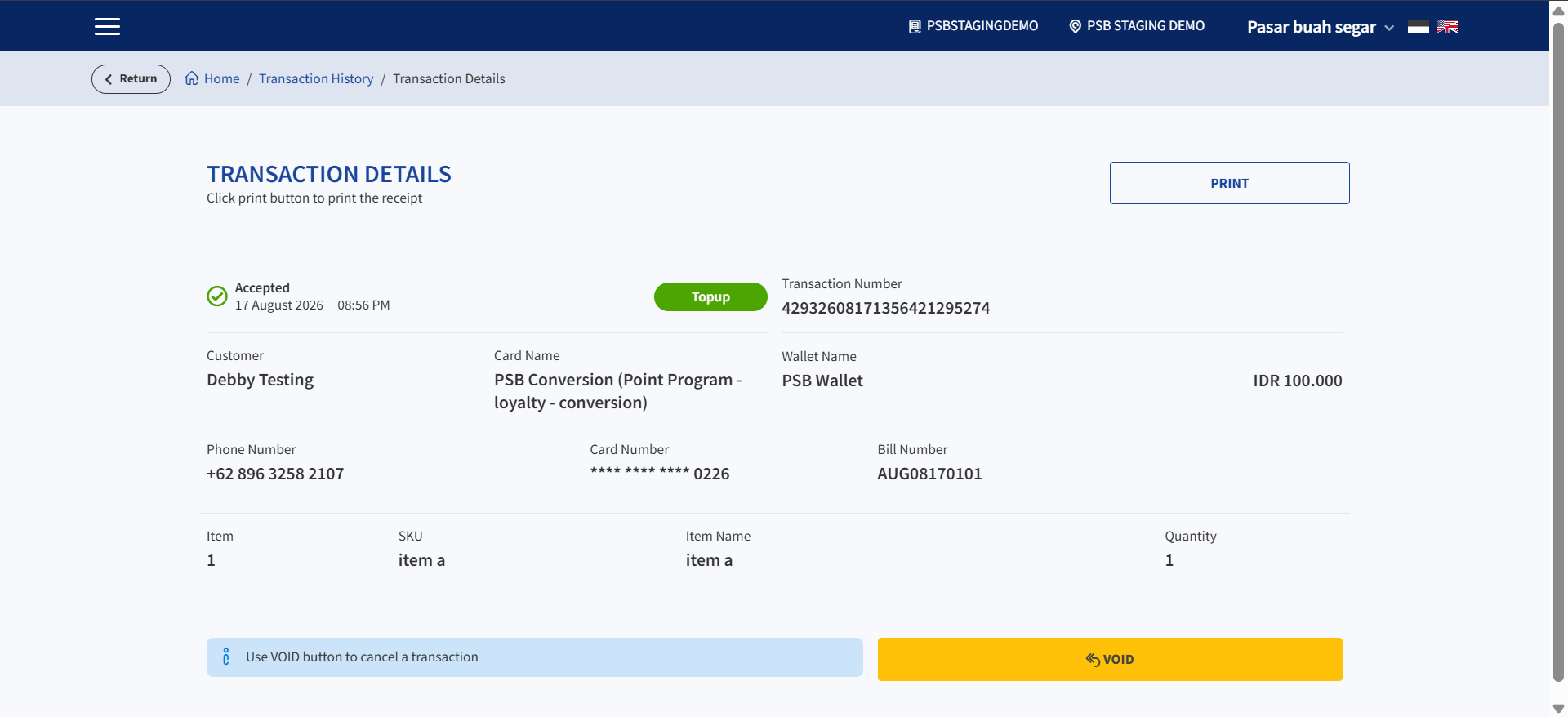
 3. The transaction details will be displayed on the screen.
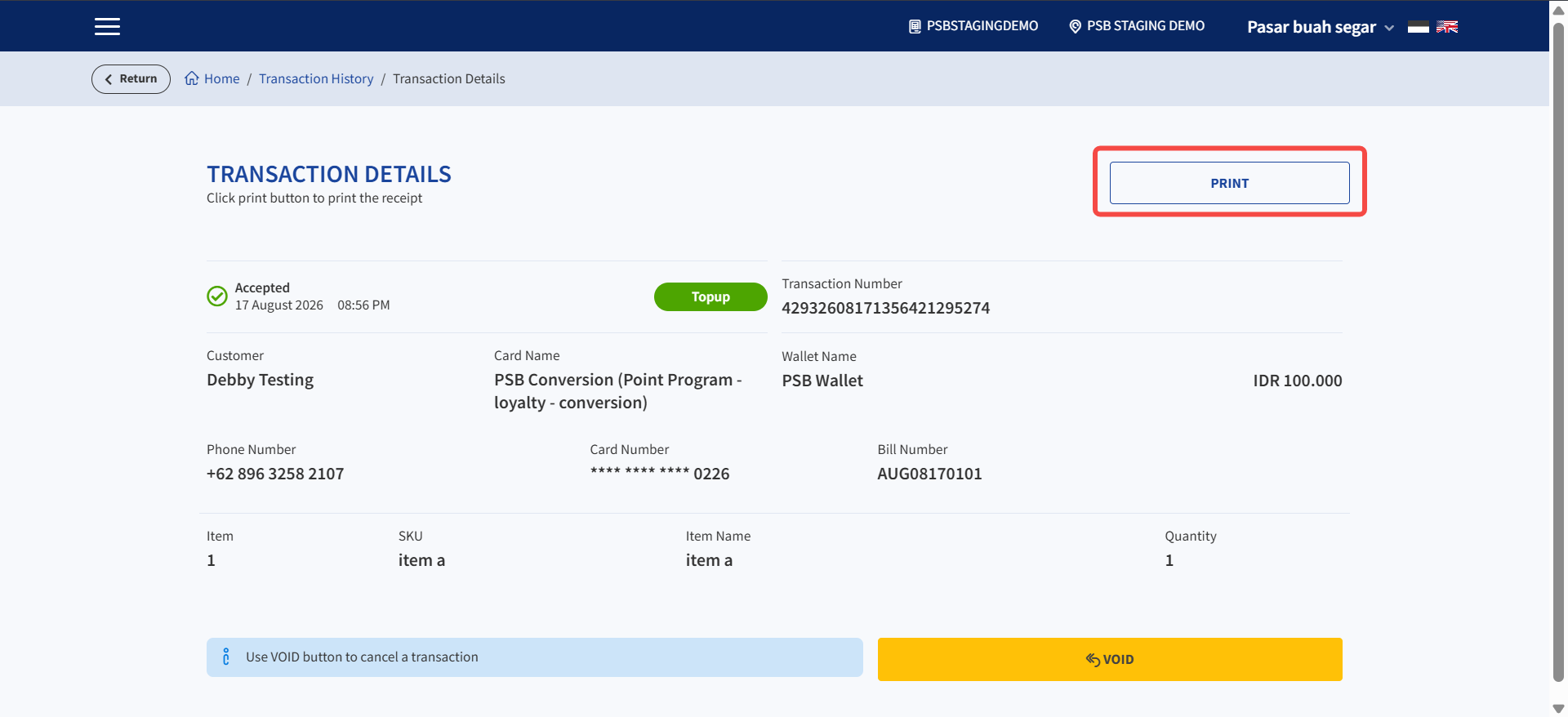
 4. Click Print if you want to print the transaction details.
How to Process Settlement
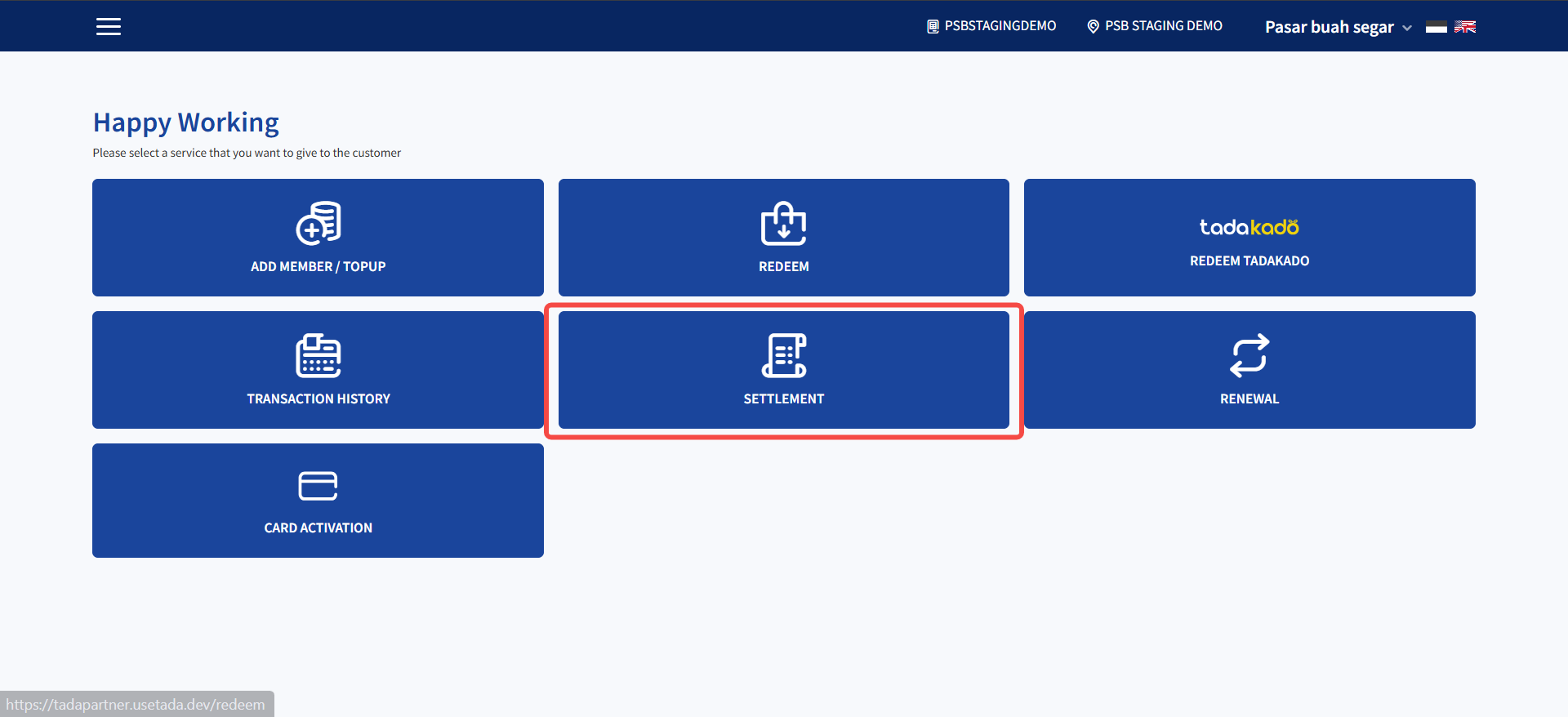
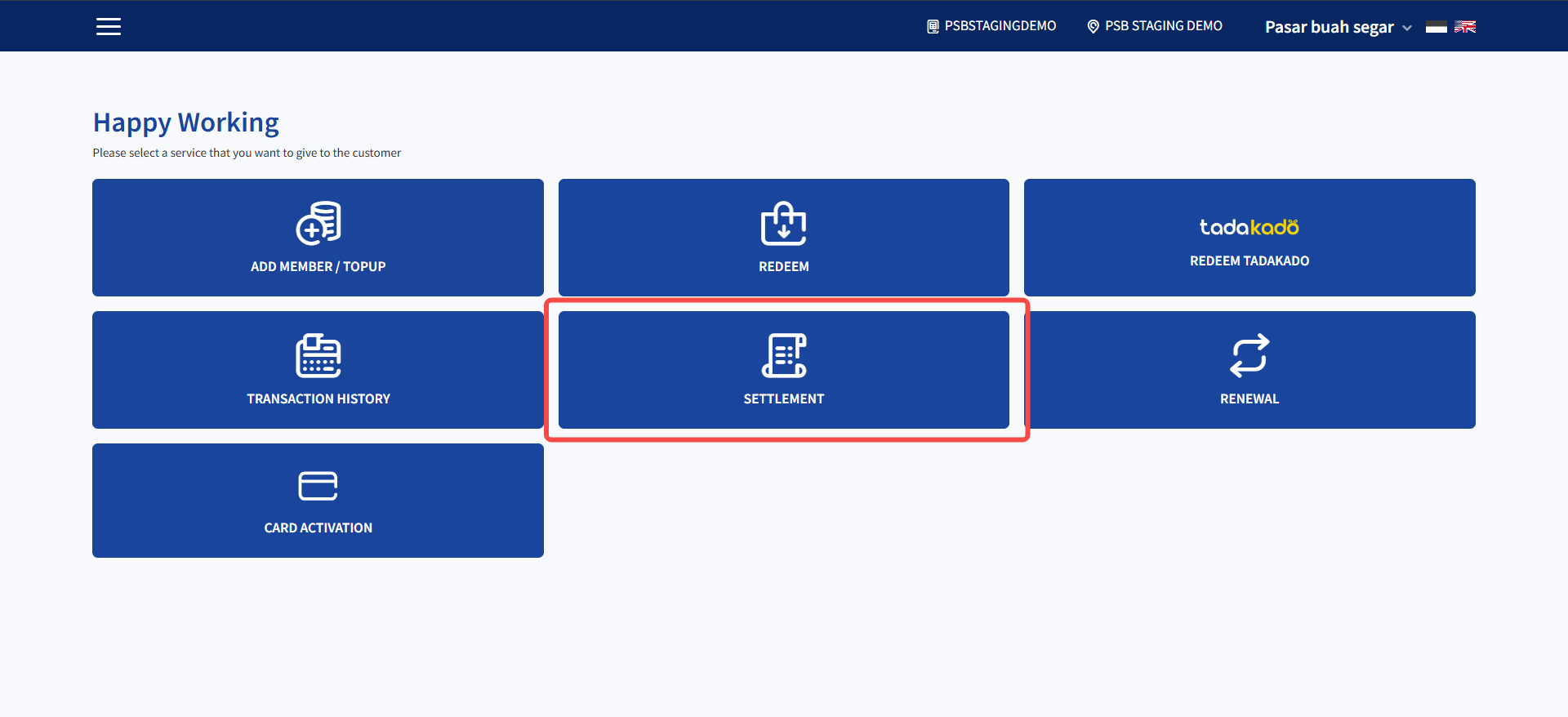
1. Click Settlement on the main menu.
 2. Review the settlement summary displayed on the page.
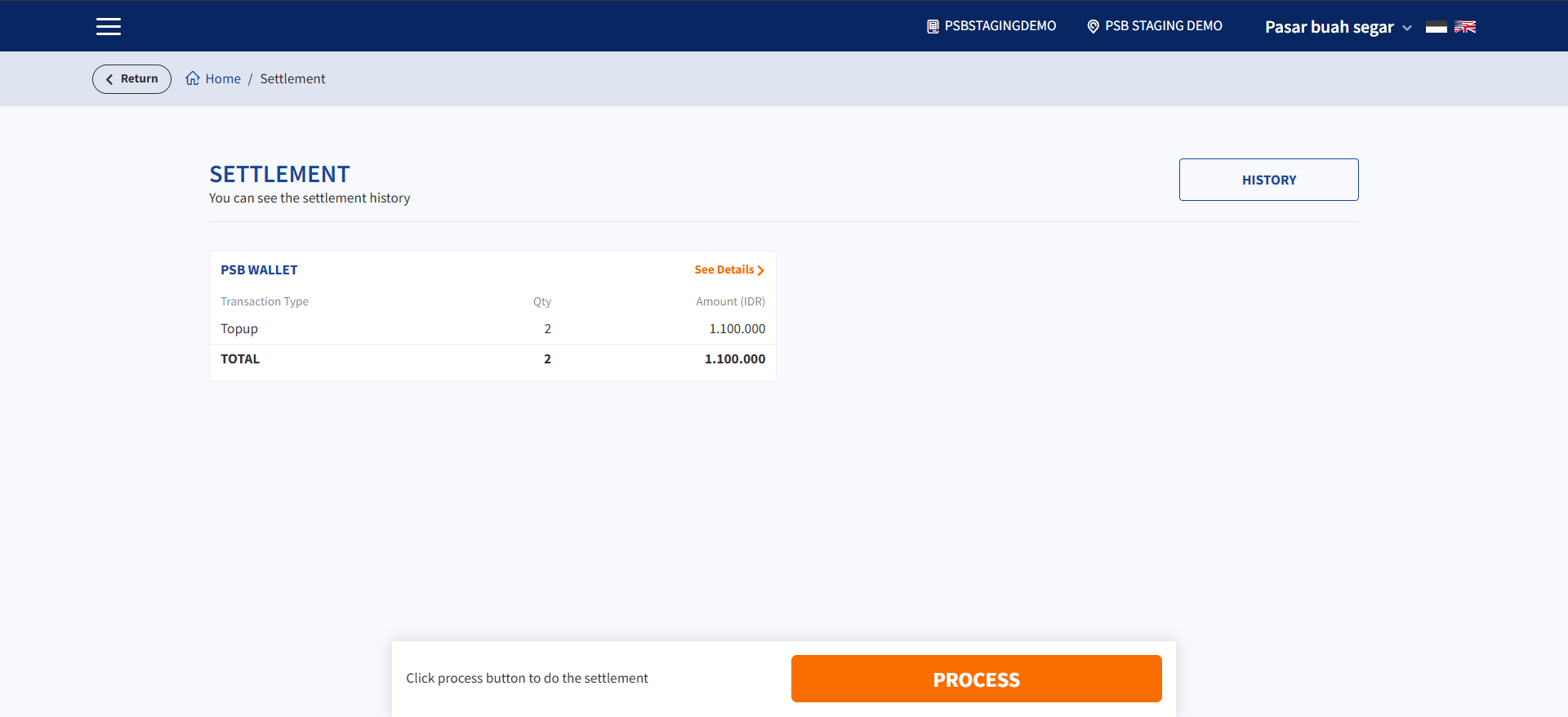 3. Click Process to start the settlement.
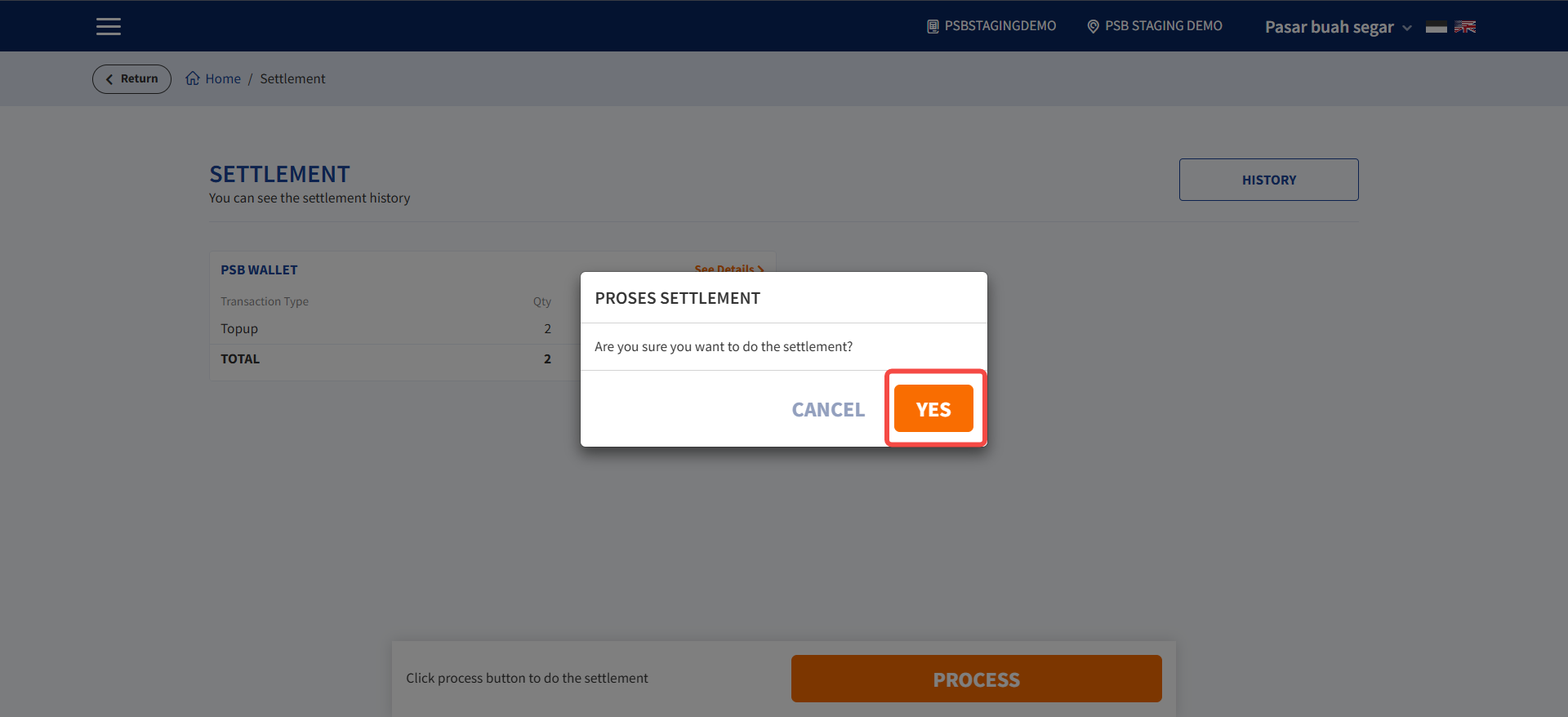
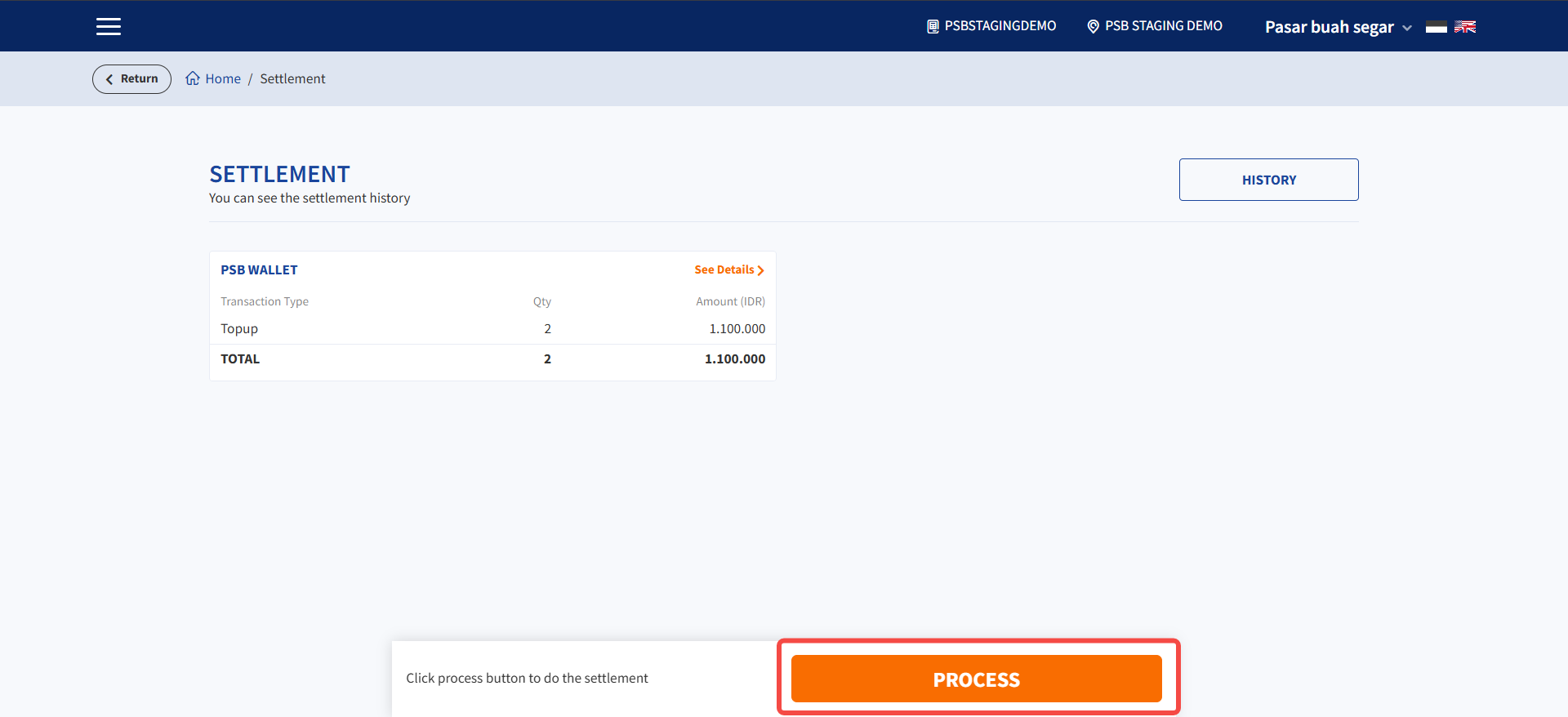 4. Click Yes to confirm and complete the settlement process.
How to View Settlement History
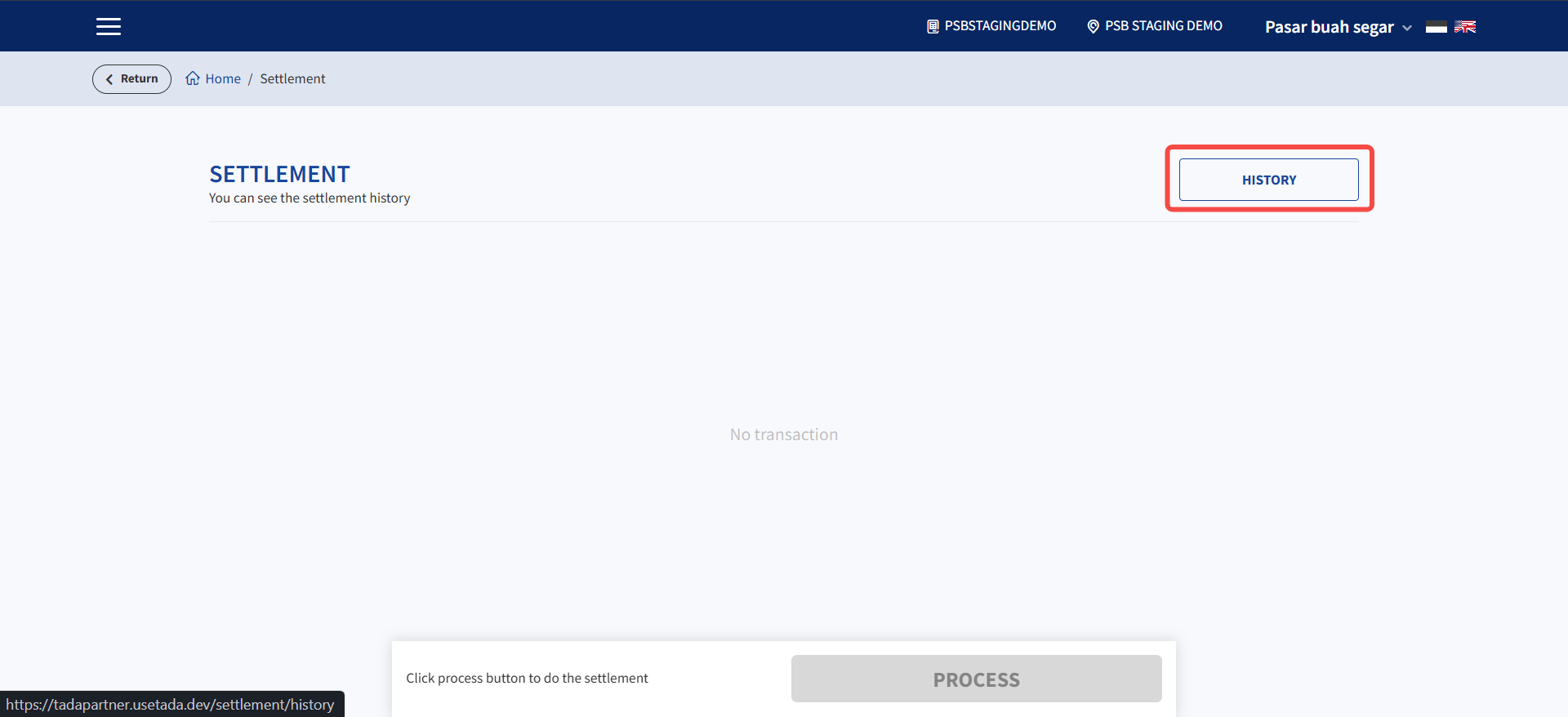
1. Open the Settlement page.
 2. Click History.
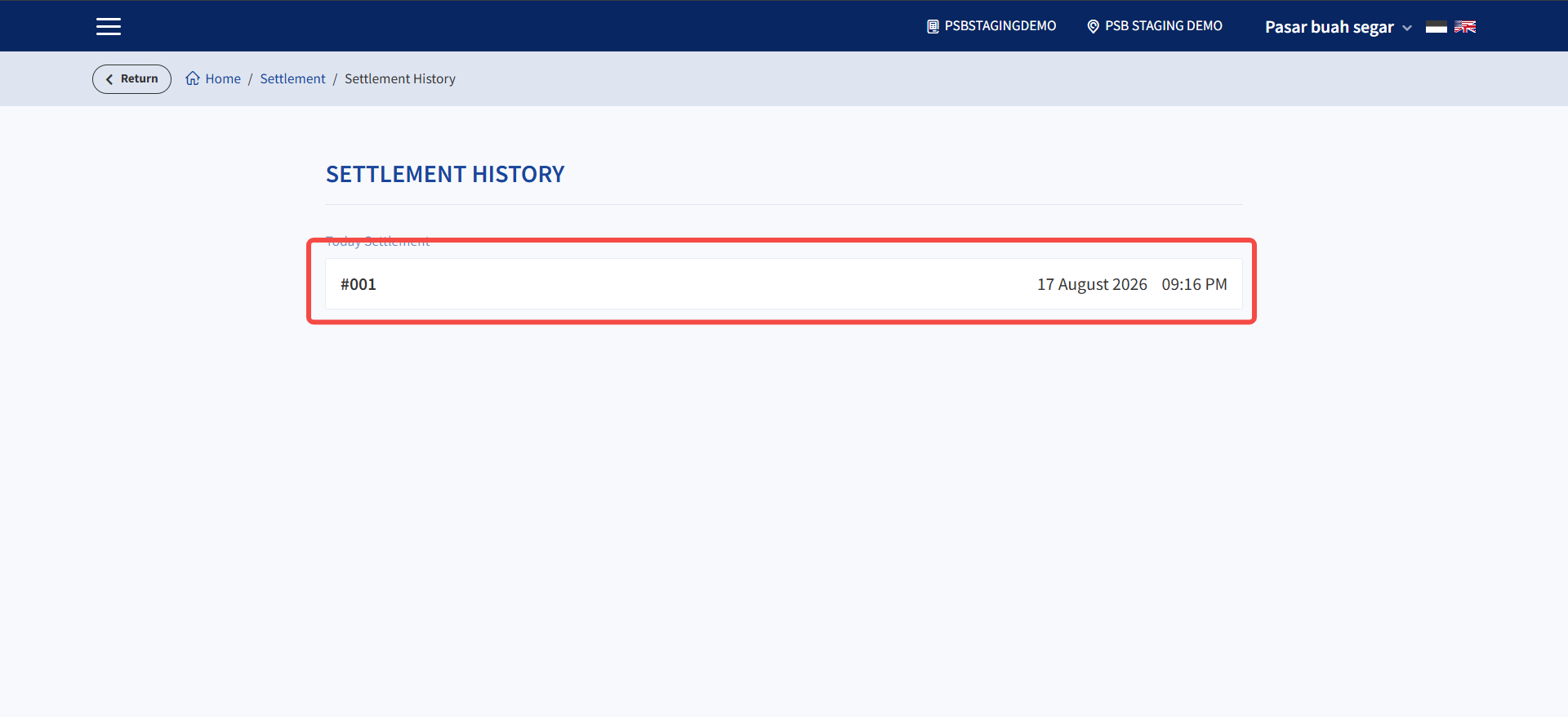
 3. Select the settlement record that you want to view.
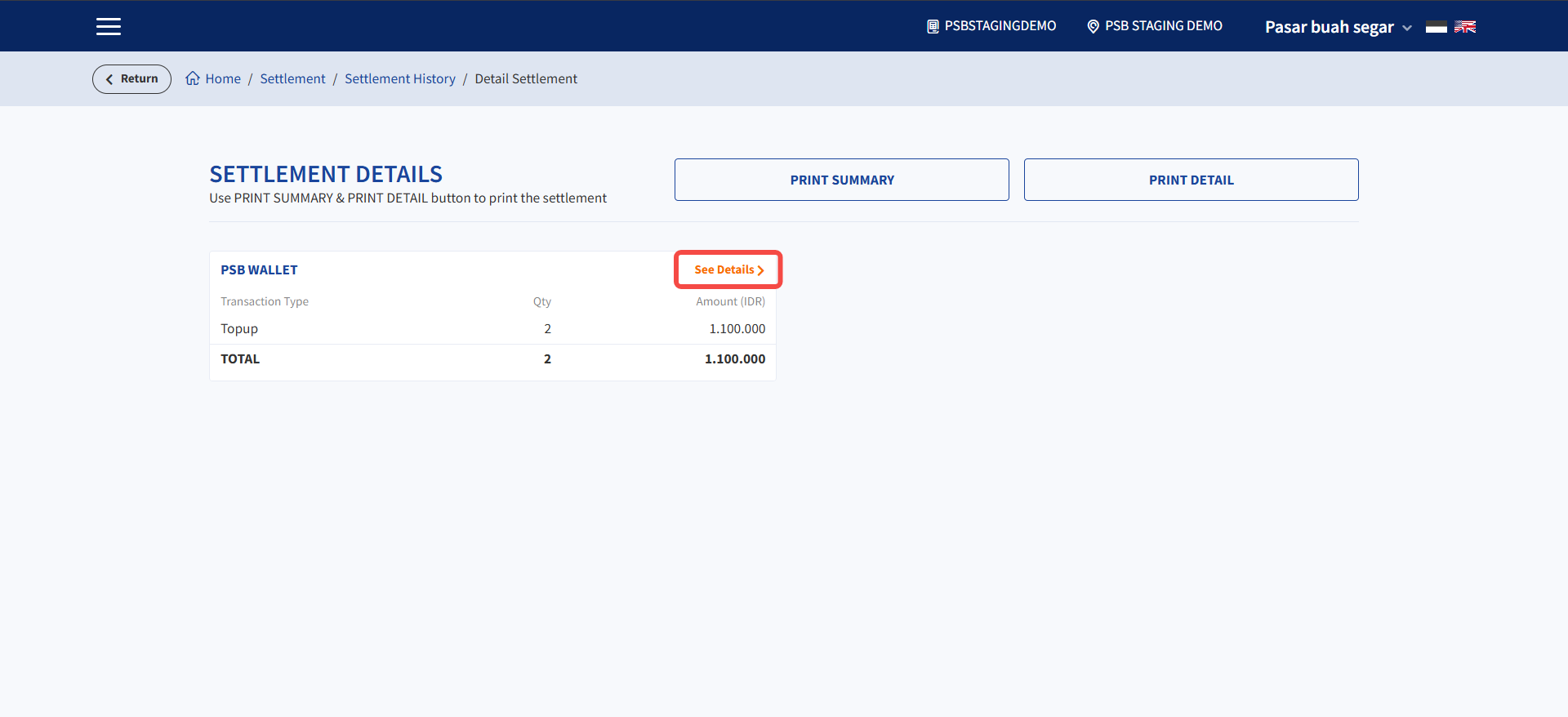
 4. Review the settlement details.
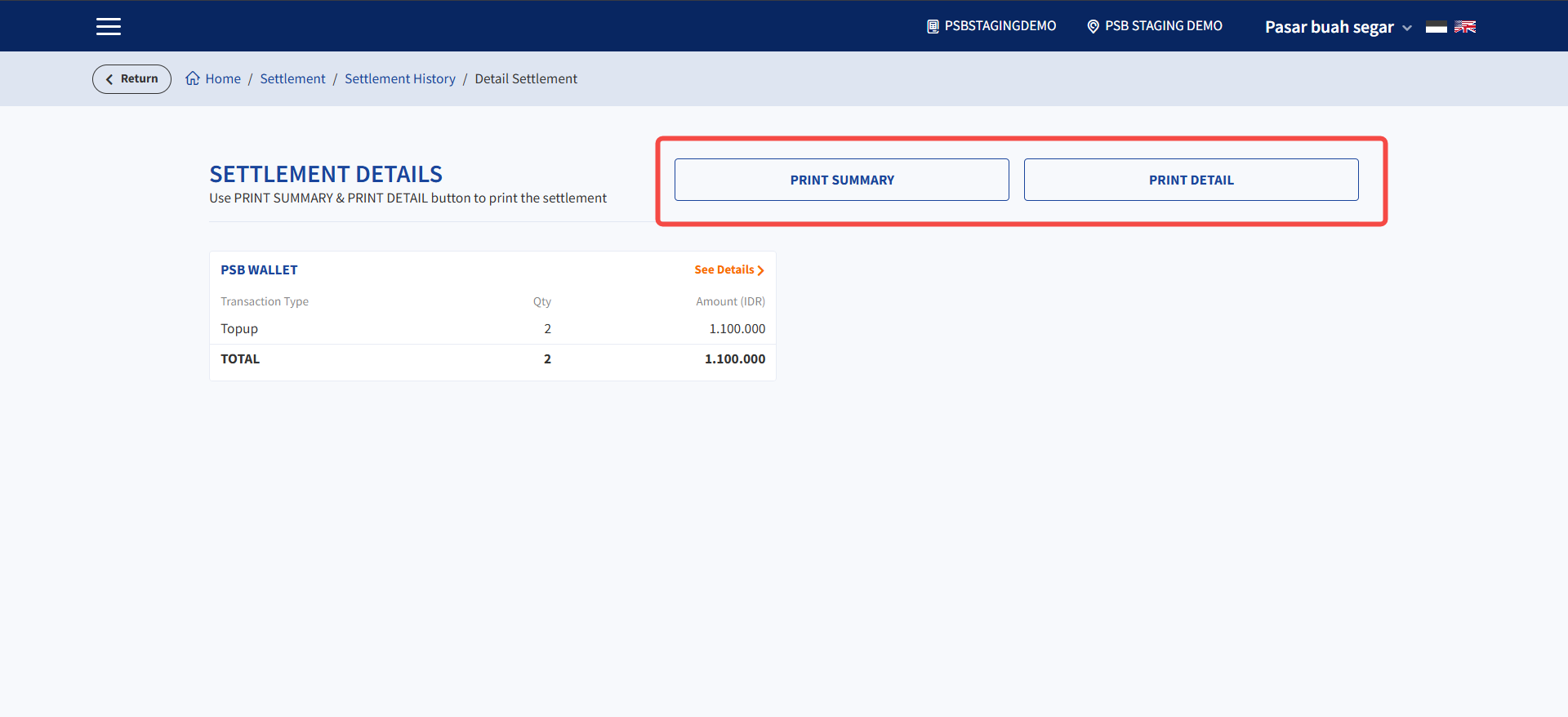
 5. Click Print Summary to print the settlement summary, or Print Detail to print the detailed settlement transactions.
How to Void a Transaction
1. Click Transaction History on the main menu.
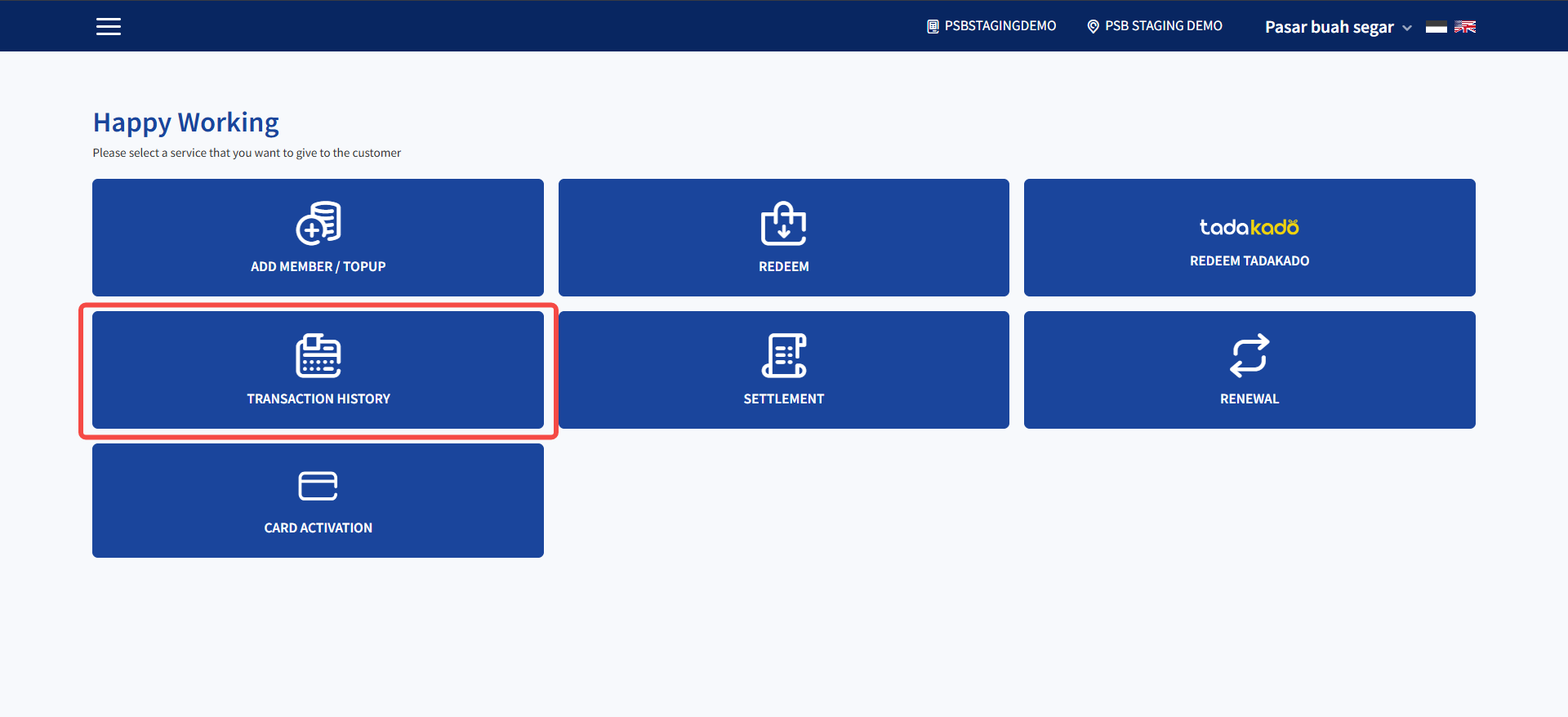 2. Select the transaction that you want to void.
3. Open the transaction details.
4. Click Void.
5. Enter the Manager PIN.
6. Click OK.
7. The transaction status will be updated to Void once the process is successful.
Note: The Void function is only applicable to Redeem transactions.