
Bulk Top Up
The Bulk Top Up menu is used to add wallet balances to multiple members at once using phone numbers, User IDs, or card numbers as the primary identifier. This feature helps merchants distribute rewards in bulk more quickly and efficiently. Merchants can also enable the checker maker feature to increase security during the bulk top up approval process.
How to Perform a Bulk Top Up
1. Open the “Bulk Top Up” menu.
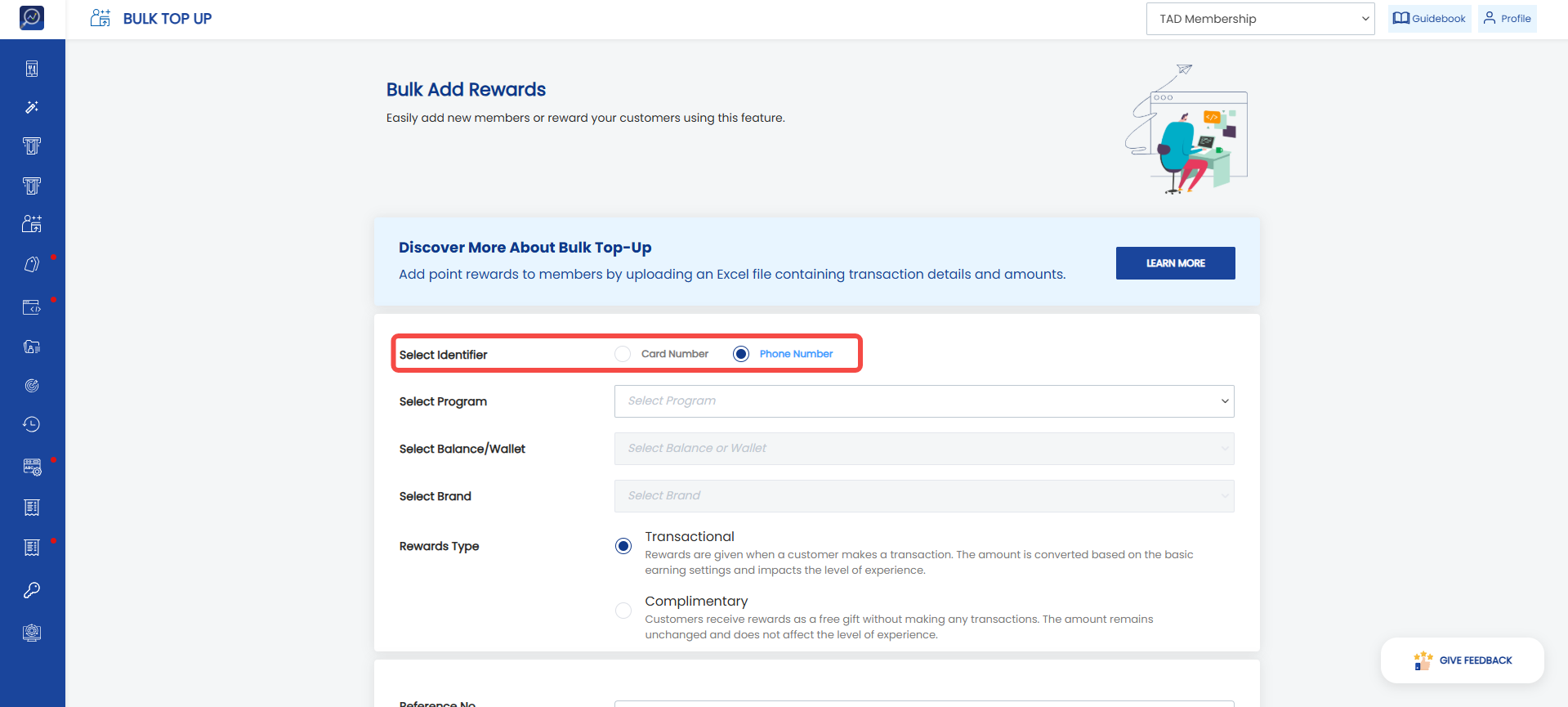
2. If the brand wants to perform a bulk top up using phone numbers or user numbers (user IDs) as the primary identifier, click “Phone Number” or “User ID”. If the brand wants to perform a bulk top up using card numbers, click “Card Number”.
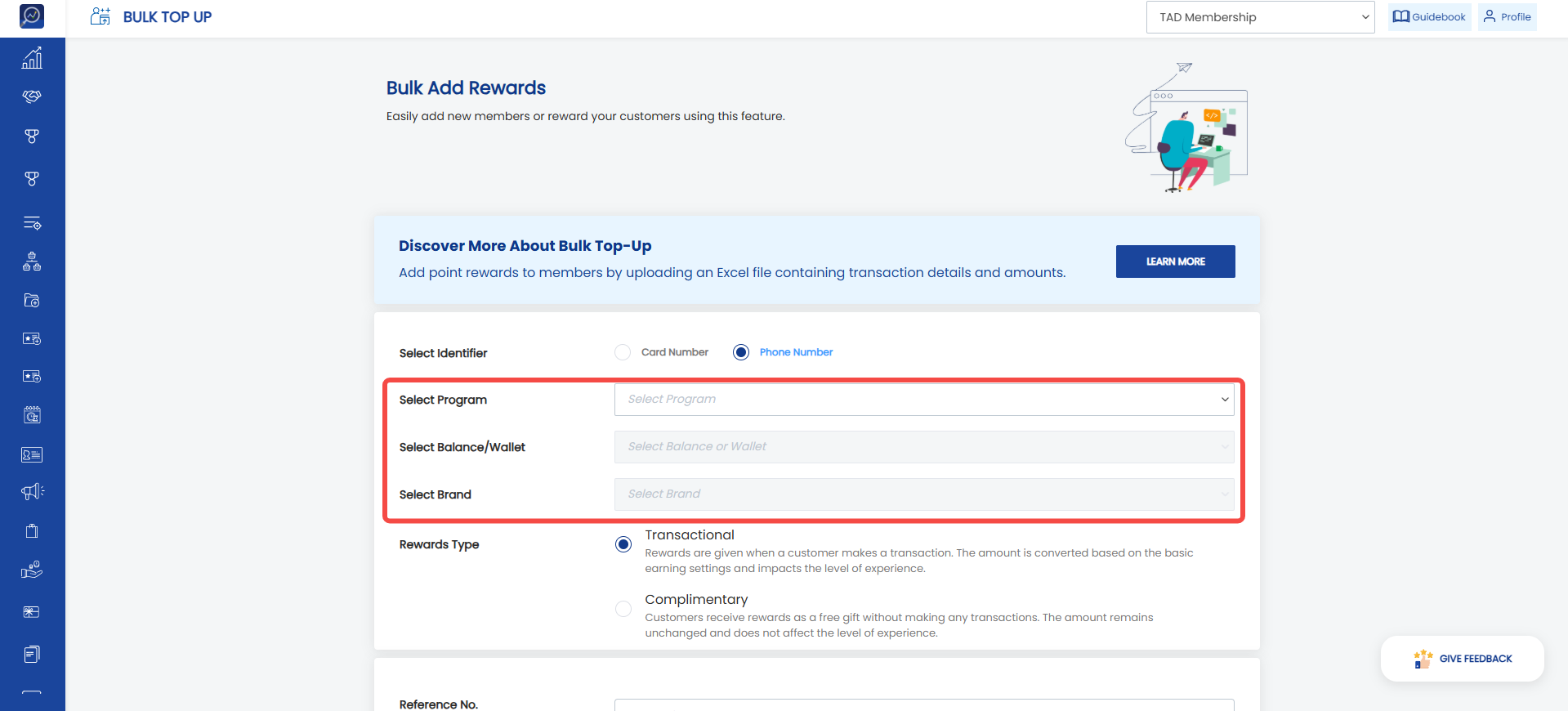
 3. Select the “Program” where members will be added / topped up.
4. Select the “Balance/Wallet” that will be added / topped up.
5. Select the “Brand” that will be added / topped up.
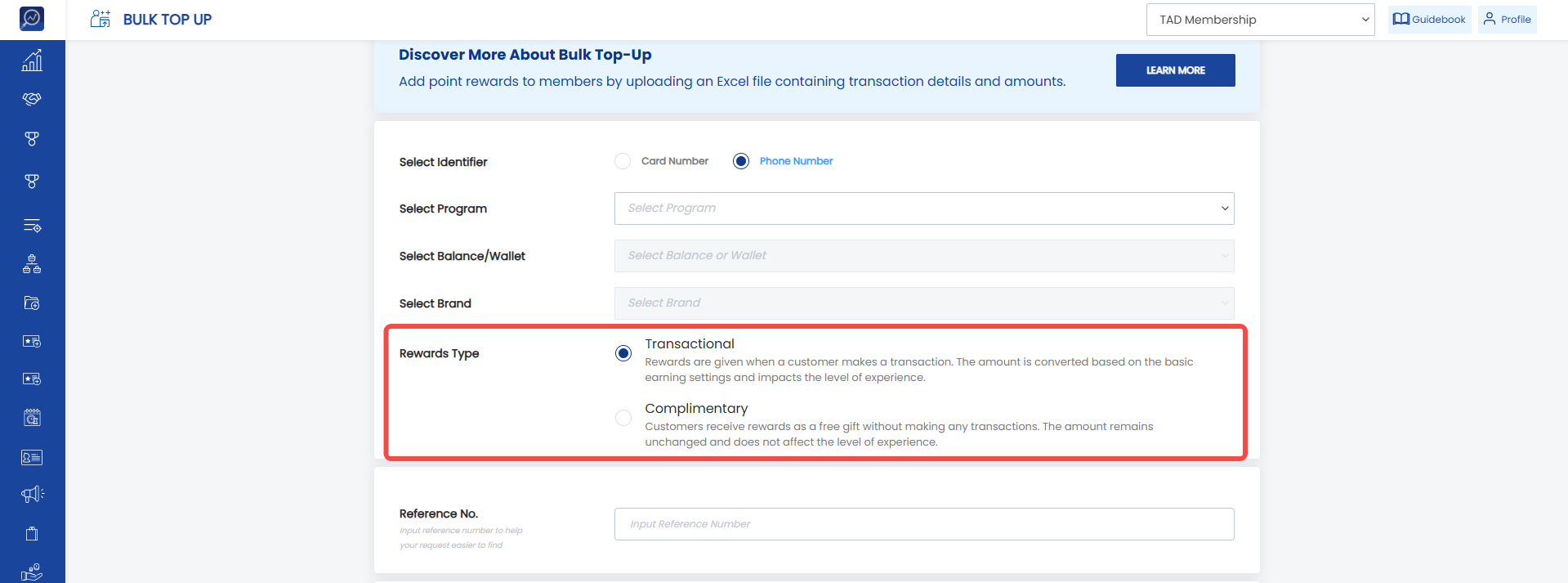
 6. Selecting “Rewards Type”
- Transactional: Select this parameter if the balance/wallet amount is given because of a member transaction. The top up value will be calculated into the member’s revenue and total spending calculations.
- Complimentary: Select this parameter if the balance/wallet amount is given as a reward without any transaction made by the member. The top up value will not be calculated into the member’s revenue and total spending calculations.
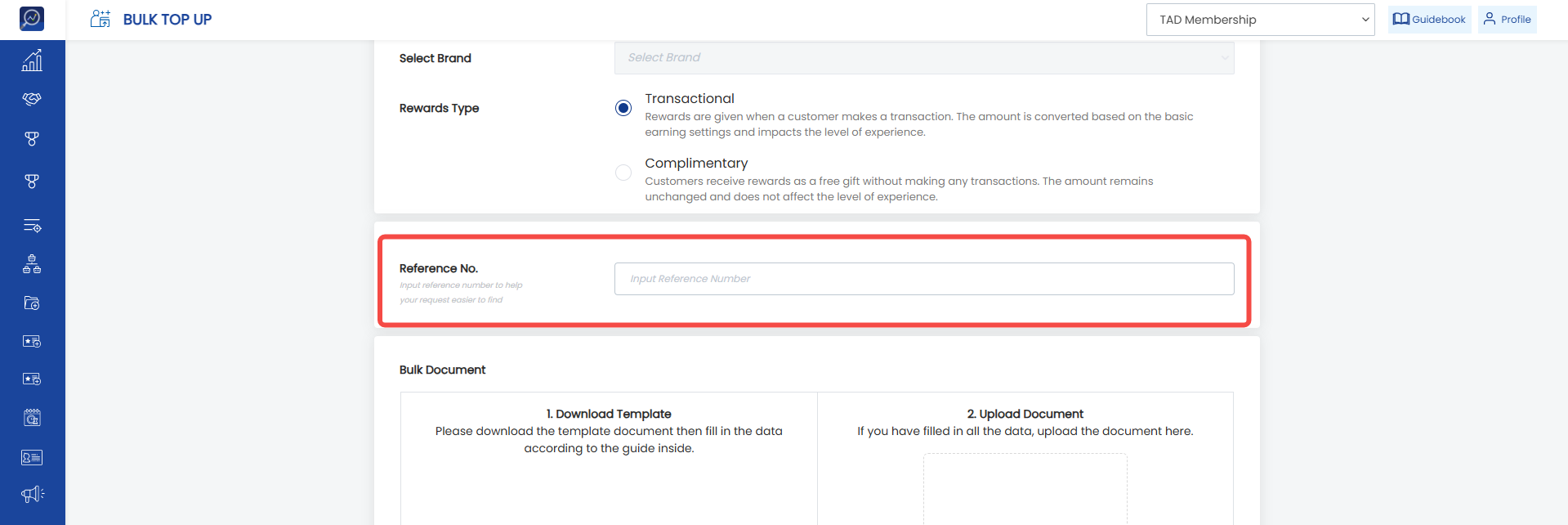
 7. Enter a reference number to simplify reconciliation in the “Reference No.” field.
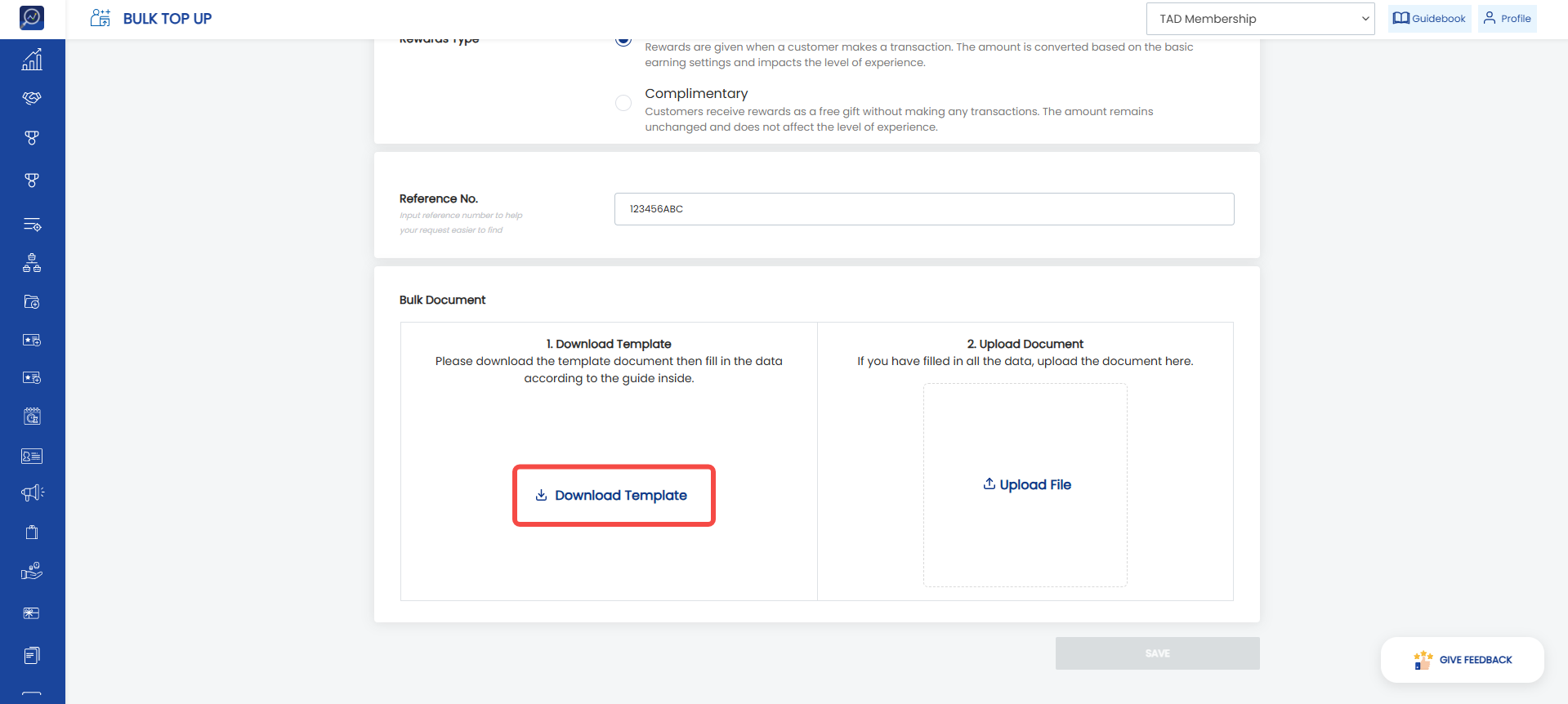
 8. Download the template by clicking “Download Template”. This template will be used to determine which members will receive the top up and the amount that will be granted.
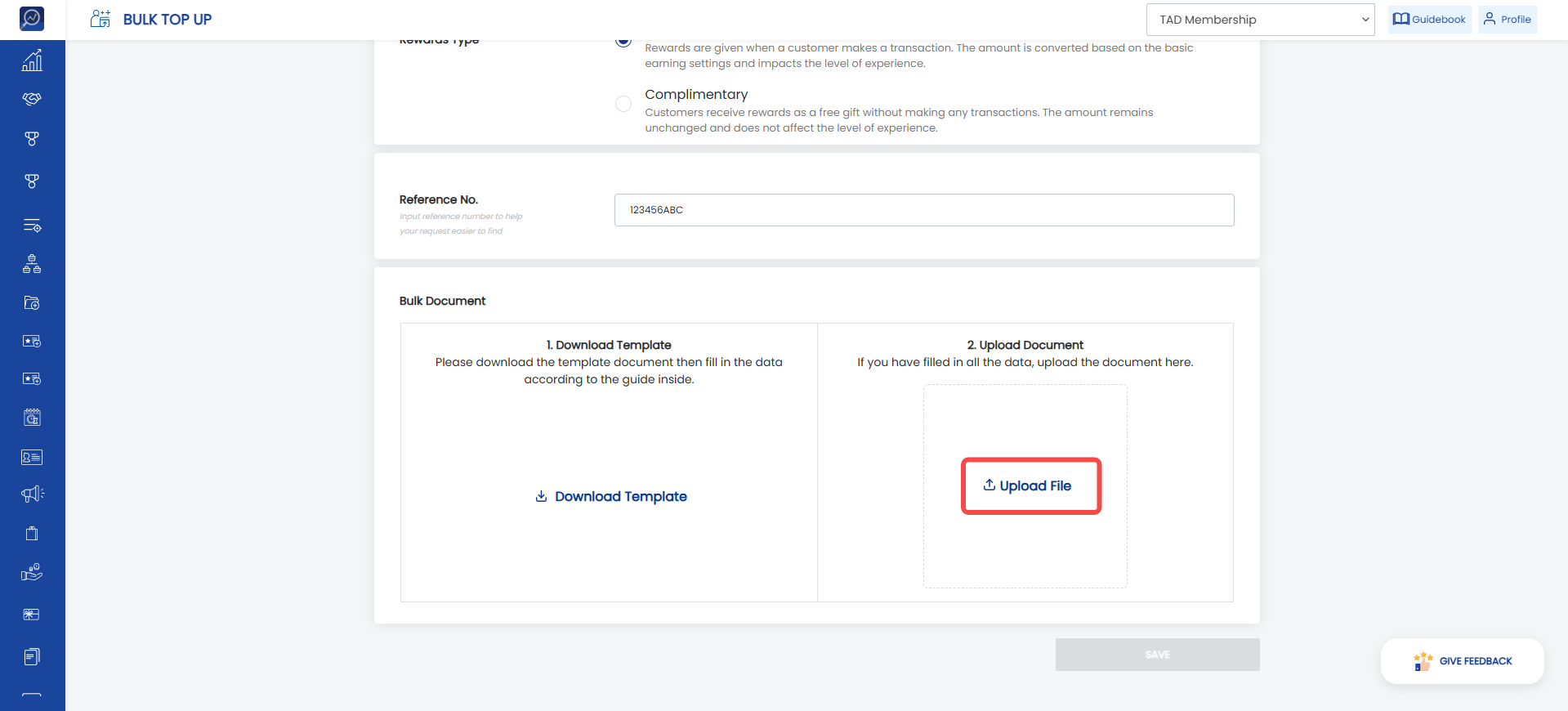
 9. After completing the template, upload it by clicking “Upload File”.
 10. Click “Save” to save the data.
How to Approve/Reject a Bulk Top Up Request
1. Open the “Bulk Top Up” menu, then select the “Request List” submenu.
2. Select the “Waiting For Approval” tab.
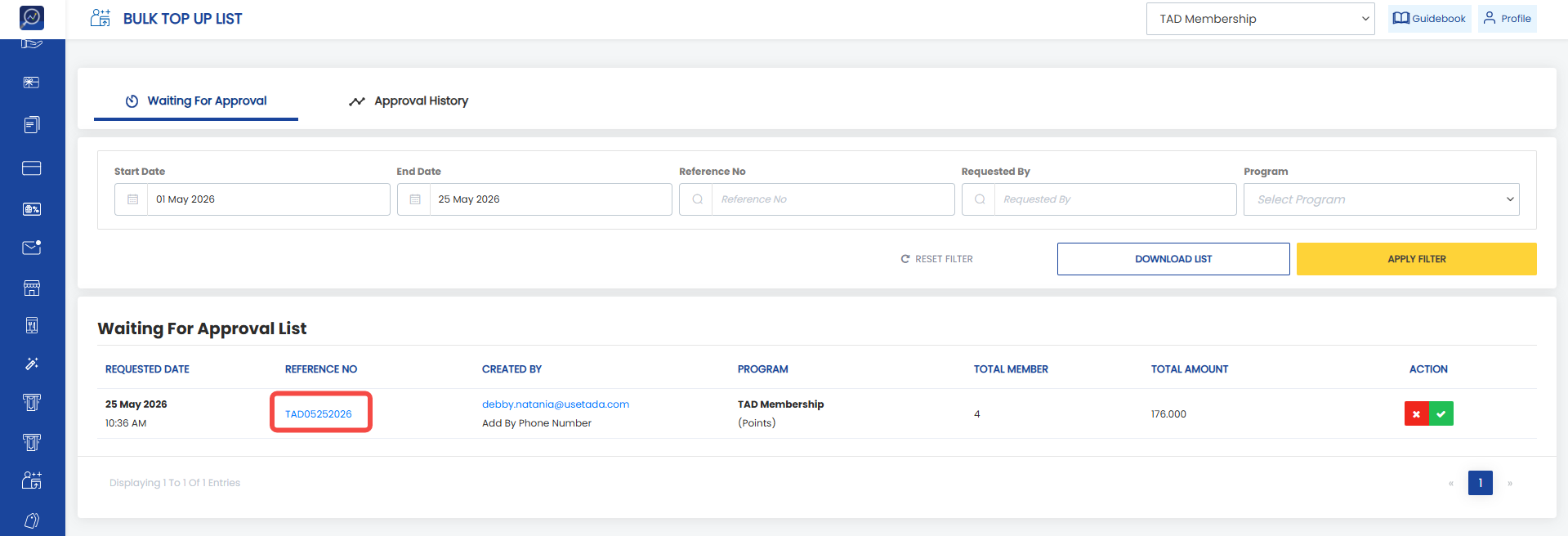
3. Click the reference number in the “Reference No” column.
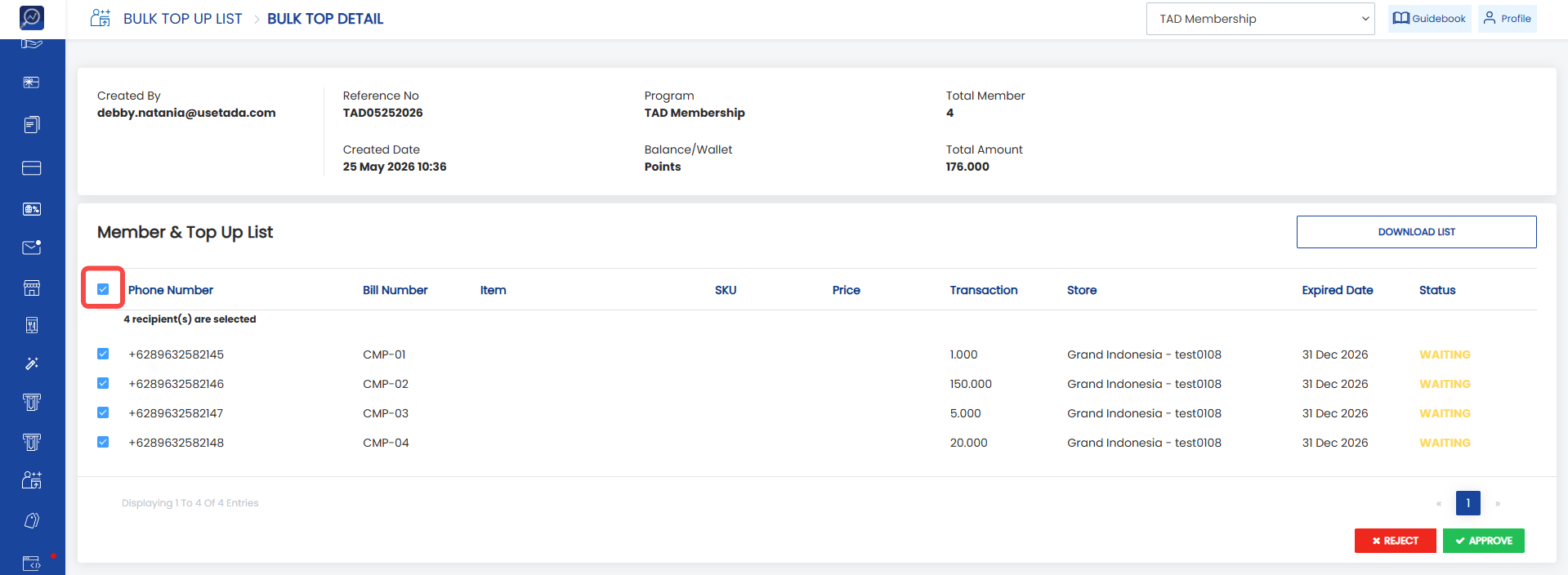
 4. Check the phone numbers/card numbers that will be approved/rejected.
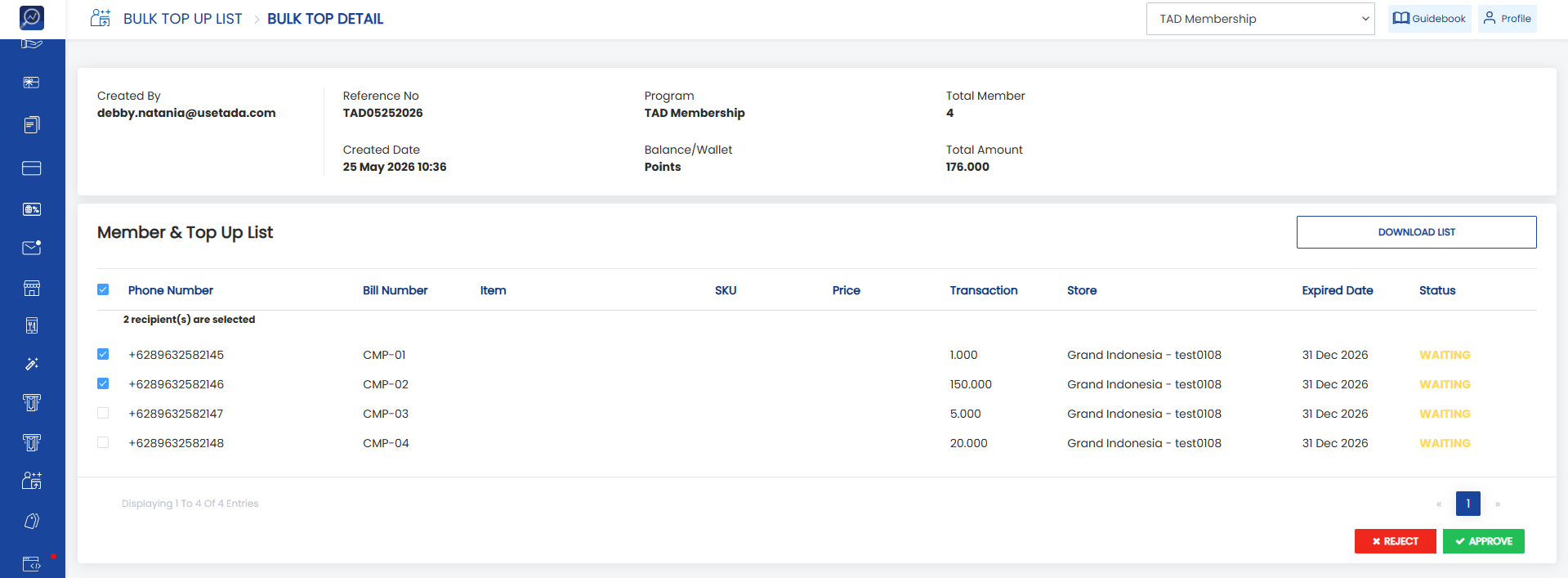 Note: Check the box in the column header to select all phone numbers/card numbers at once.
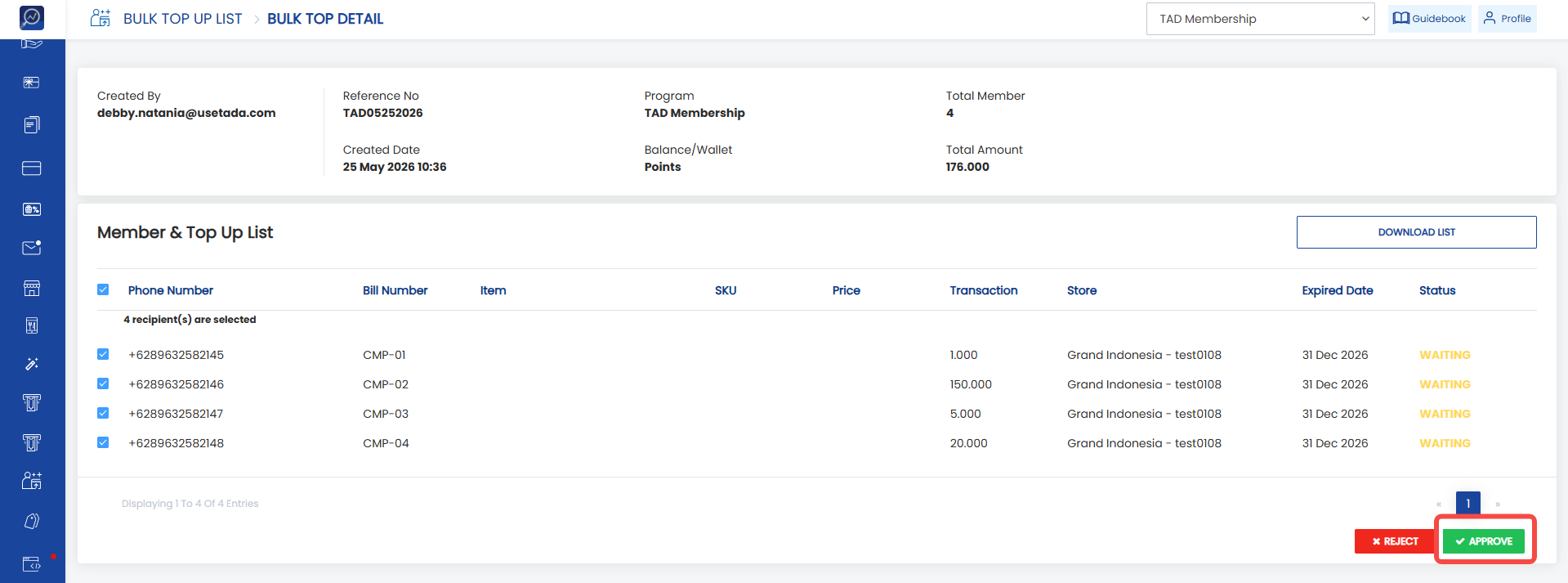
 5. To approve, click “Approve”.
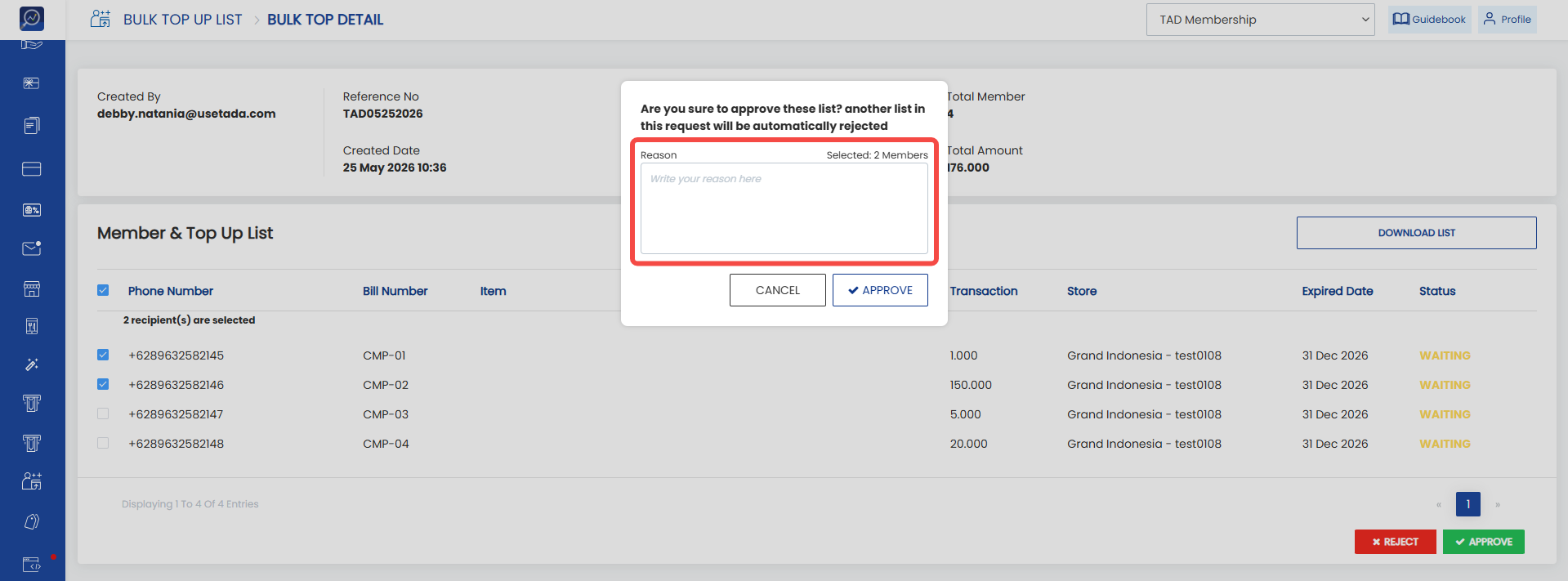
 6. Fill in the reason in the “Reason” field. If there are phone numbers/card numbers that are not selected, those phone numbers/card numbers will automatically be rejected.
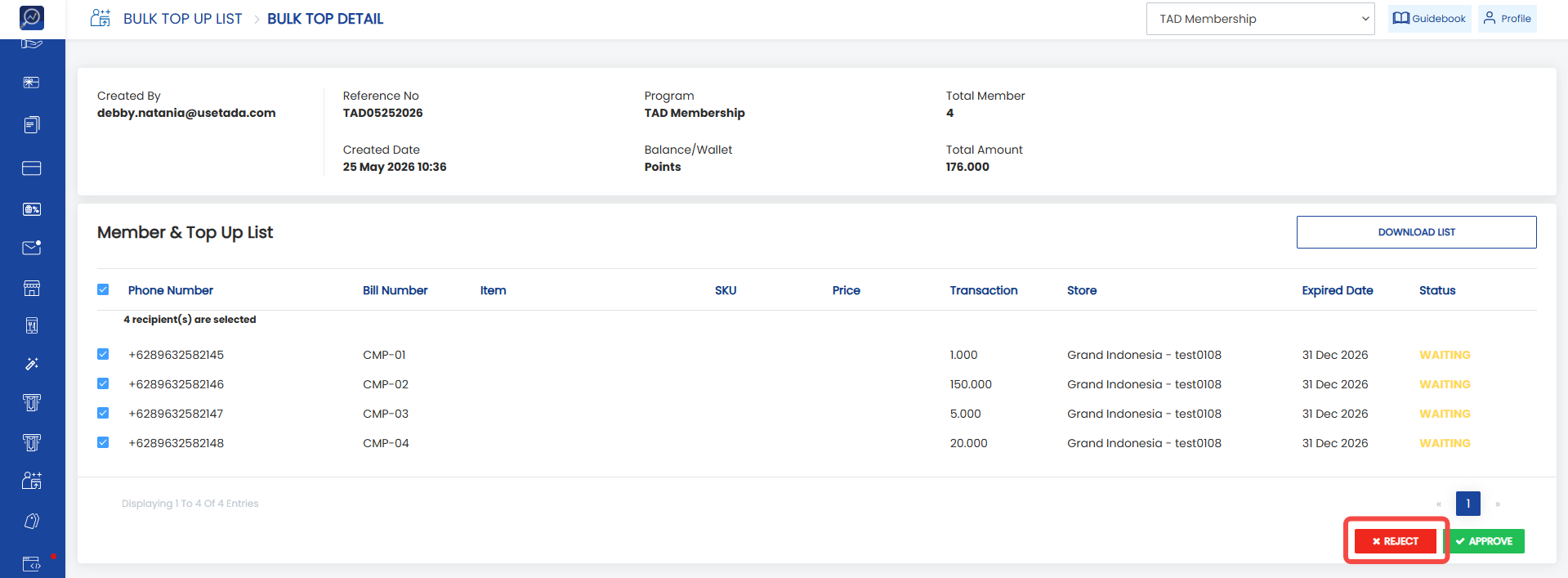
 7. To reject, click “Reject”.
 8. Fill in the reason in the “Reason” field. If there are phone numbers/card numbers that are not selected, those phone numbers/card numbers will automatically be approved.
How to View the Bulk Top Up Request List
1. Open the “Bulk Top Up” menu, then select the “Request List” submenu.
2. Select the “Approval History” tab.
3. Enter filters to simplify your search. Available filters are start date, end date, reference no, requested by, program, and status.
4. Click “Apply Filter”.
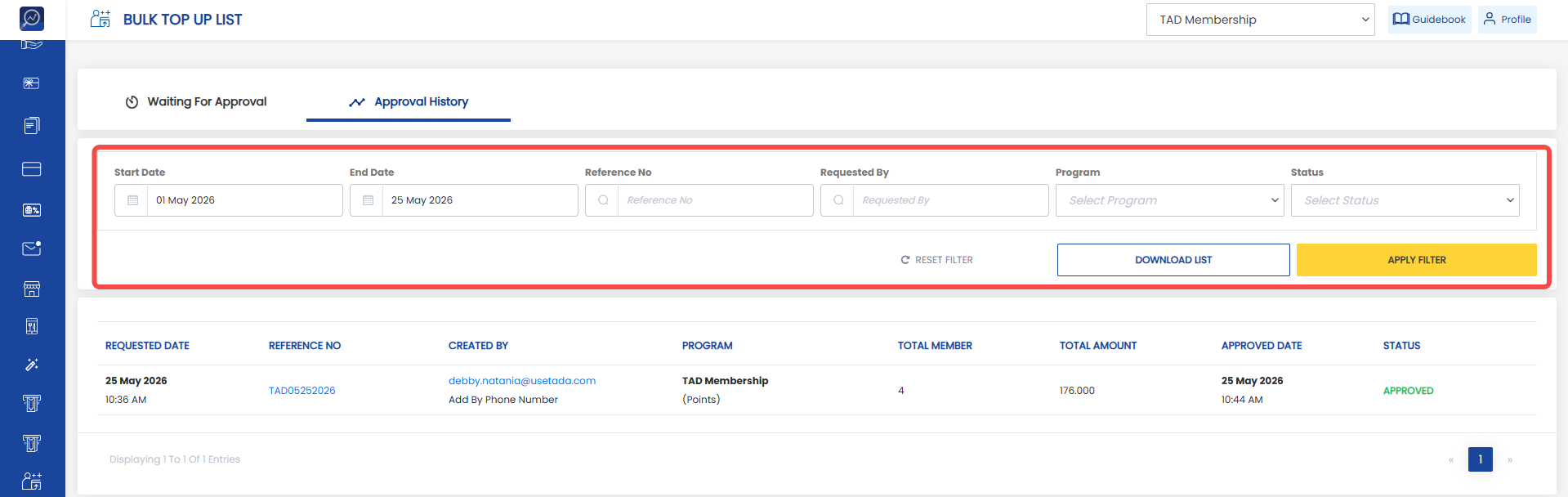 5. The system will display the request list based on the selected filters.
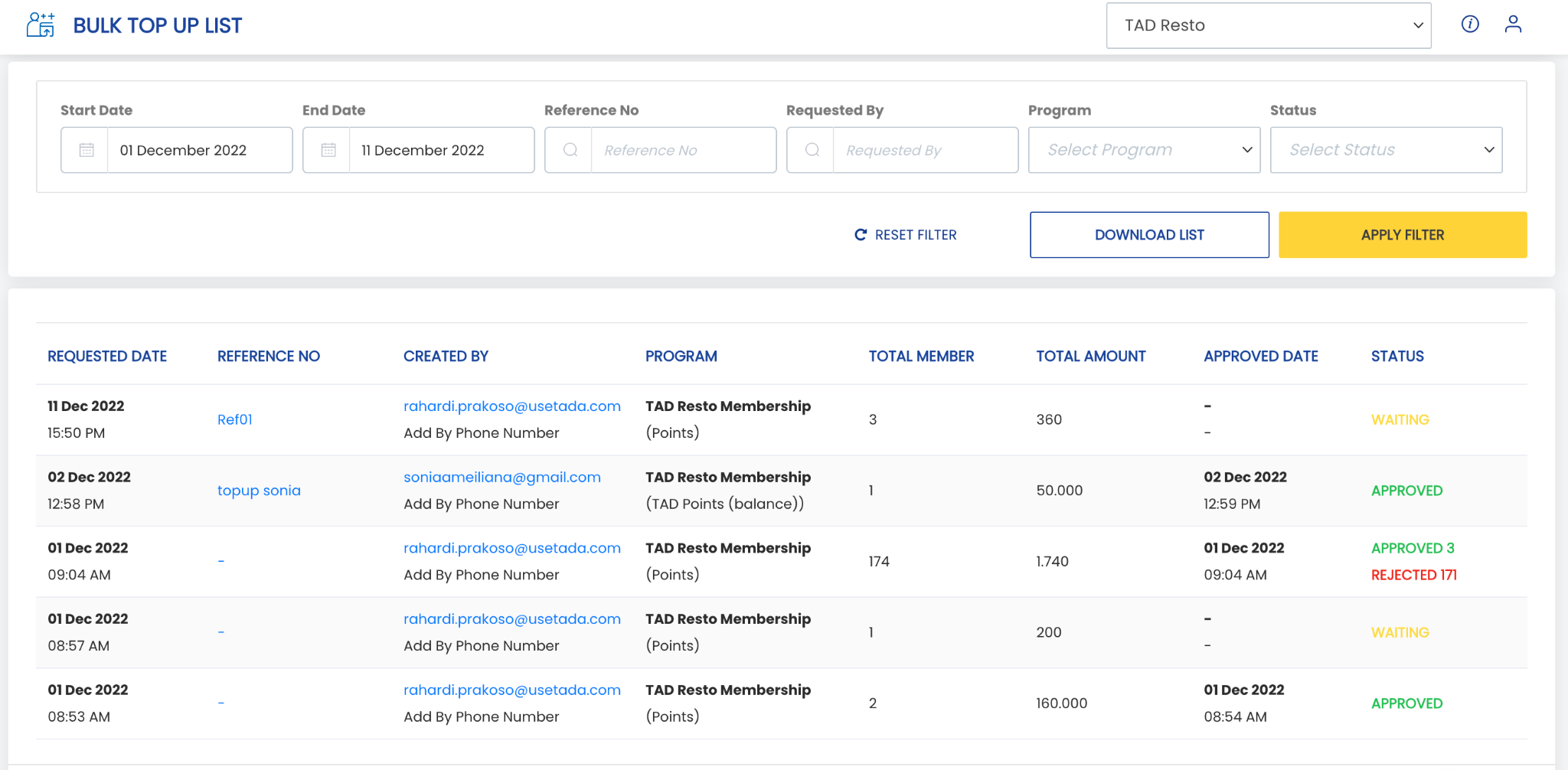
Steps to Download Bulk Top Up Request Data
1. Open the “Bulk Top Up” menu, then select the “Request List” submenu.
2. Select the “Approval History” tab.
3. Enter filters to simplify your search. Available filters are start date, end date, reference no, requested by, program, and status.
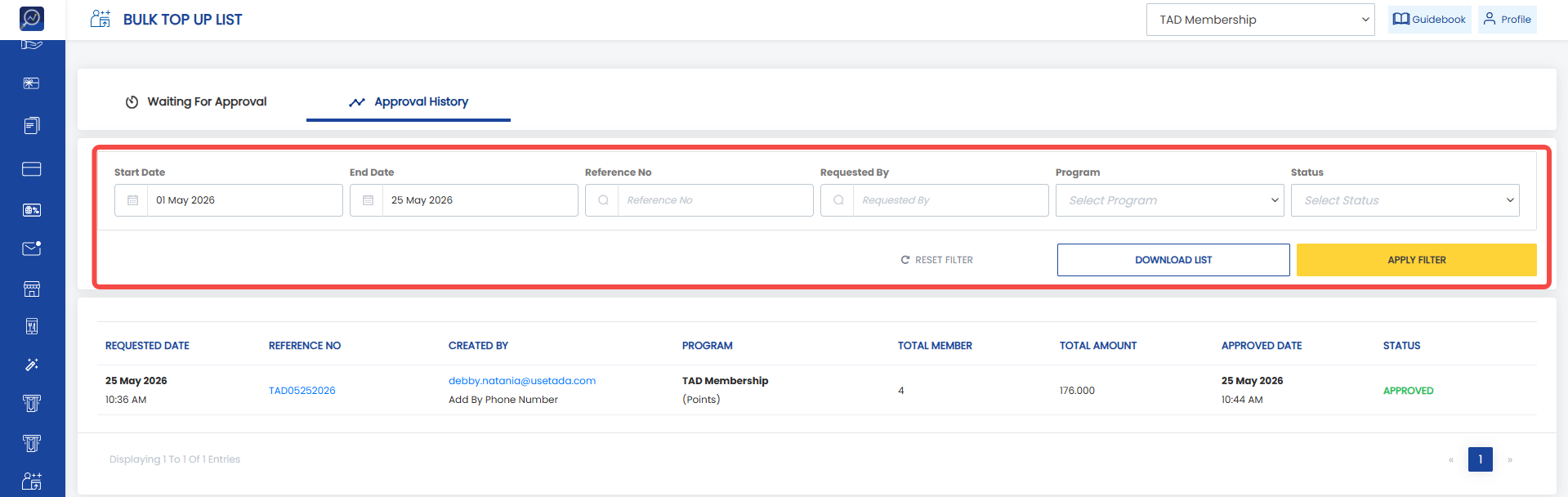 4. Click “Download List”
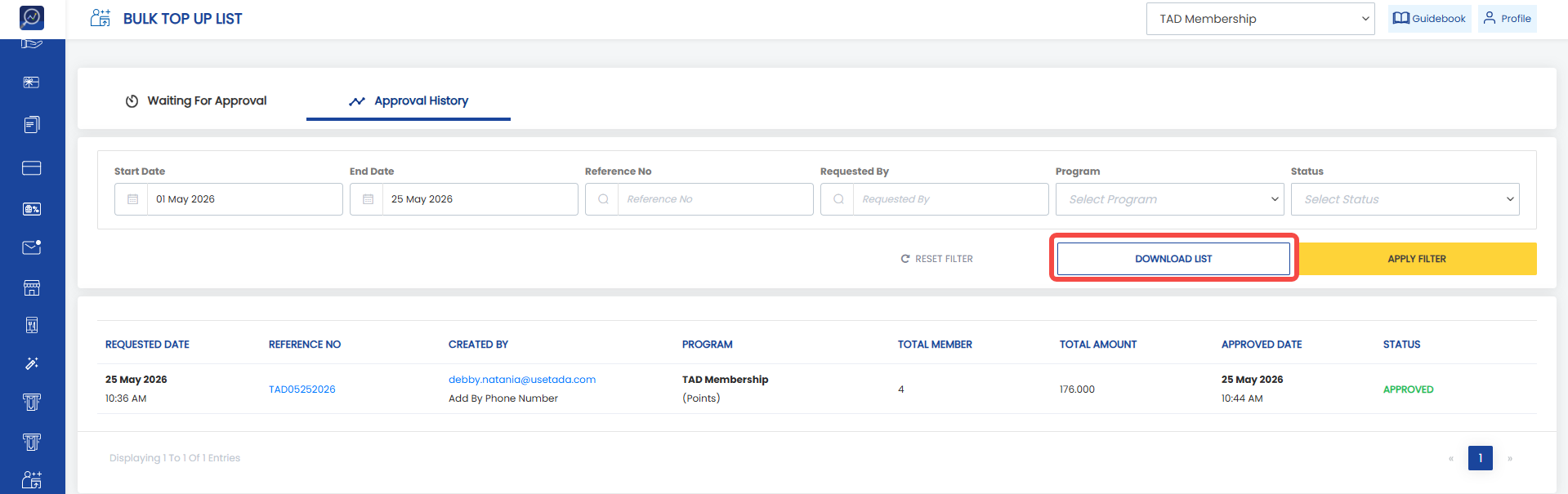 5. Enter the date filter and email address to receive the report.
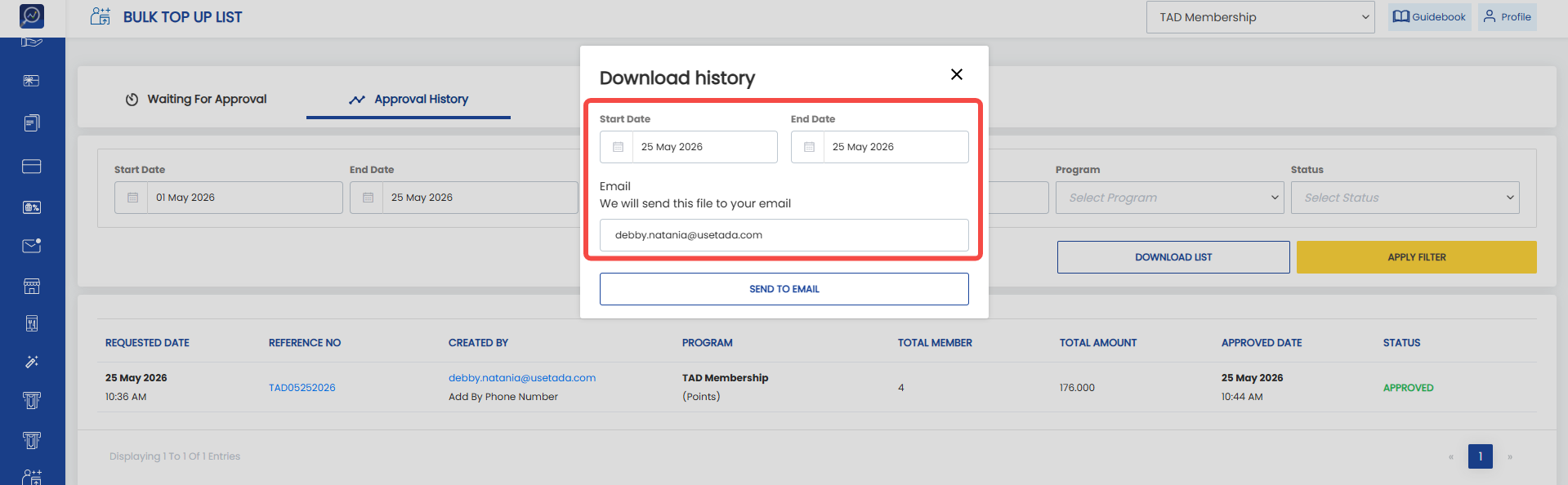 6. Click “Send To Email”