Withdrawal
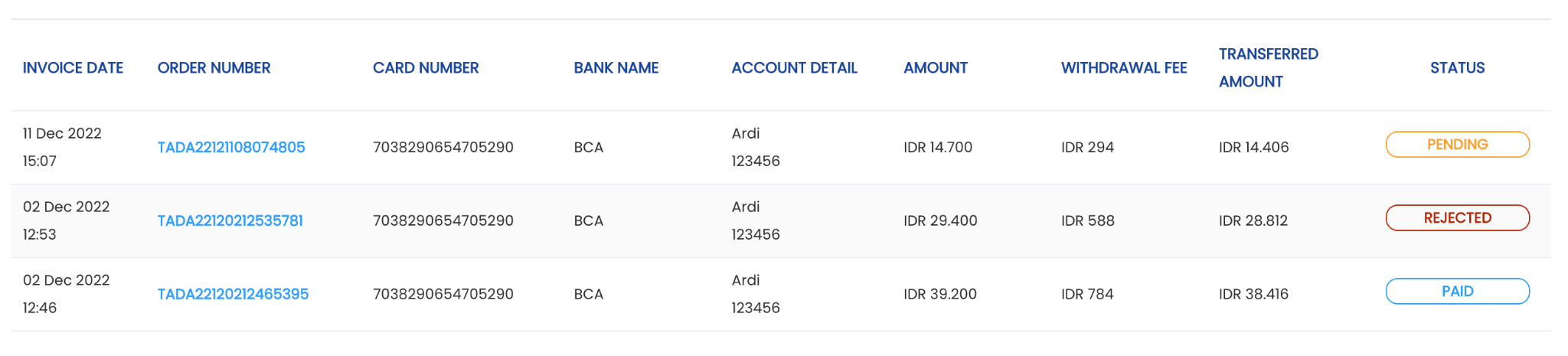
The Withdrawal menu is used to monitor and process point-to-cash withdrawal activities performed by members. Through this menu, merchants can view the withdrawal list, process withdrawal requests, and reject withdrawals directly through the dashboard.
How to View the Withdrawal List
1. Open the “Withdrawal” menu.
2. Enter filters to make withdrawal searches easier. Available filters are start date, end date, order number, status, and card number.
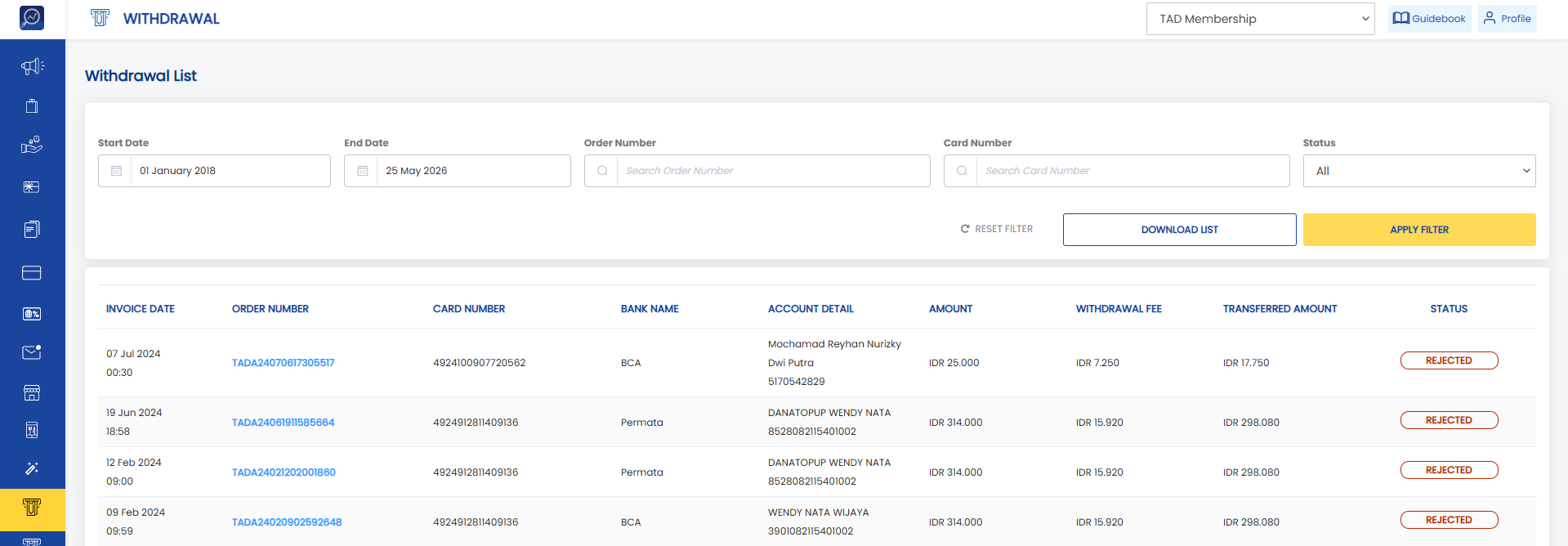 3. Click “Apply filter” and the system will display the withdrawal list based on the selected filters.
 Steps to Download Withdrawal Data
1. Open the “Withdrawal” menu.
2. Use filters as needed.
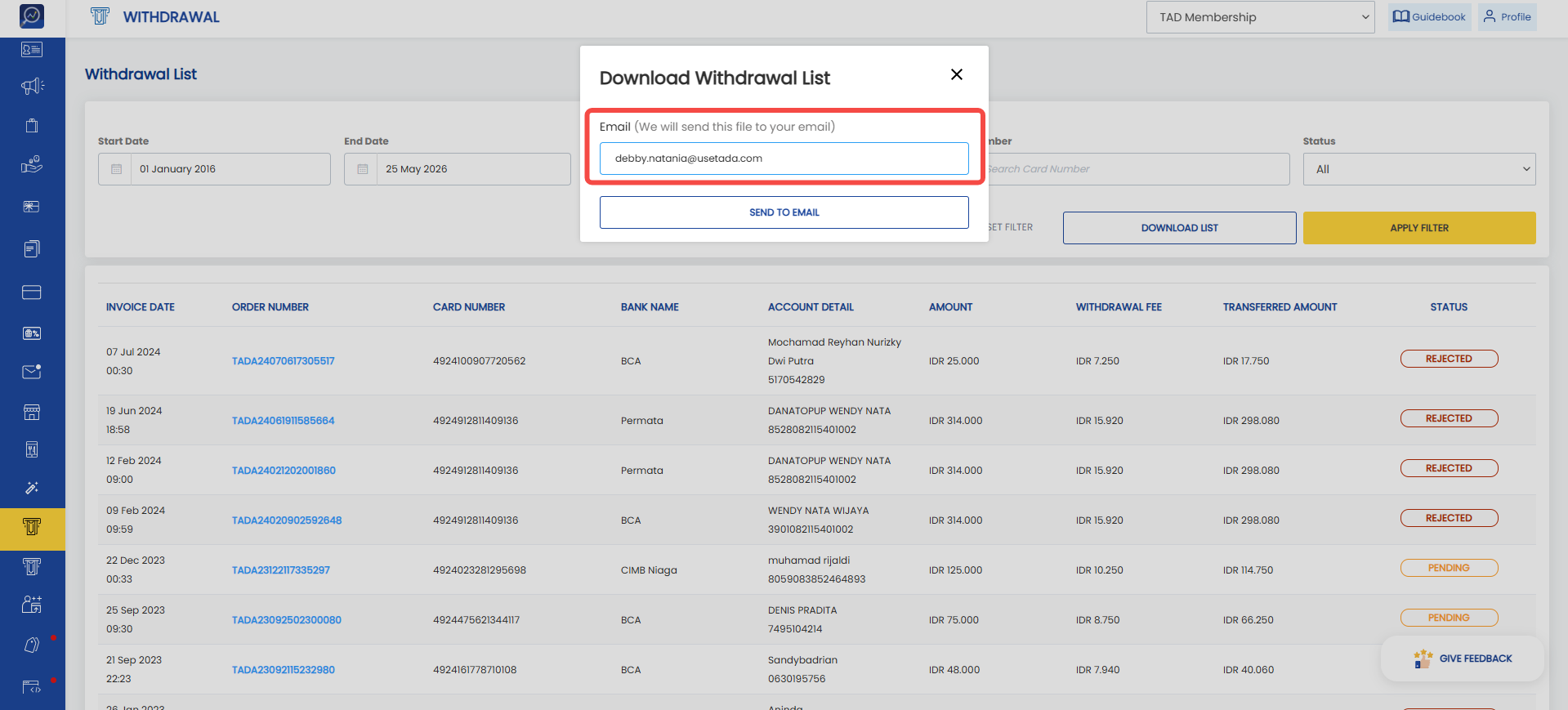
3. Click “Download list” and enter the email address to receive the downloaded report.
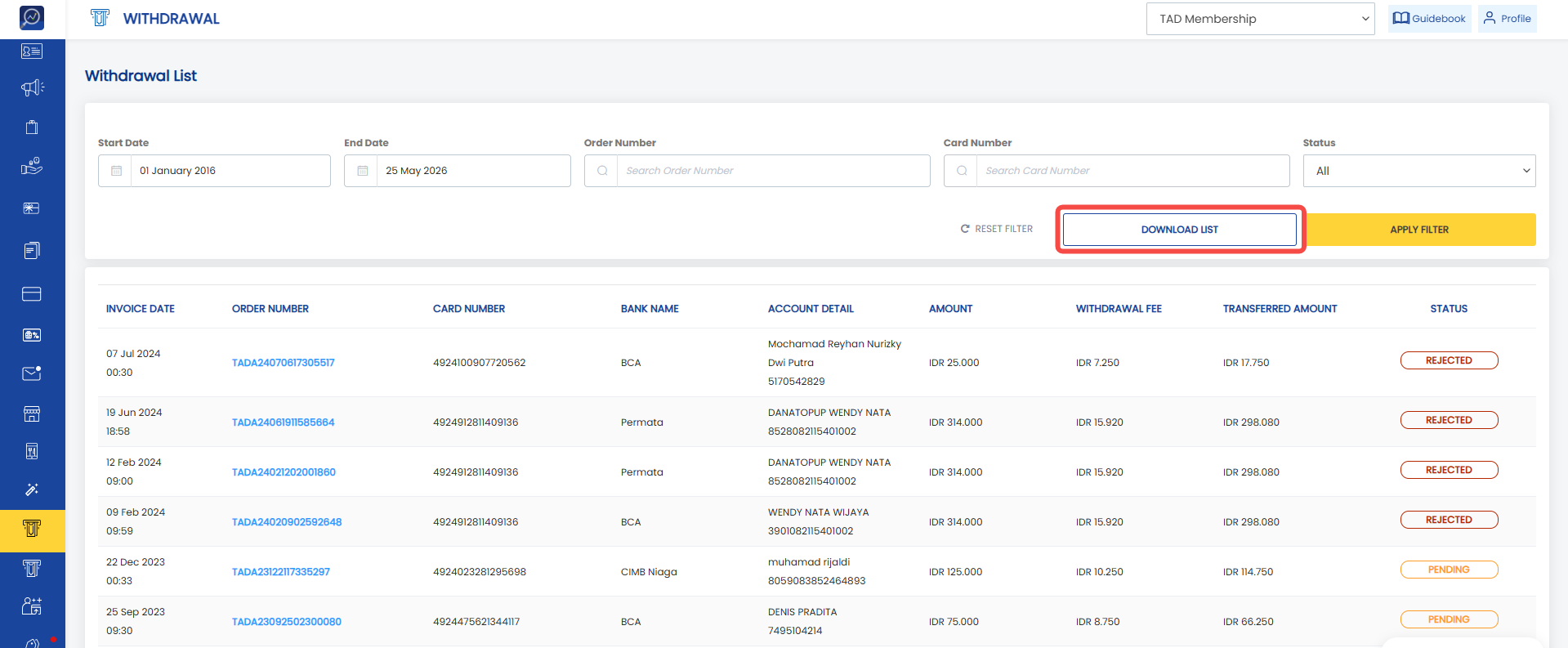 4. Enter the report recipient email and click “Send to email”.
How to Process a Withdrawal
1. Open the “Withdrawal” menu.
In general, the withdrawal process consists of two stages:
- Changing the status from Pending to Approved
- Changing the status from Approved to Paid
Changing the Status to Approved
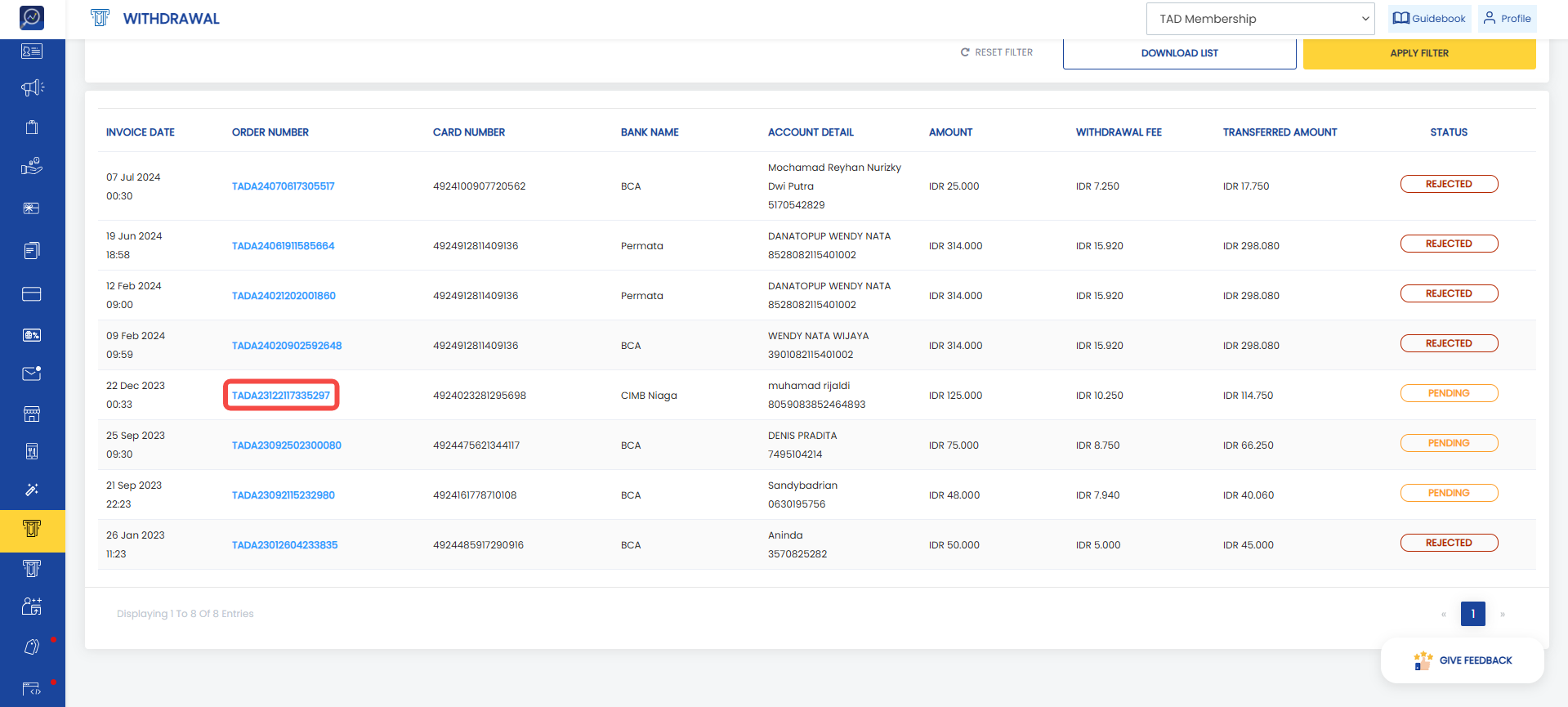
2. Find a withdrawal with Pending status.
3. Click the Order Number.
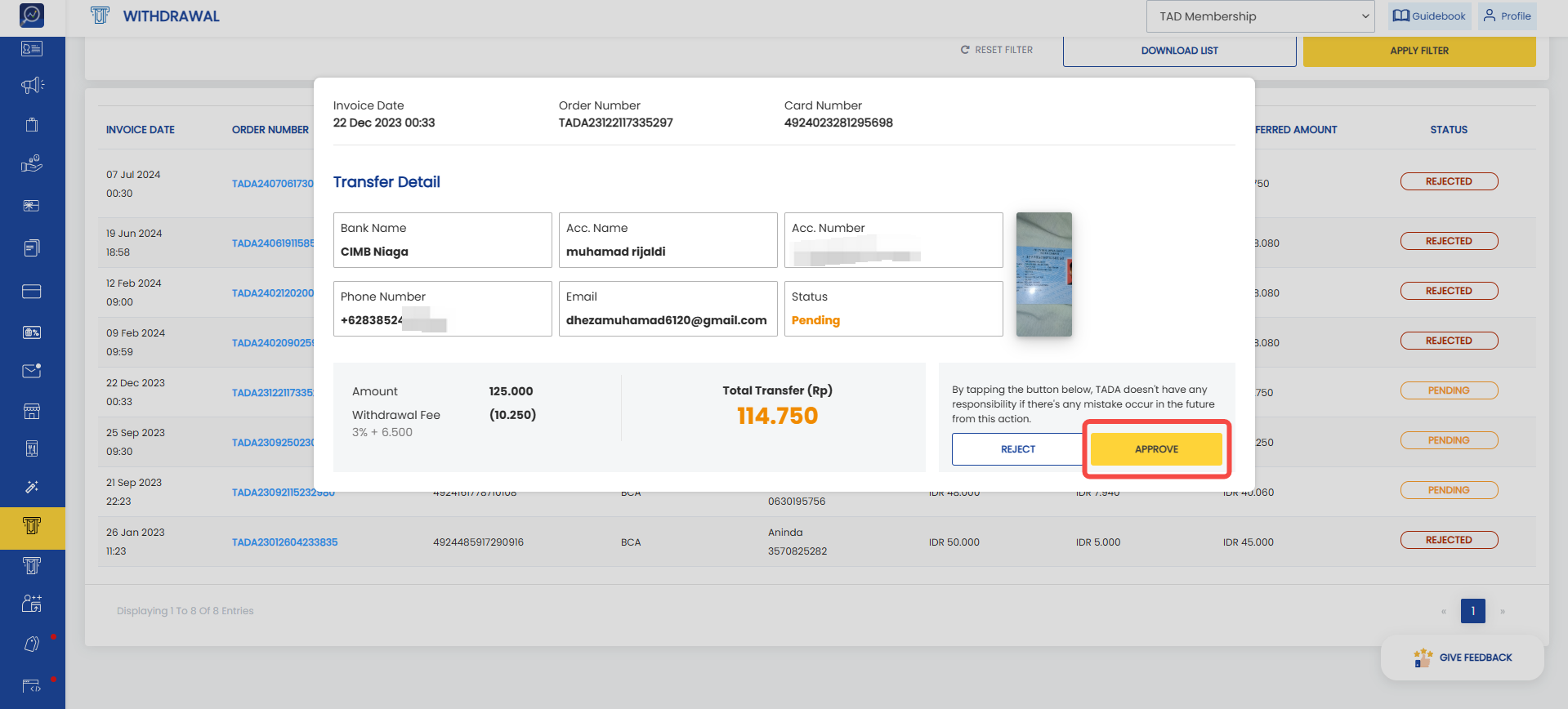
 4. Click “Approve”
 Changing the Status to Paid
5. Find a withdrawal with Approved status.
6. Click the Order Number.
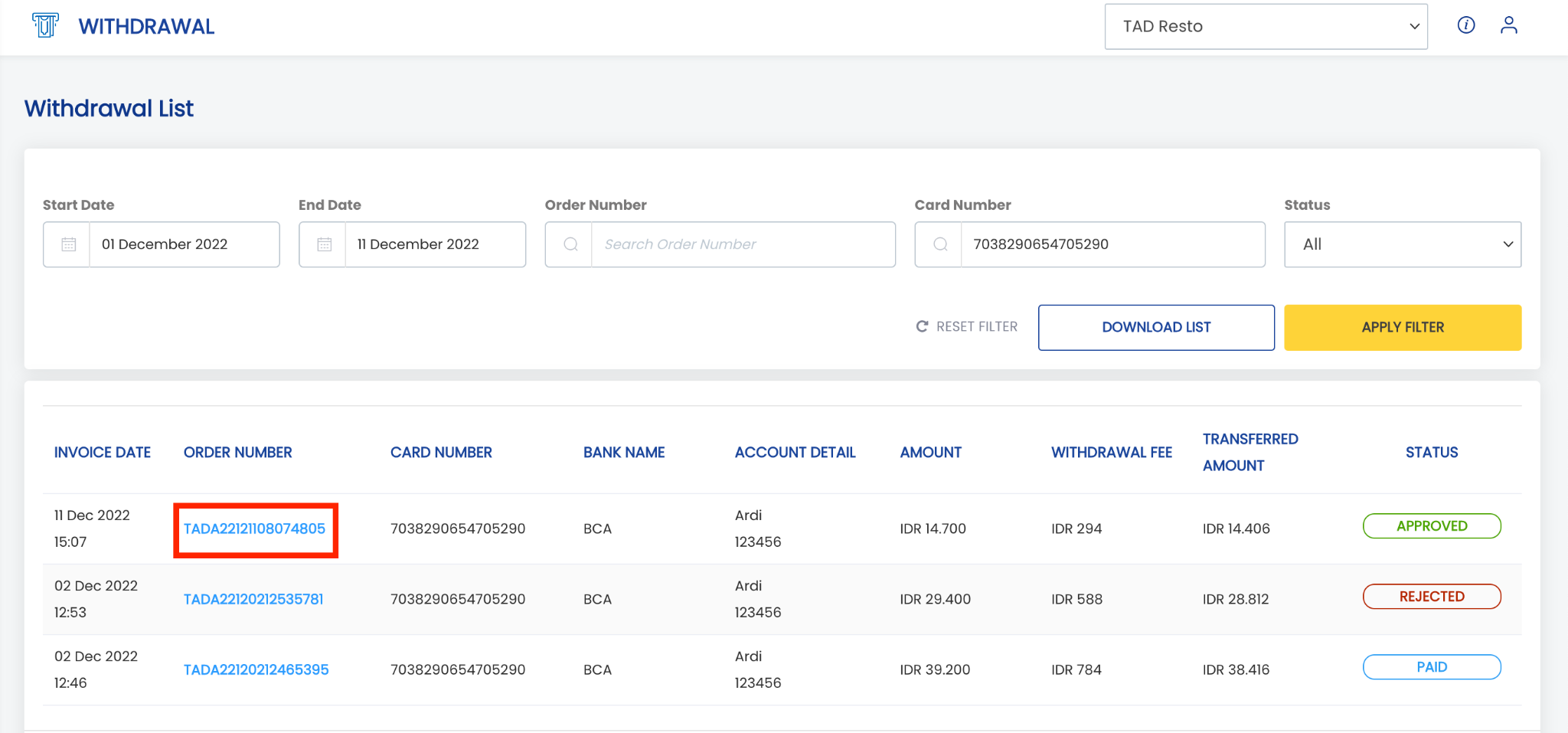 7. Click “Paid”
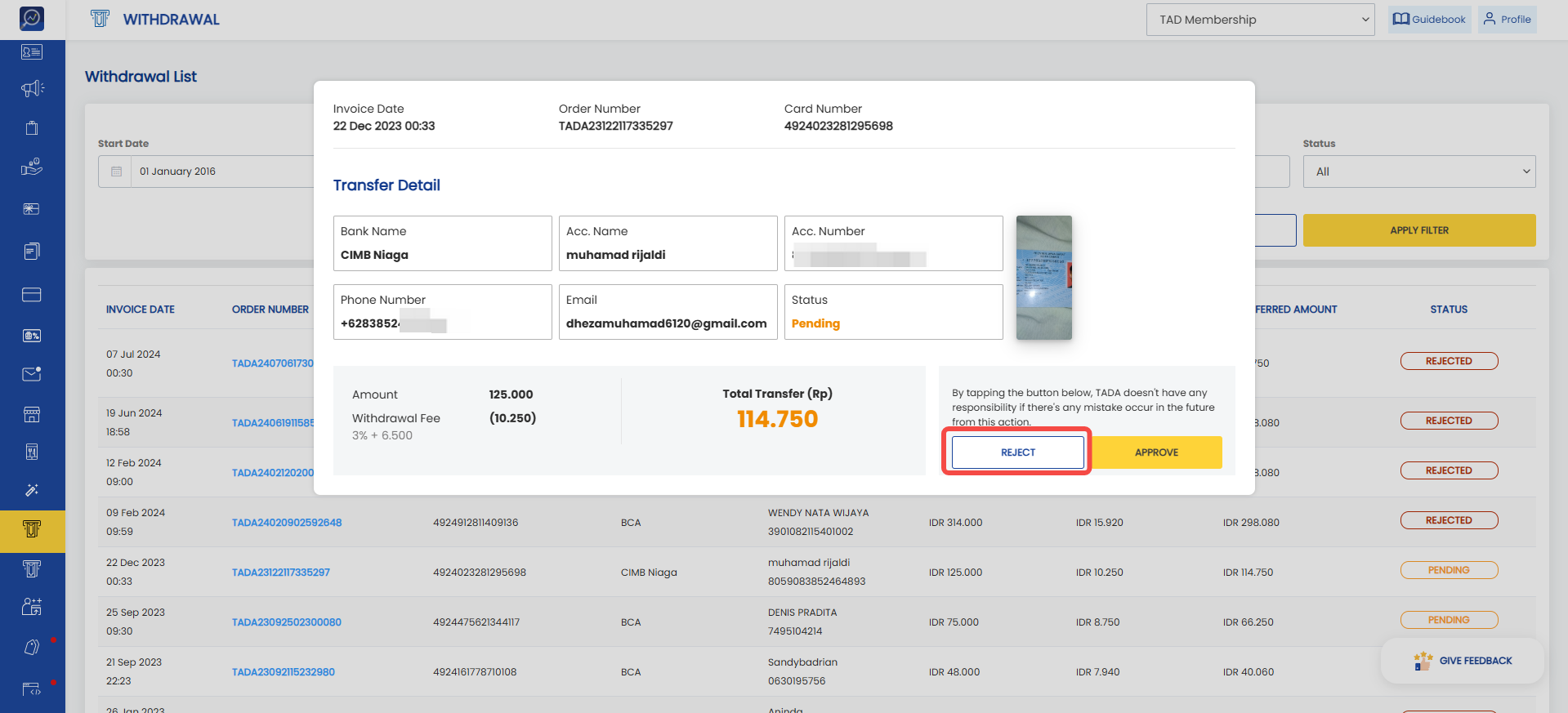
How to Reject a Withdrawal
1. Open the “Withdrawal” menu.
2. Find a withdrawal with Pending status.
3. Click the Order Number.
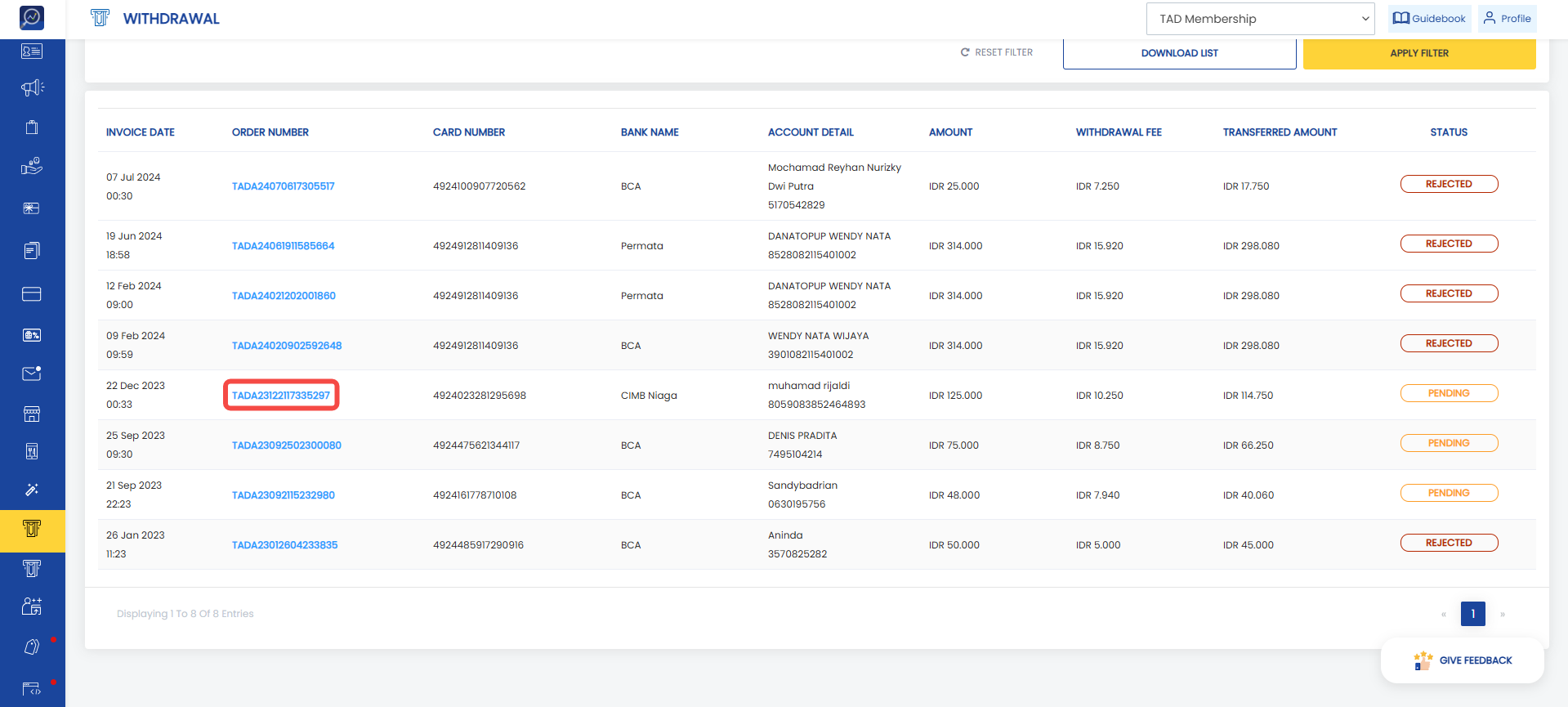 4. Click “Reject”