Leads Generation
Menu Leads Generation is used to create member-get-leads programs, which allow members to share offers and receive rewards when they successfully acquire leads. Through this menu, users can create lead programs, manage offers, and monitor submission results from incoming leads.
How to Create a Lead
1. Open the “Leads Generation” menu, then select the “Program & Offer” sub-menu.
2. Click “Create New Lead”.
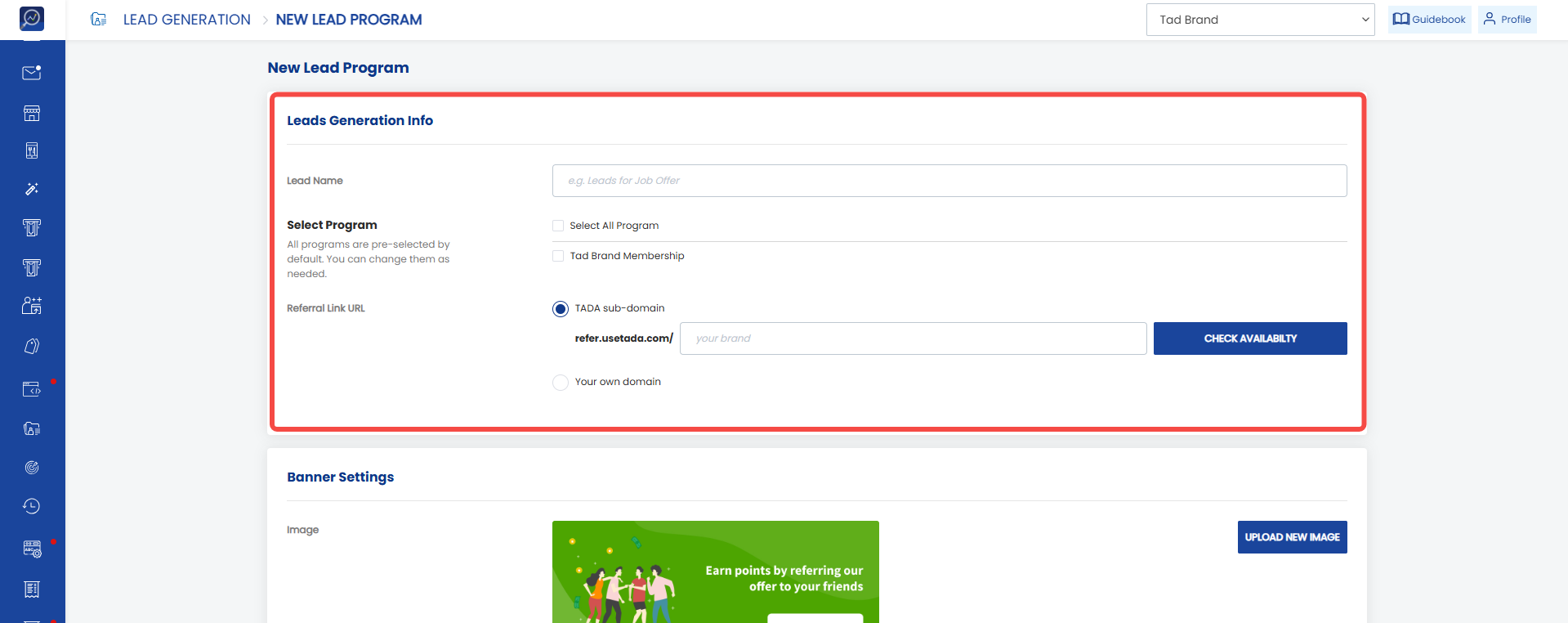
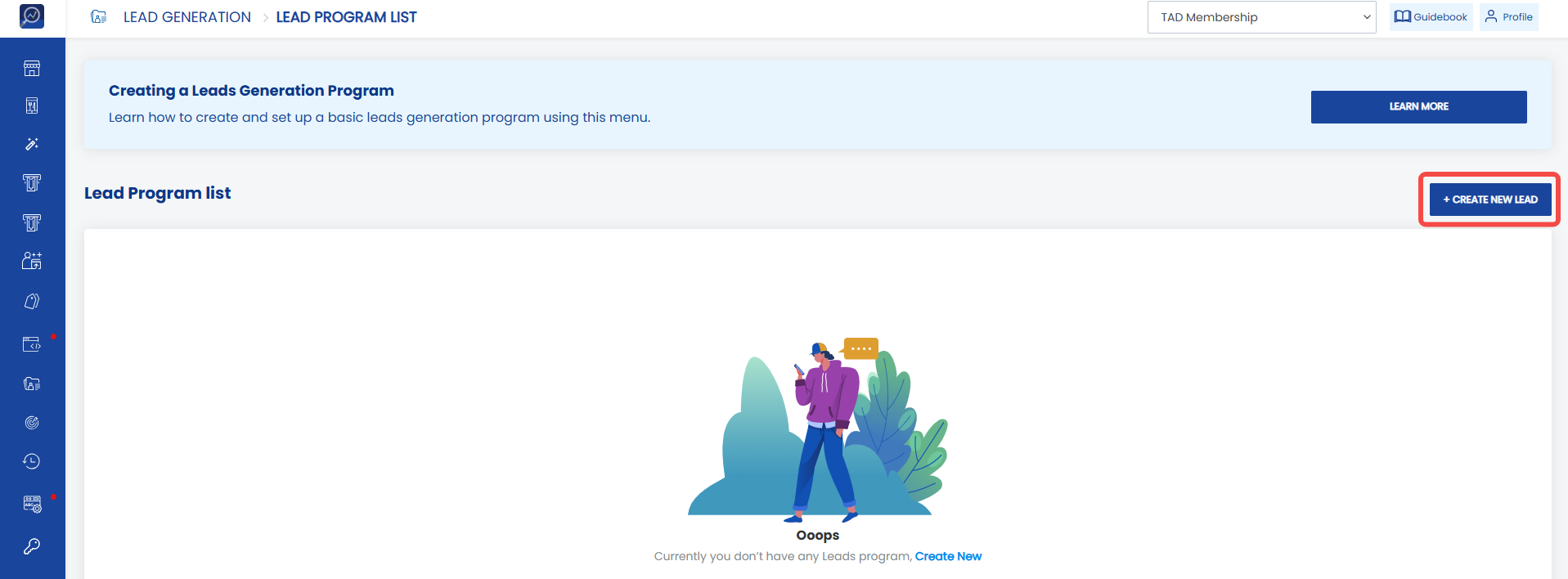 3. Enter the lead program title in “Lead Name”.
4. Select the Program where the lead program will be applied.
5. Define the URL link for the lead in “Referral Link URL”.
Users can use a domain provided by Tada by selecting “TADA sub-domain”. If the brand wants to use its own domain, select “Your own domain” and enter the domain in the provided field.
Note: Click “Check Availability” to check domain availability.
 6. Define the banner that will be displayed in the application by clicking “Upload New Image”. Ignore the banner setting if you do not want to change the banner.
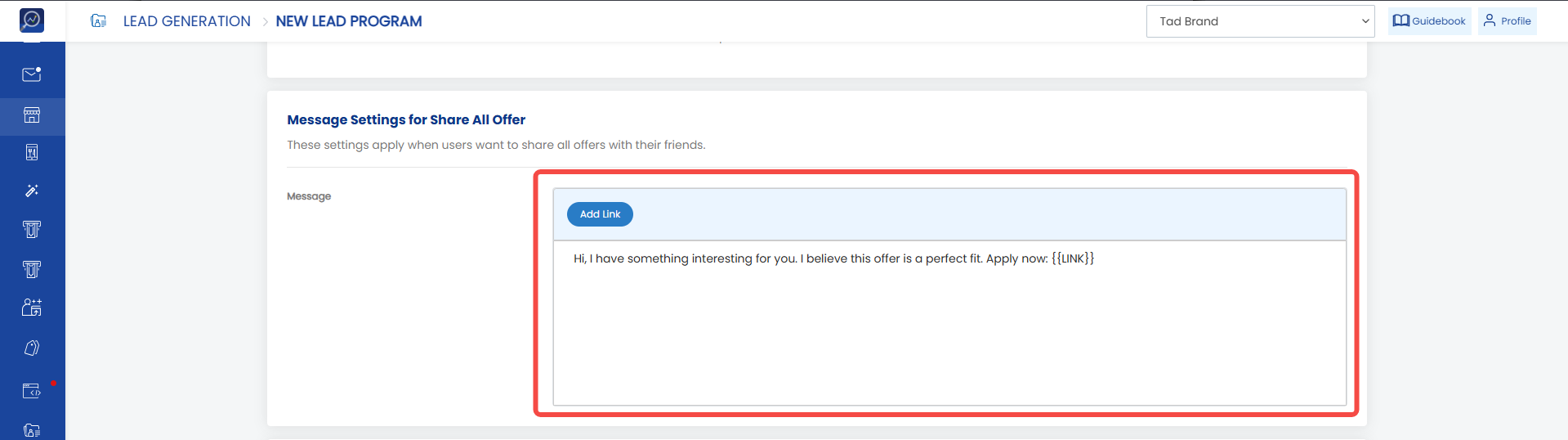
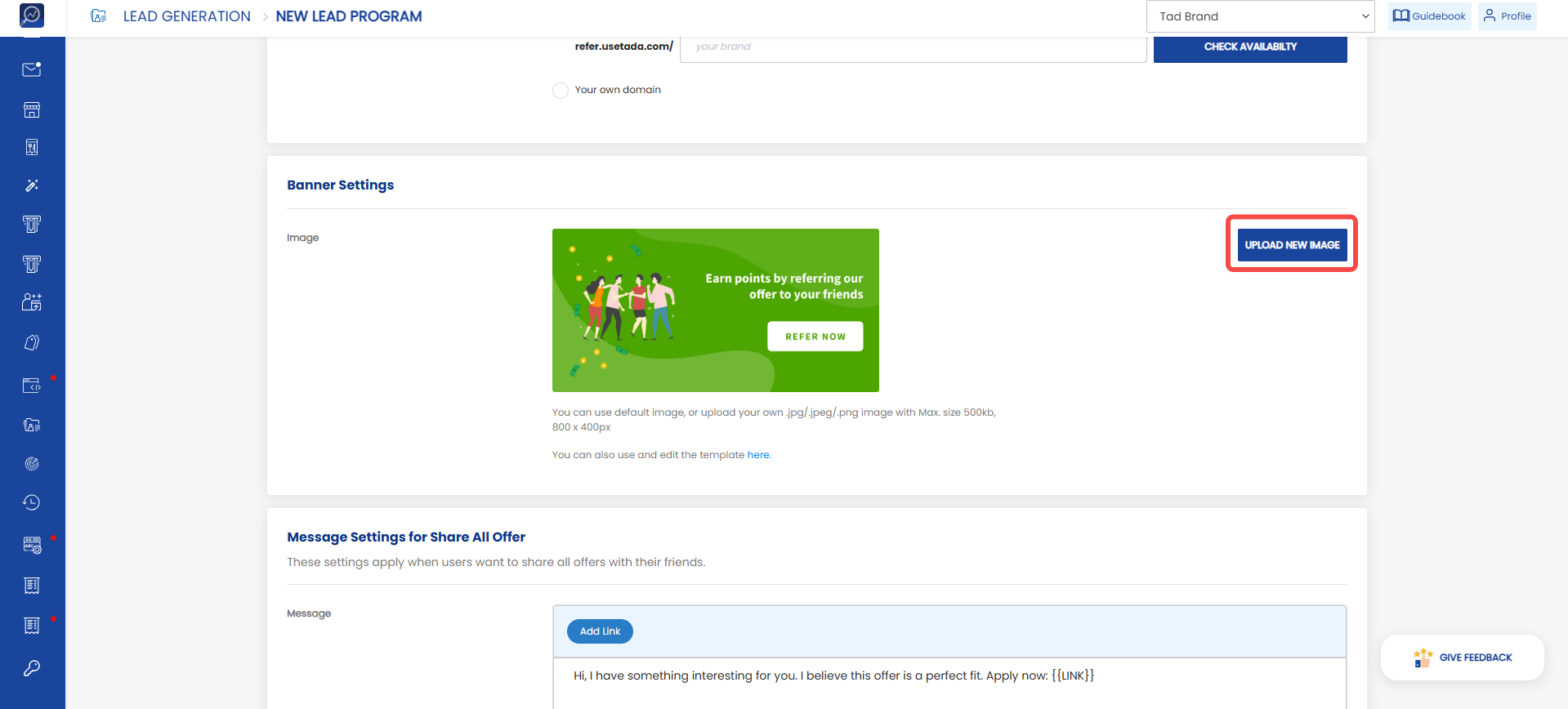 7. Define the message that leads will receive when sharing the link for all offers in “Message settings for share all offer”.
Note: Make sure to add the “Add Link” tag so the offer can be accessed.
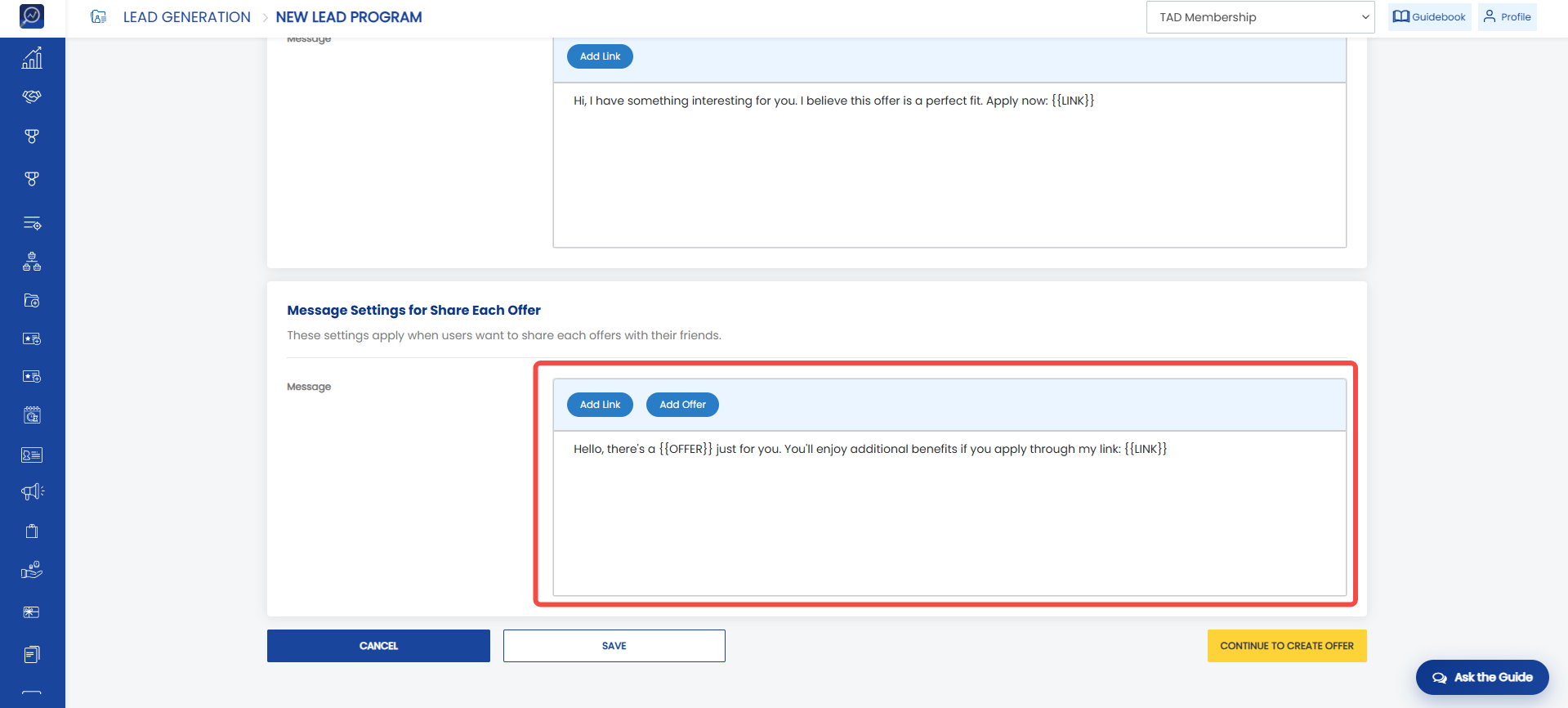
 8. Define the message that leads will receive when sharing the link for a specific offer in “Message settings for each offer”.
Note: Make sure to add the “Add Link” tag so the offer can be accessed. Brands can also add the “Add Offer” tag to display the offer title.
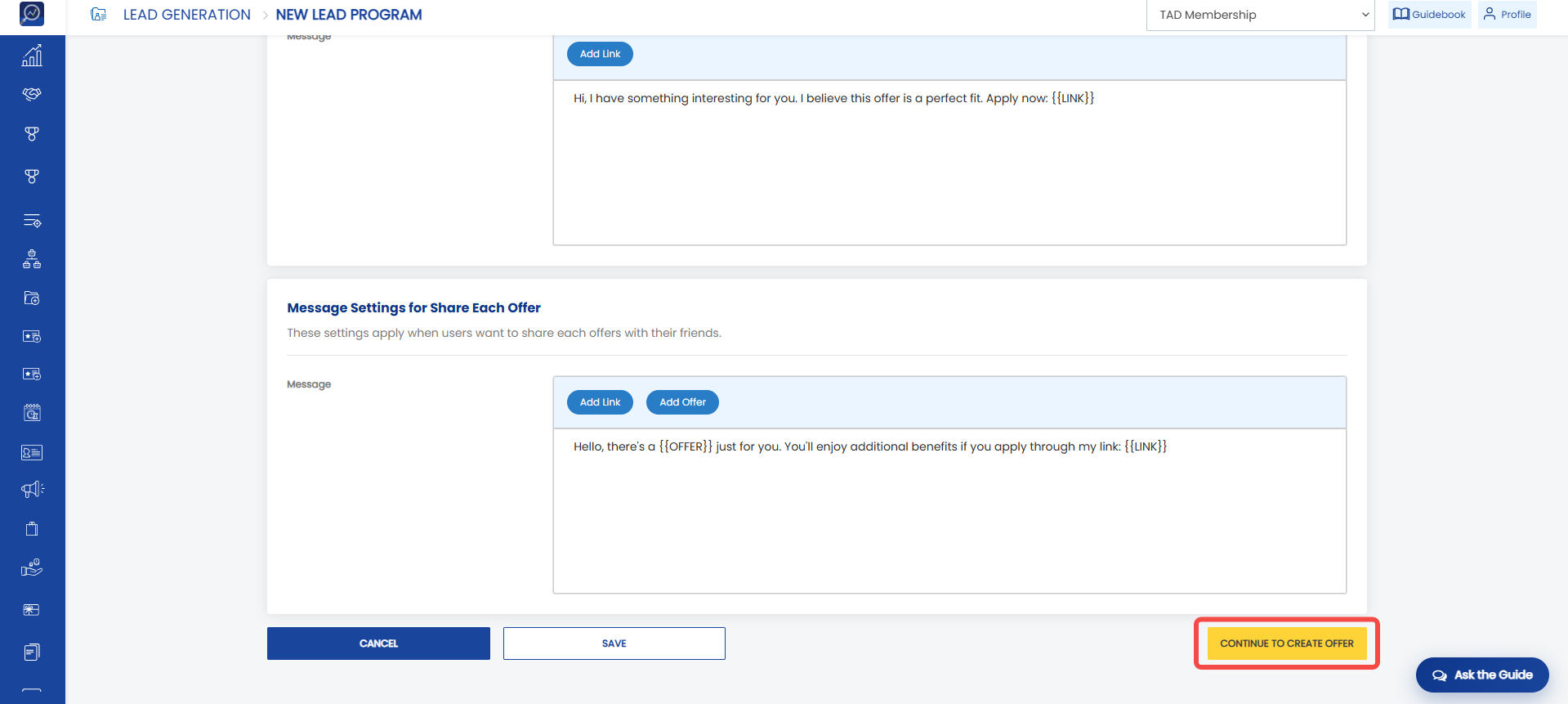
 9. Click “Continue to create offer”.
Completing Offer Setting Data
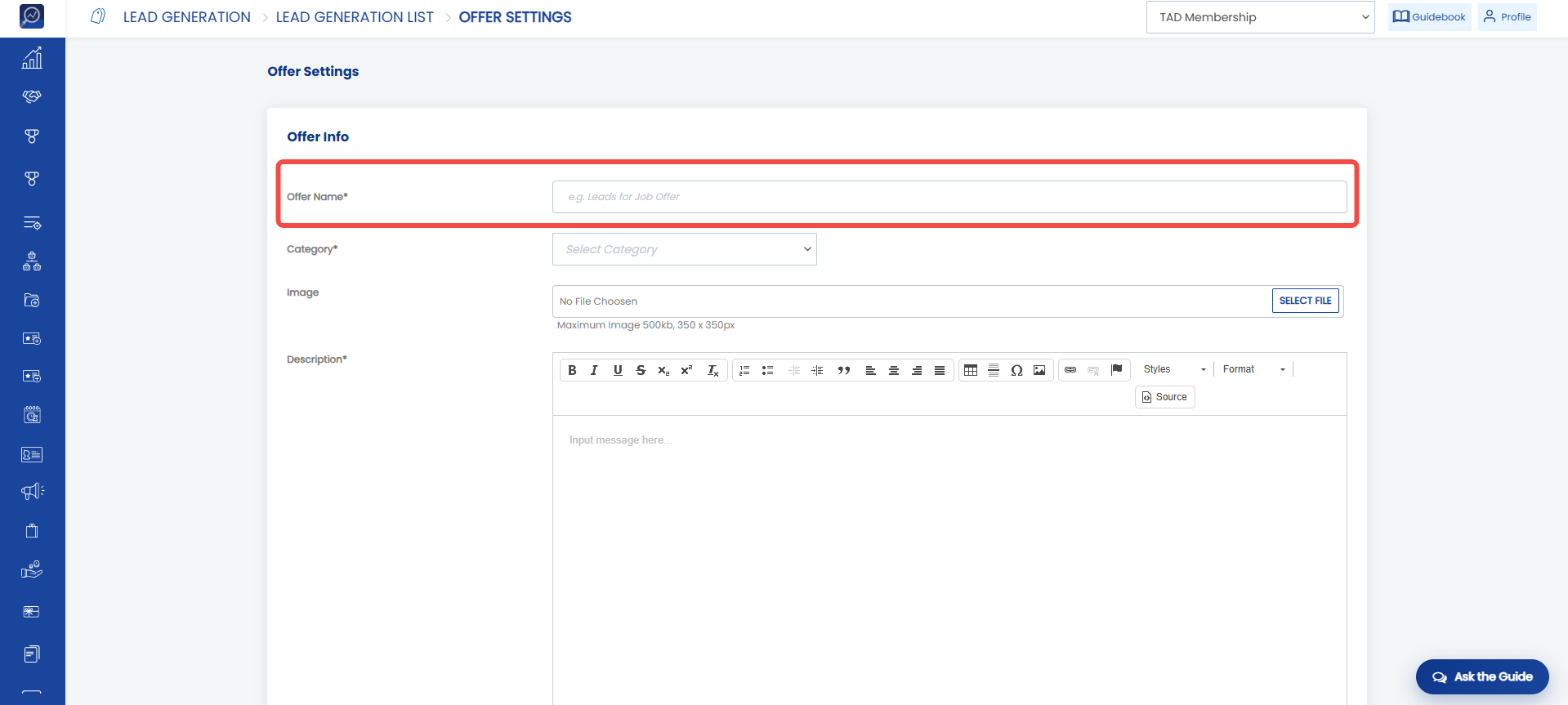
To complete the lead data, the brand needs to fill in the details of the offered offer. One lead can consist of multiple offers.
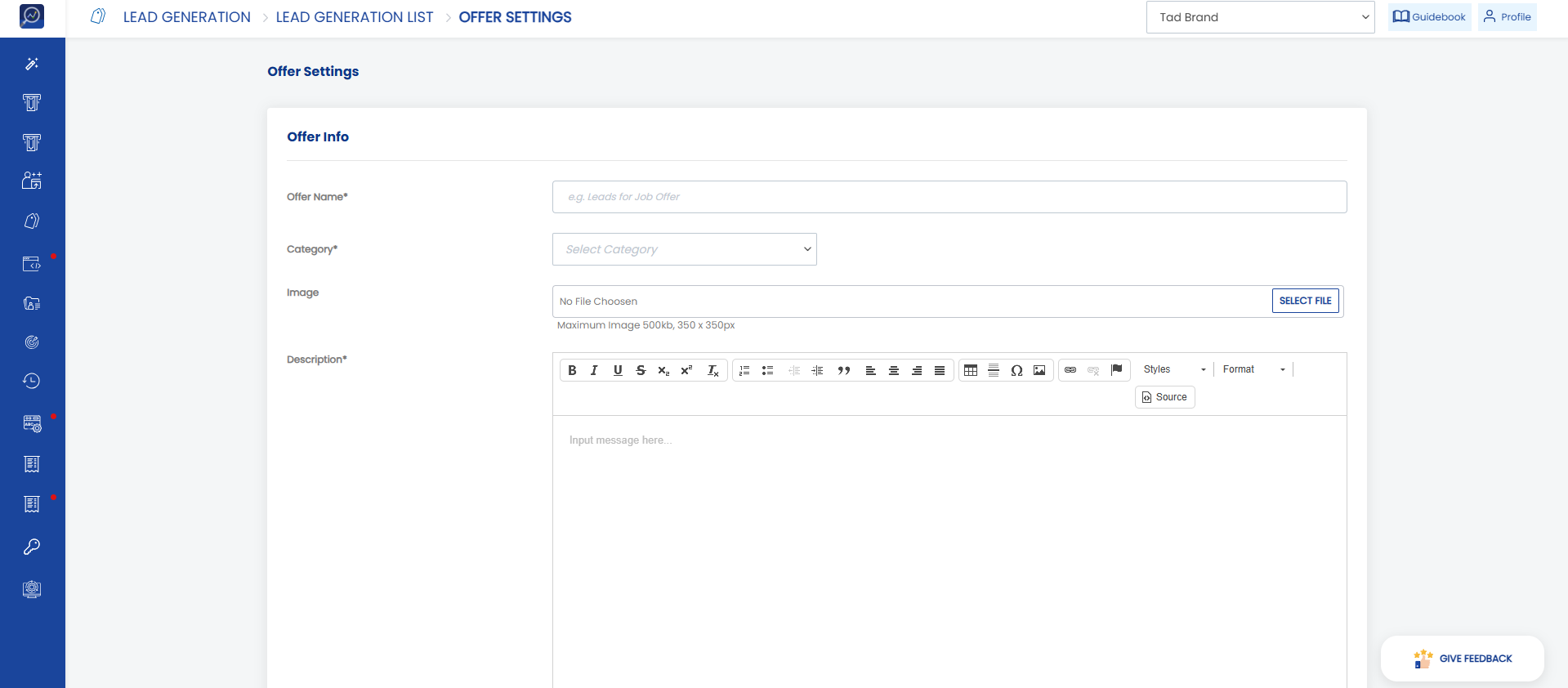
a. Enter the offered offer title in “Offer Name”.
 b. Select the category where the offer will appear in “Category”. If you want to create a new category, select “Add new category” and enter the new category title in the provided field.
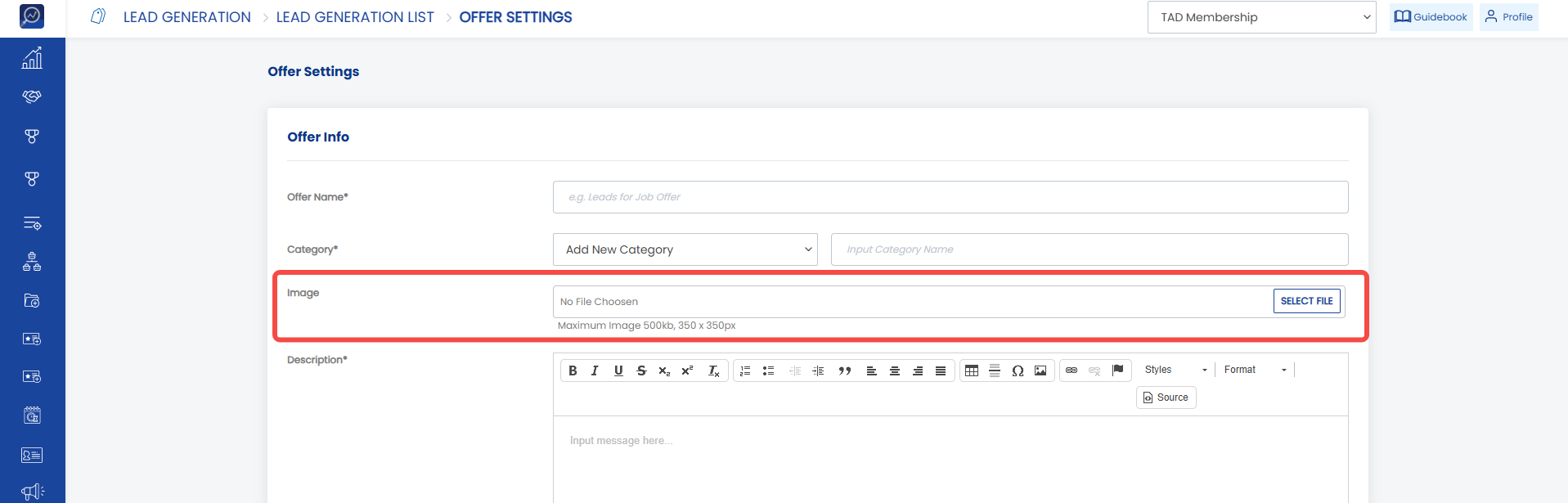
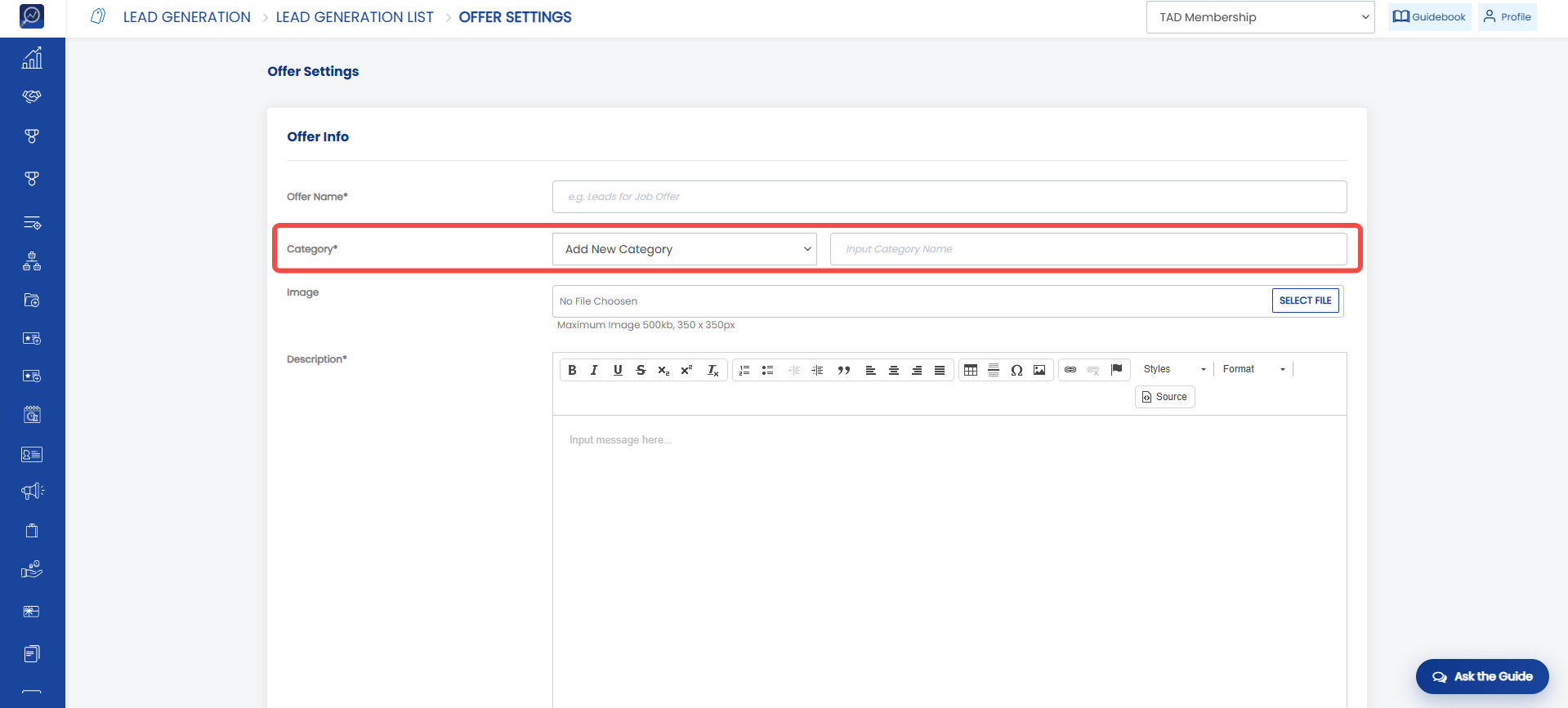 c. Upload an image for the offered offer. We recommend an image resolution of 350 x 350 px with a maximum size of 500 KB.
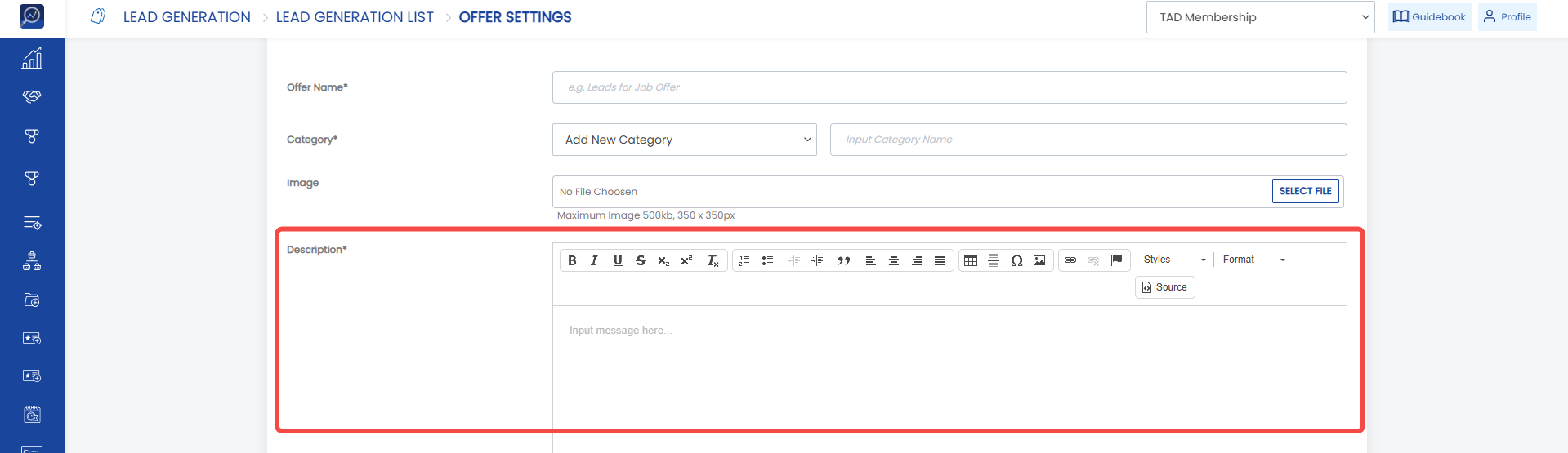
 d. Enter a short description of the offered offer in “Description”.
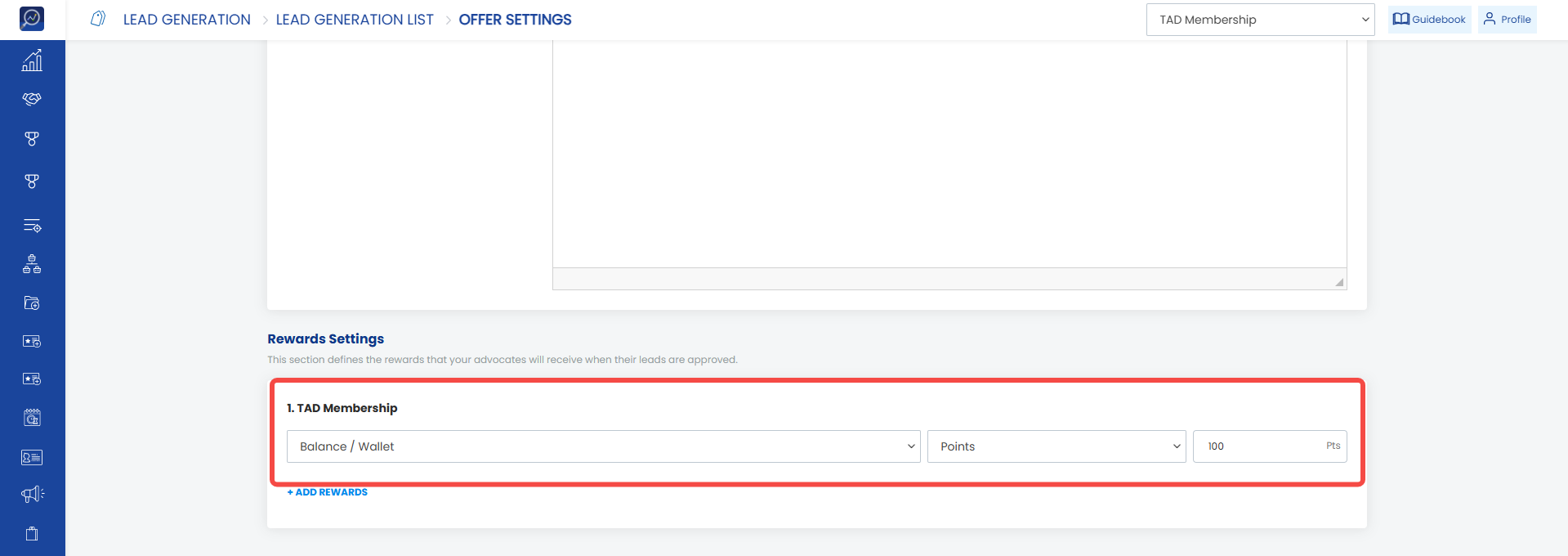
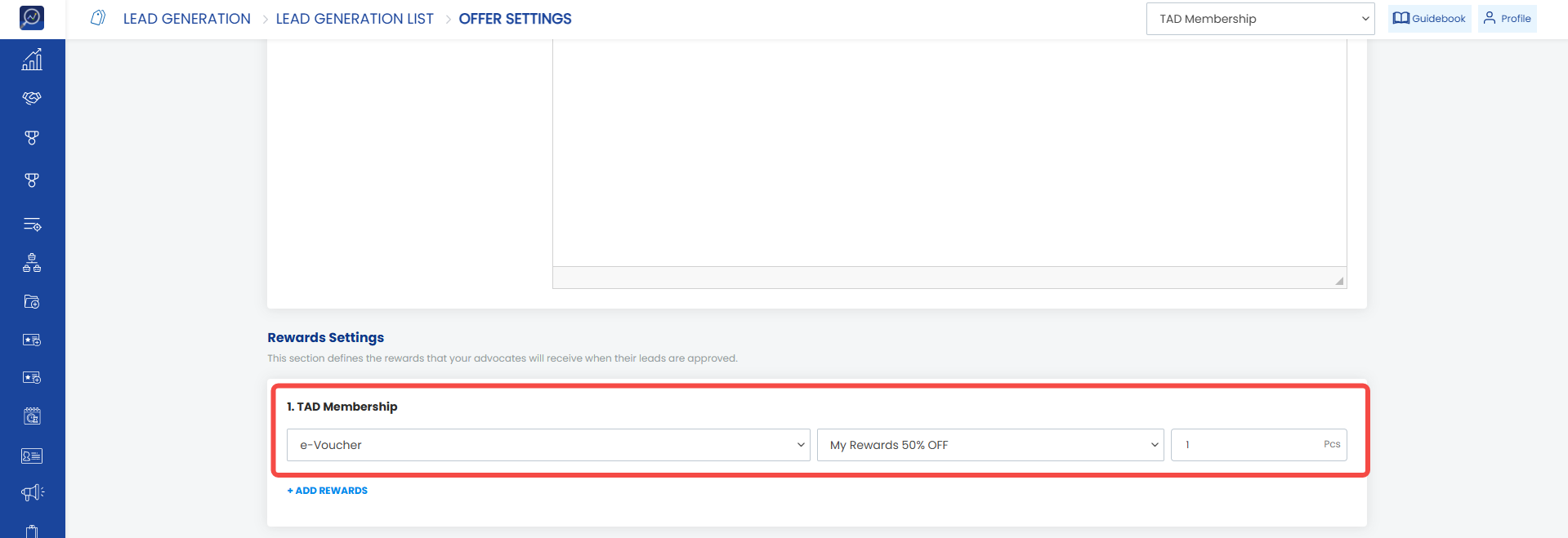
 10. Define the rewards that members will receive when they successfully acquire leads by completing the Rewards Setting.
- If the reward is in the form of a balance/wallet, select the balance/wallet name and enter the number of points the member will receive in the provided field.
- If the reward is in the form of a voucher, select the voucher name and enter the number of vouchers to be given.
 11. Click “Continue”
Completing Submission Setting Data
Create a list of questions that leads must answer in the submission settings section. The following data must be completed by the user:
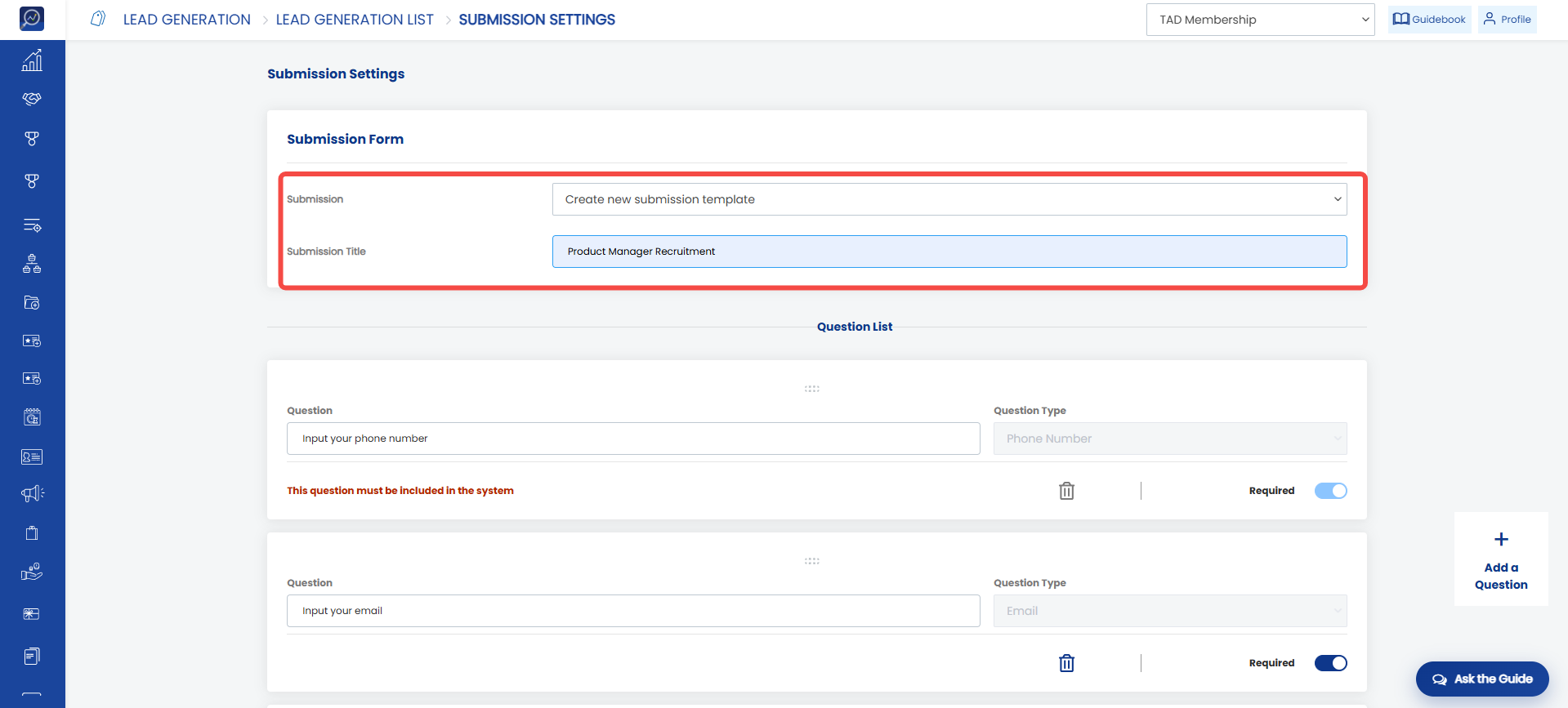
a. Select the submission template to be used from the “Submission” dropdown. If you want to create a new submission, click “Create new submission template” and enter the template name in “Submission title”.
b. Complete the submission title in “Submission Title”. This parameter will appear if the user selects “Create new submission template” in the previous parameter.
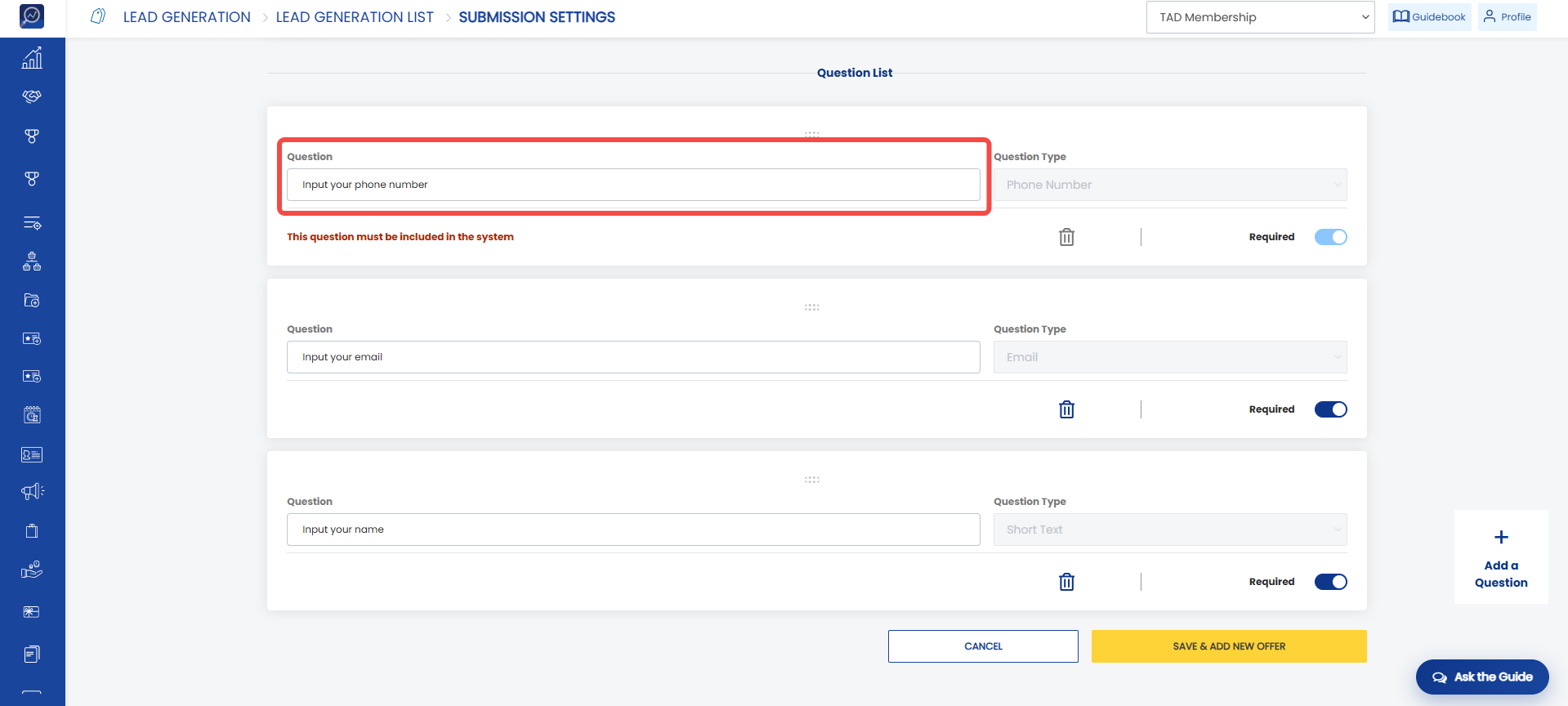
 c. Enter the questions that leads must answer in the “Question” field.
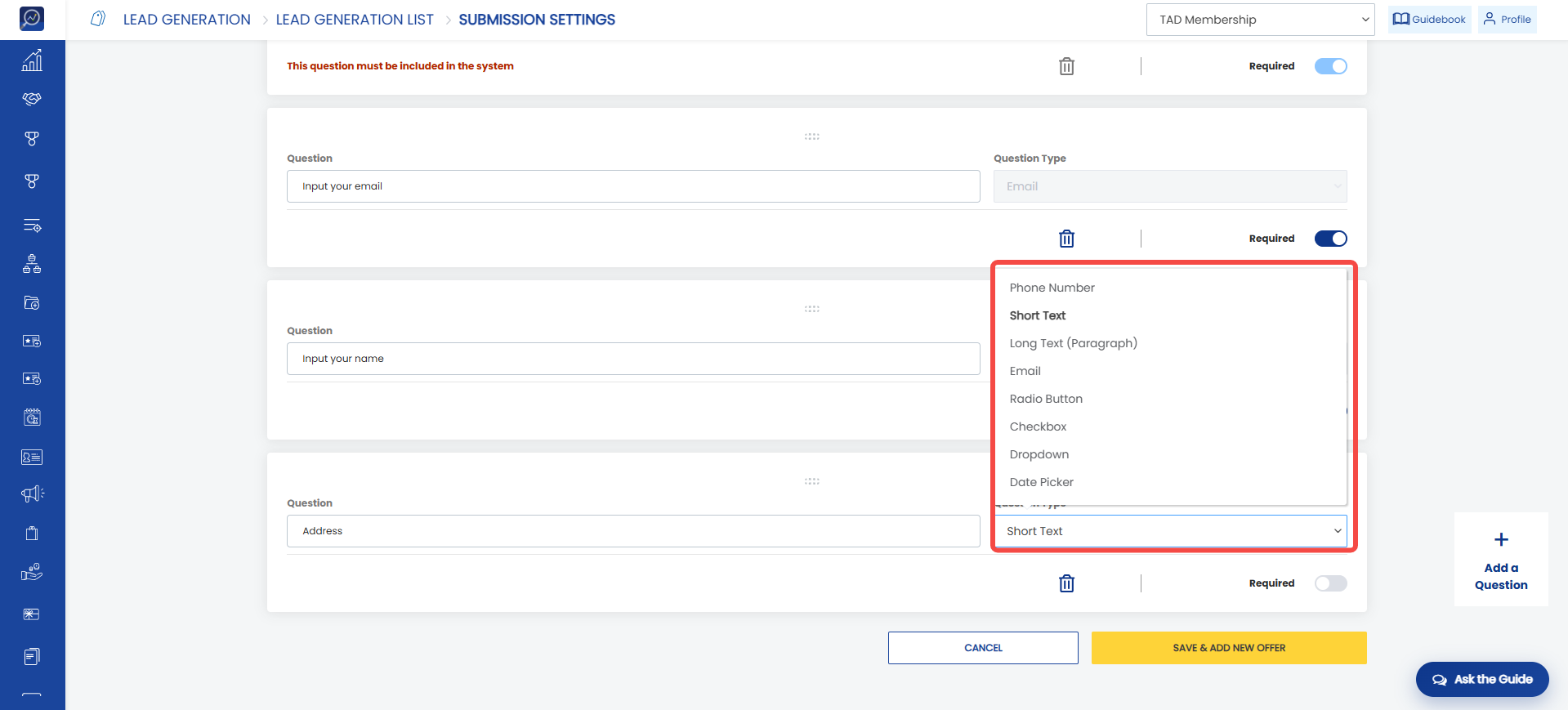
 d. Select the question type in “Question Type”.
 e. Click “Add question” if the user wants to add more questions.
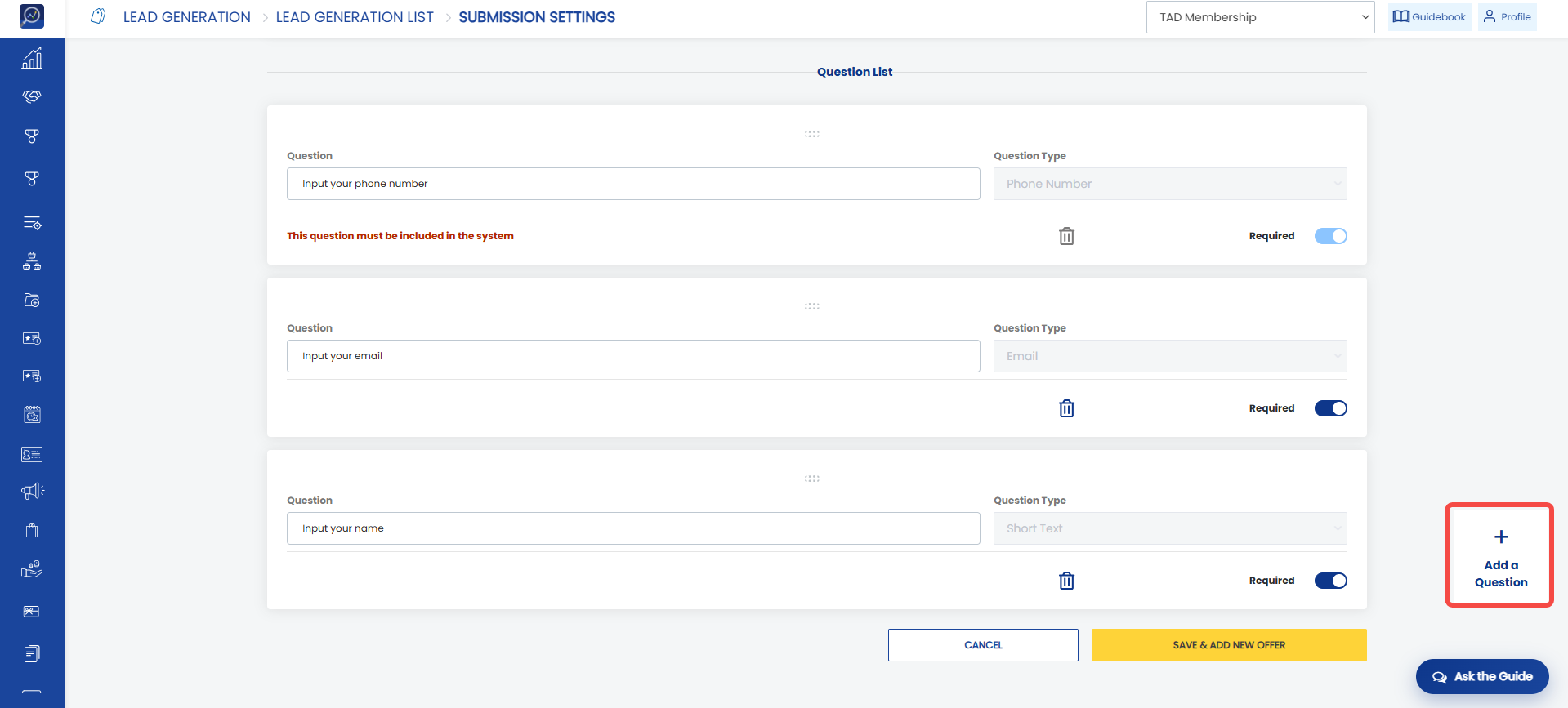
12. Click “Save and Add New Offer” to complete the lead creation process.
How to Approve/Reject a Submission
1. Open the “Leads Generation” menu and select “Submission”.
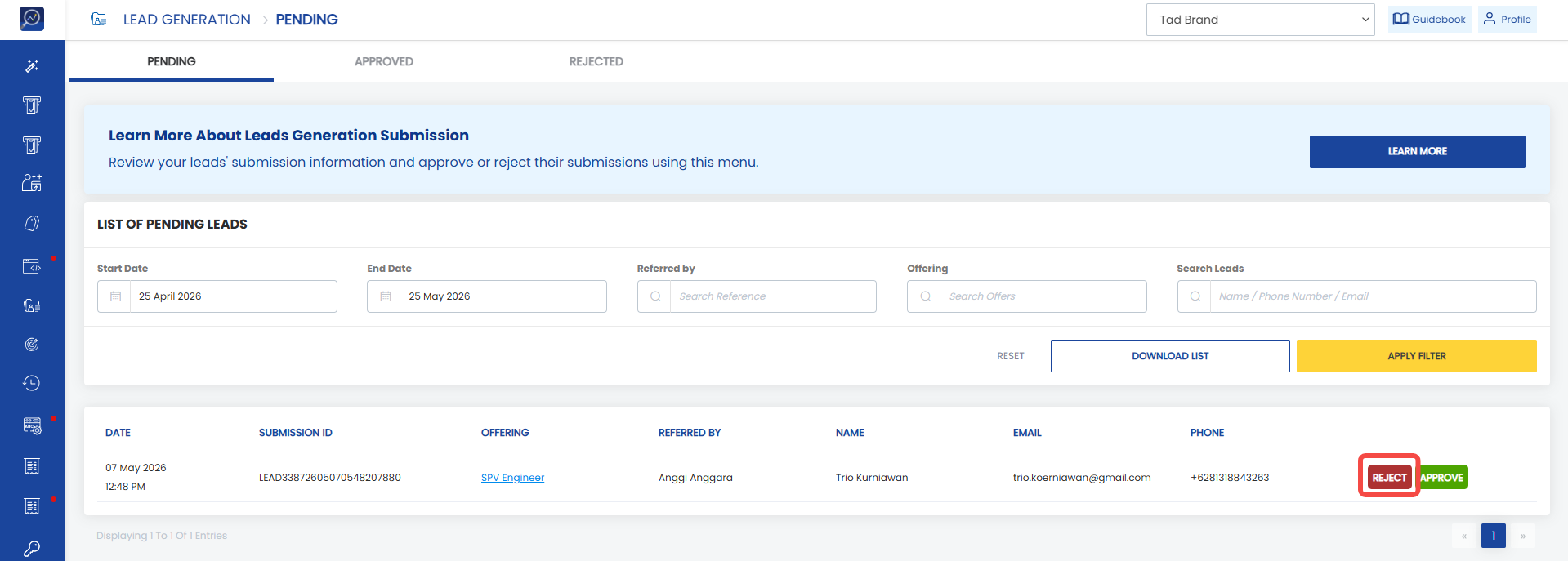
2. Click the “Pending” tab, then find the submission to approve/reject.
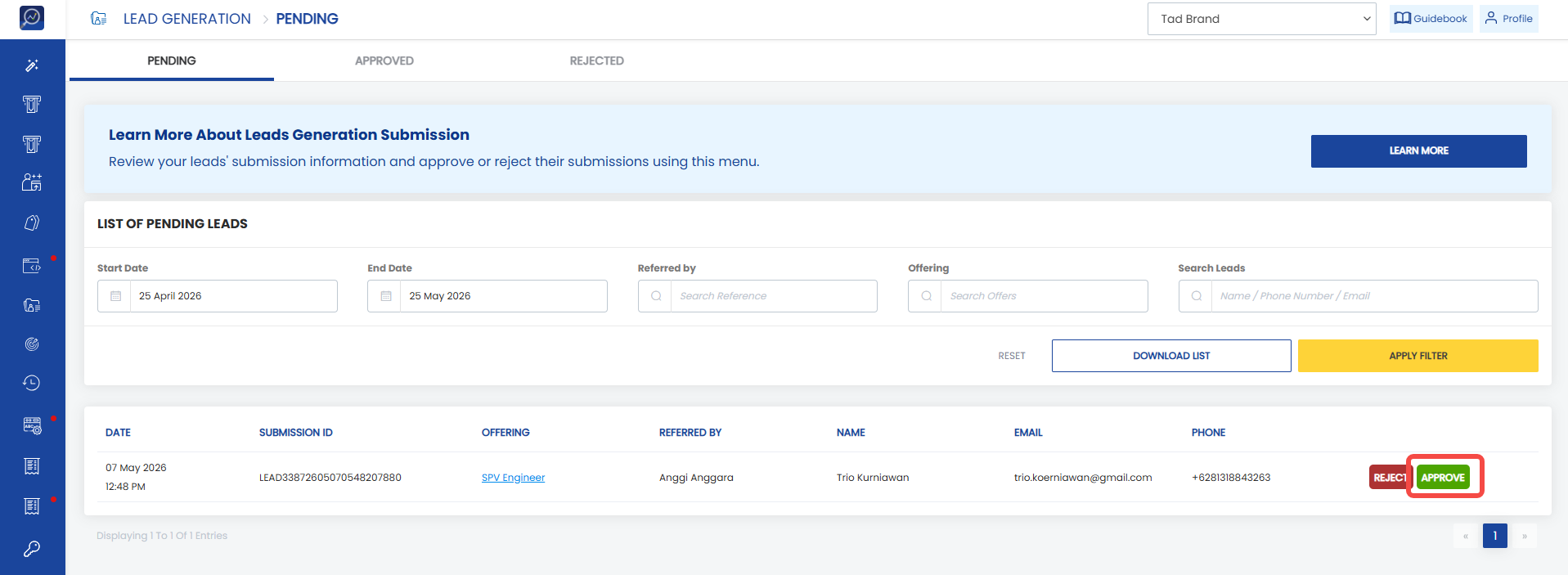
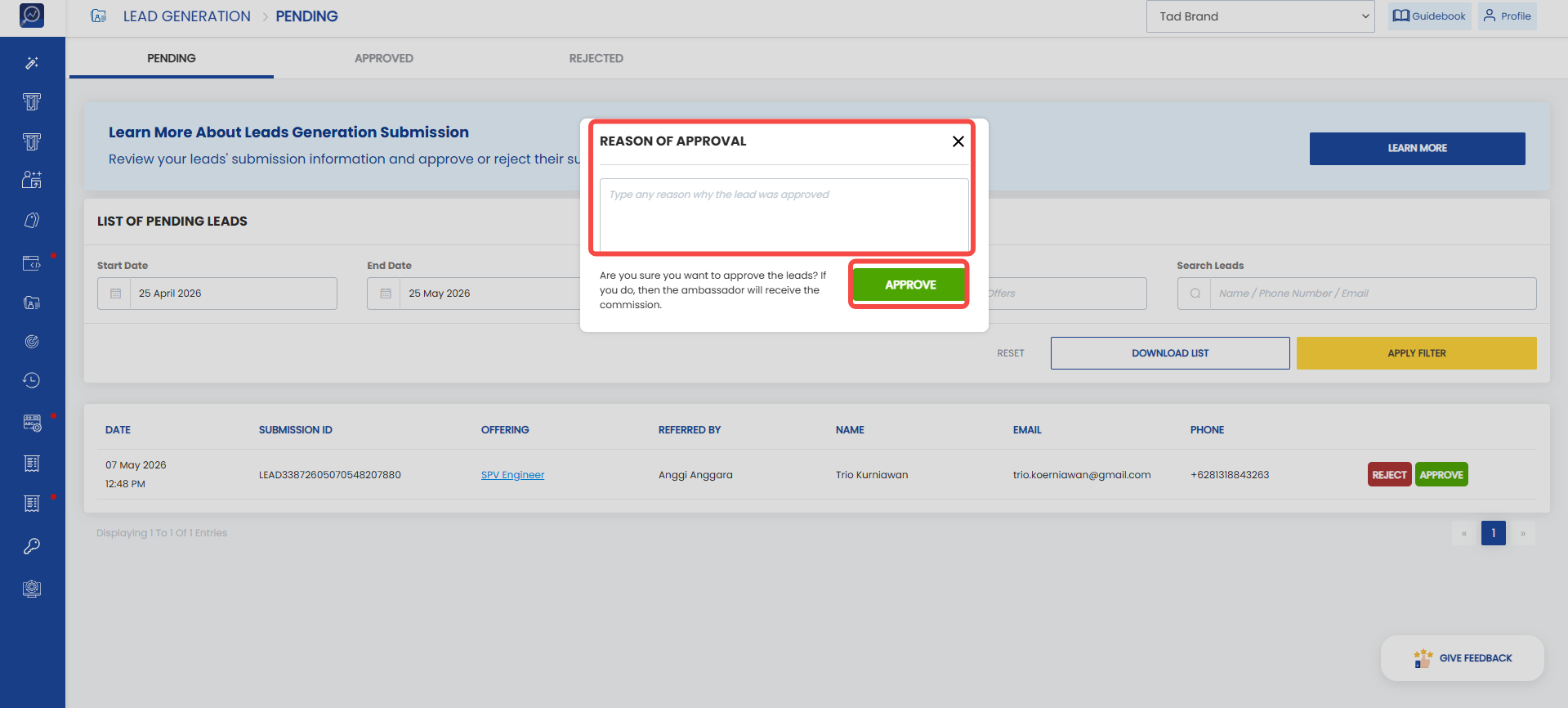
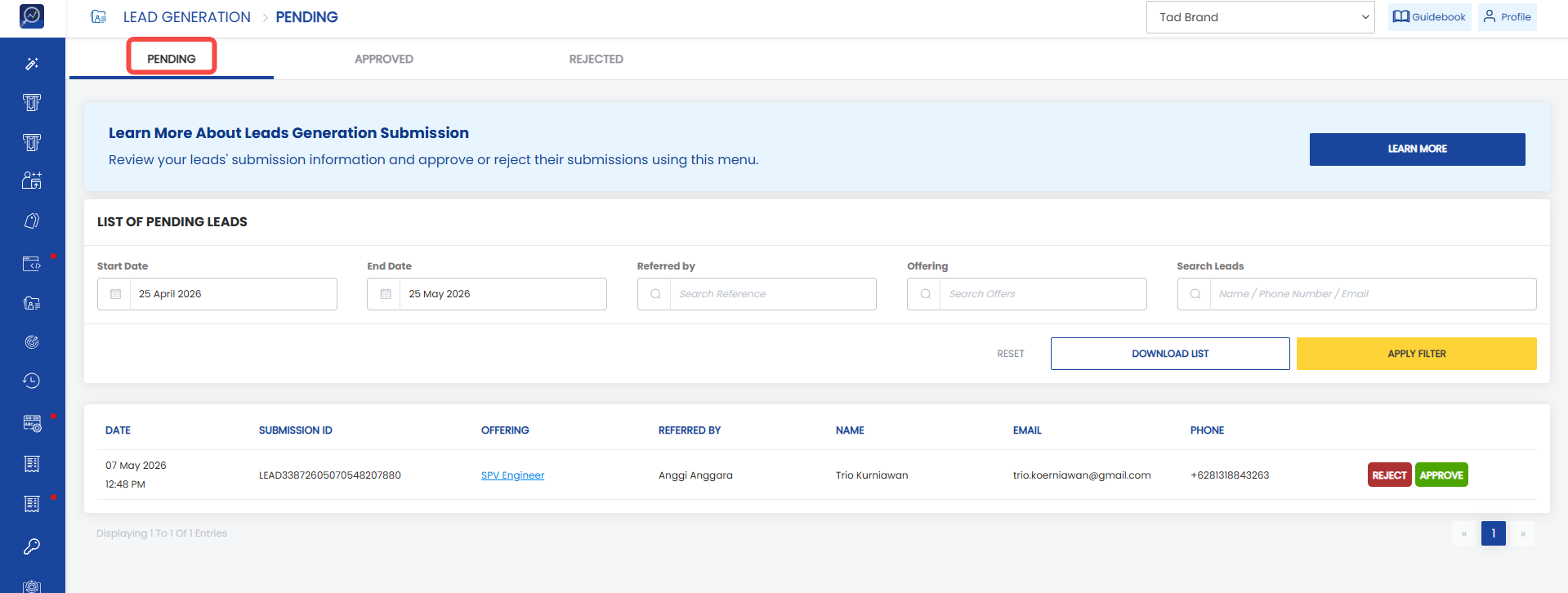 3. Click “Approve”, enter the approval reason in the provided field, then click “Approve”.
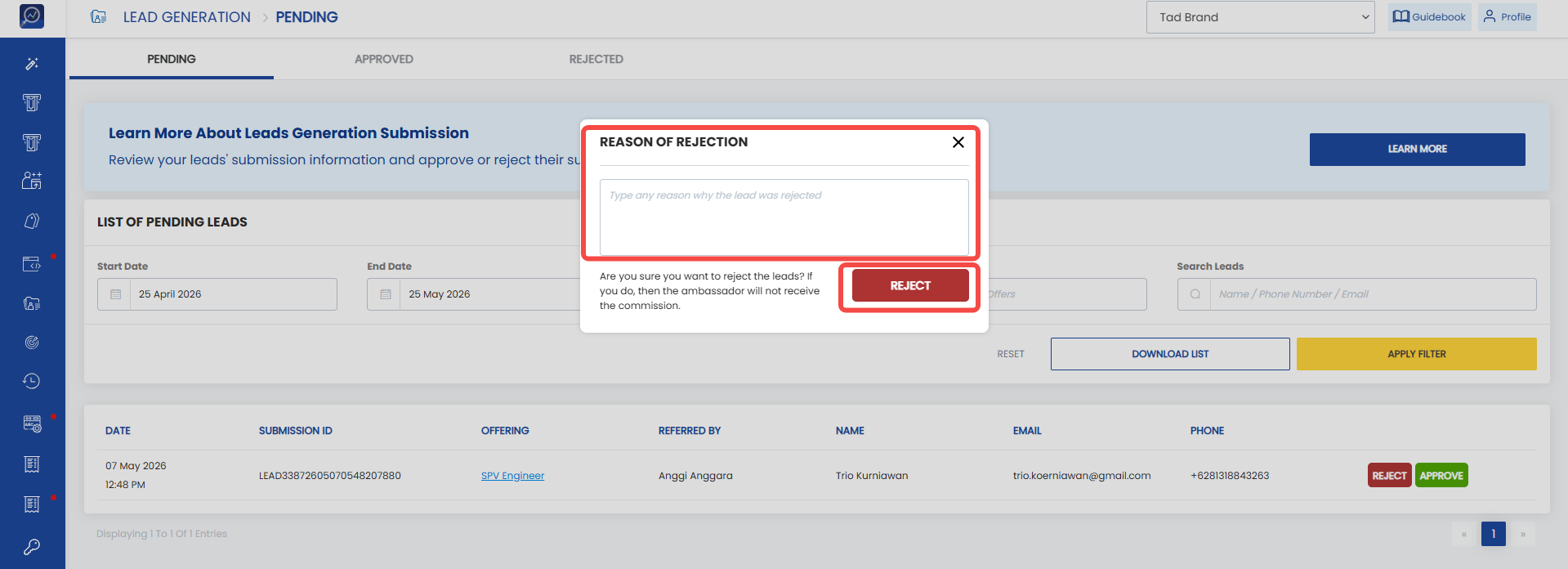
 4. Click “Reject”, enter the rejection reason in the provided field, then click “Reject”.
How to Edit a Lead
1. Open the “Leads Generation” menu, then select the “Program & Offer” sub-menu.
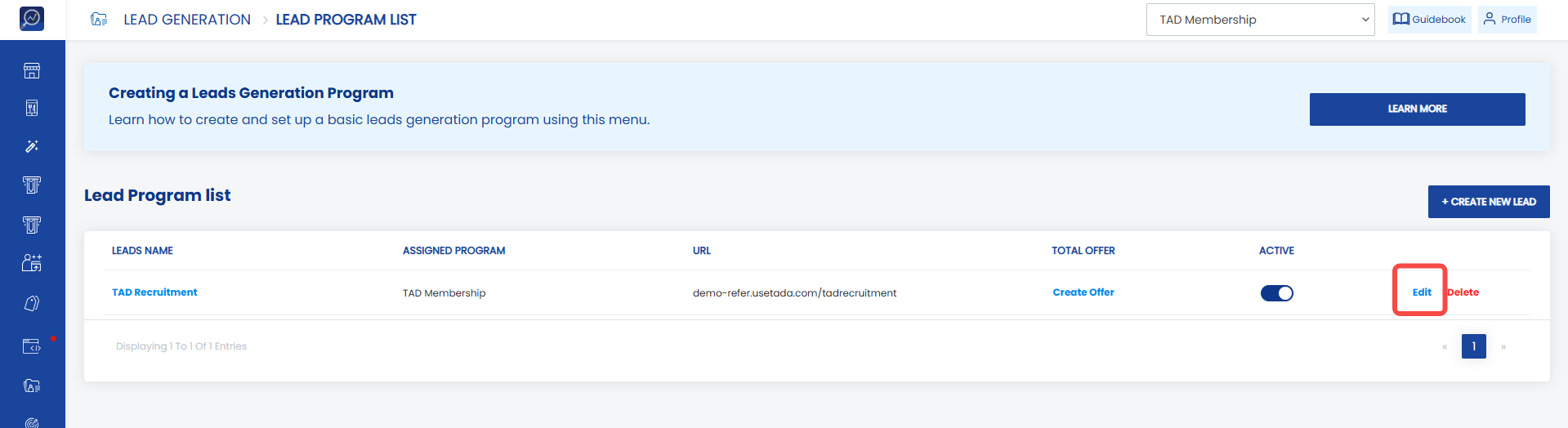
2. Find the lead you want to edit, then click “Edit”.
 3. Modify the required data.
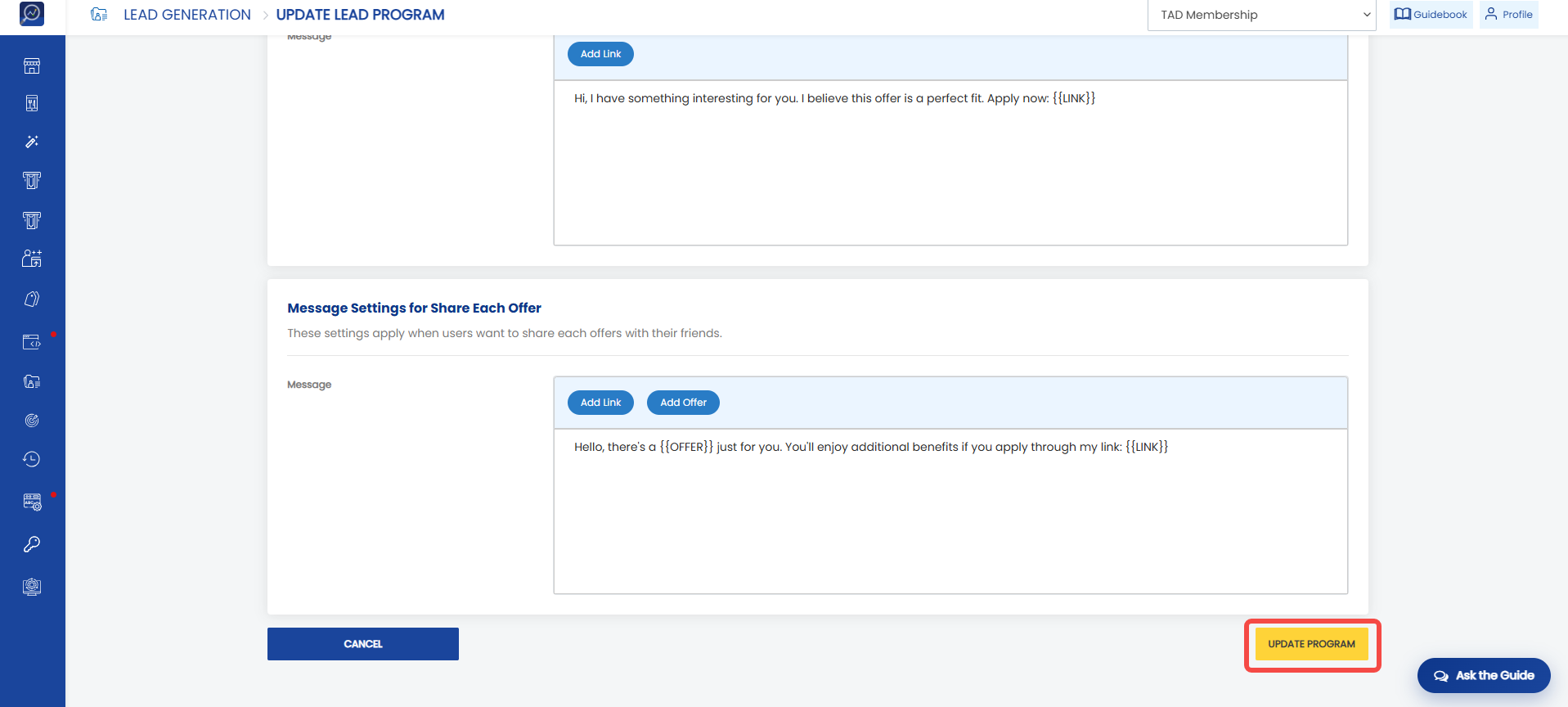
4. Click “Update program”.
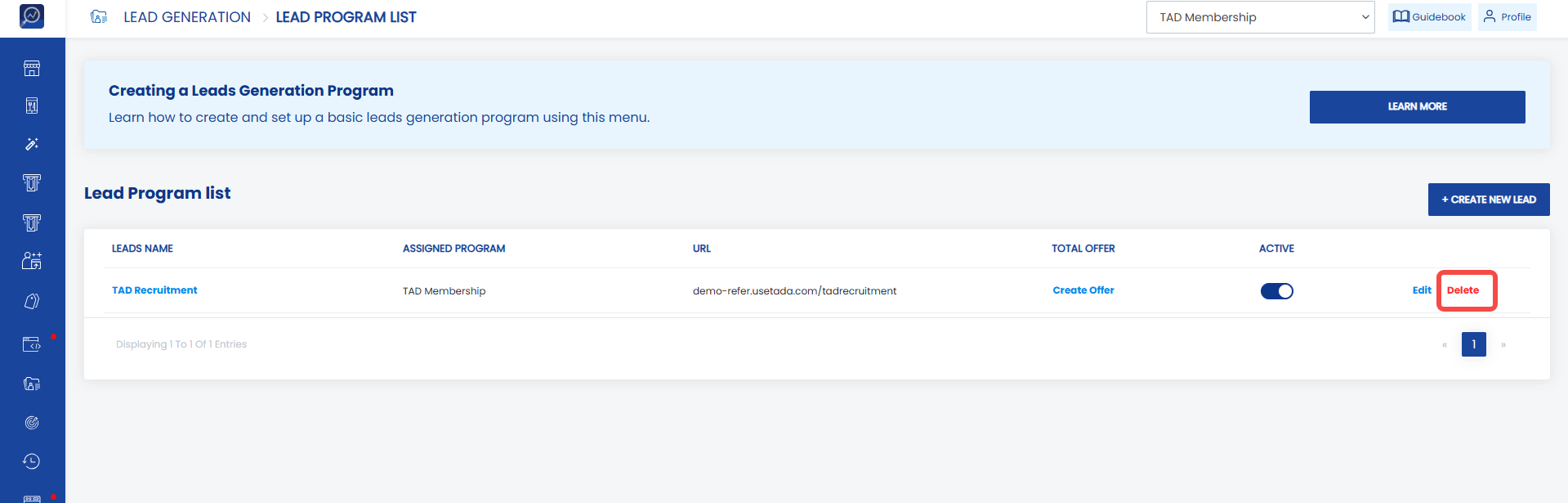
How to Delete a Lead
1. Open the “Leads Generation” menu, then select the “Program & Offer” sub-menu.
2. Find the lead you want to delete, then click “Delete”.
How to Add an Offer to a Lead
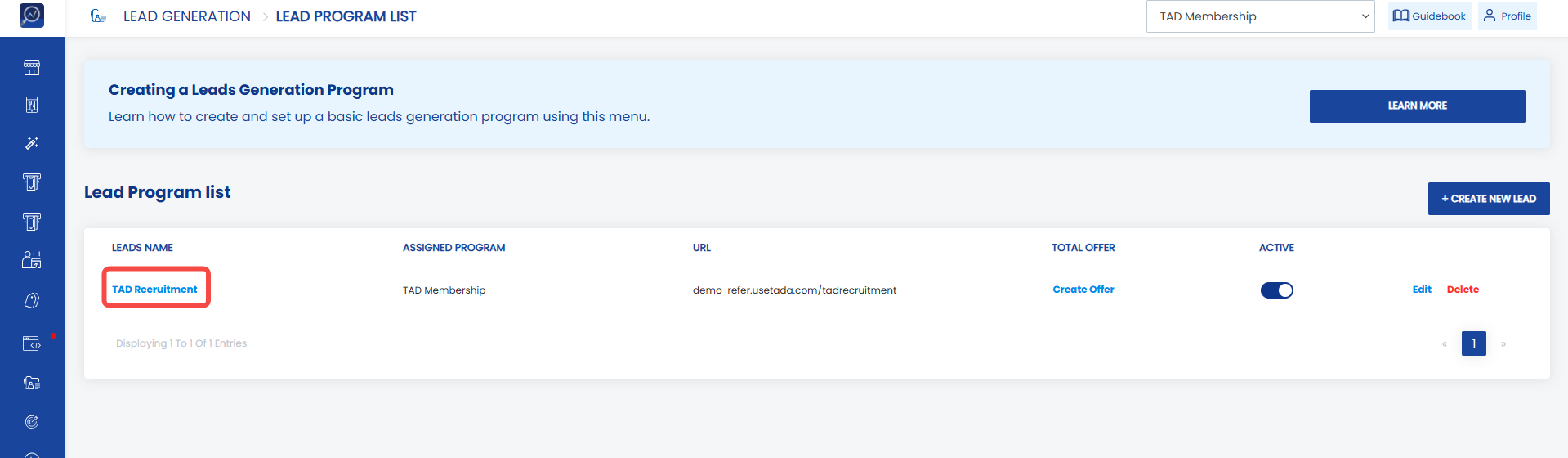
1. Open the “Leads Generation” menu, then select the “Program & Offer” sub-menu.
2. Find the lead where you want to create a new offer.
3. Click “Leads Name”.
 4. Click “+Create New Offer”
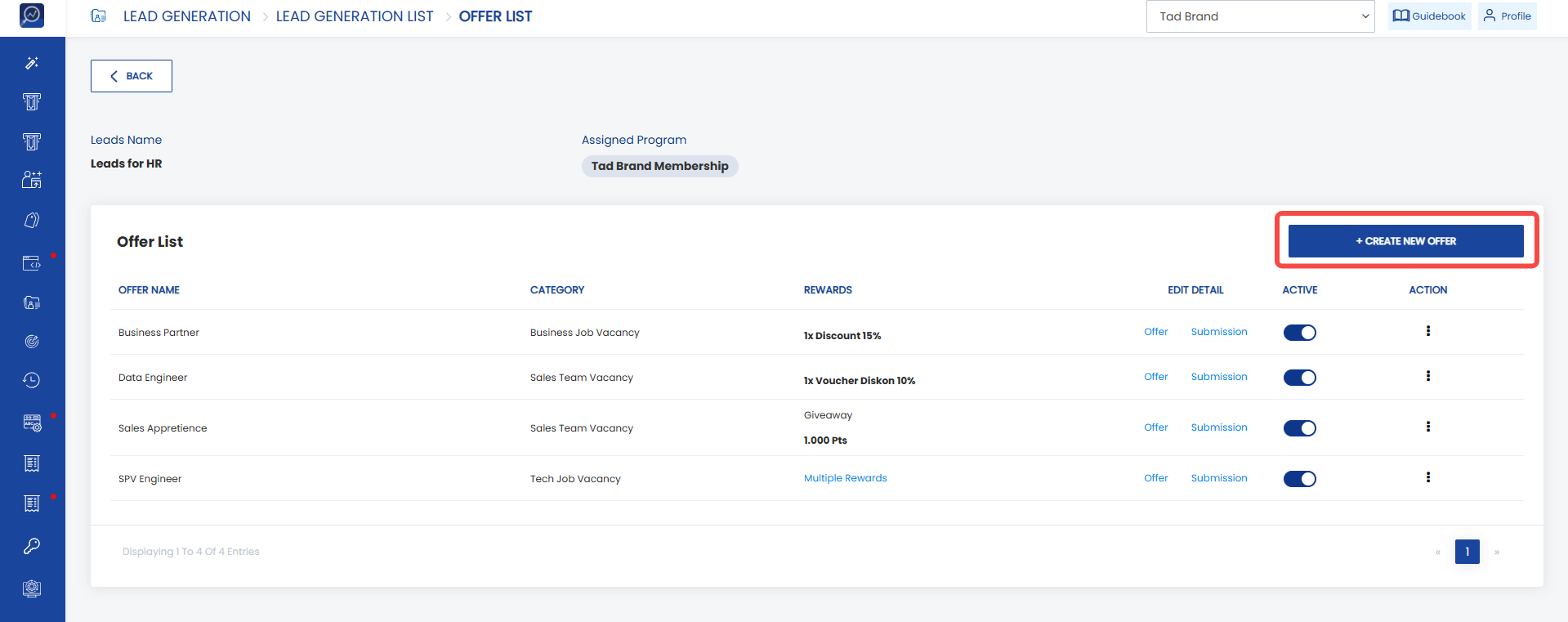 5. Complete the new offer by following the steps in Completing Offer Setting Data.