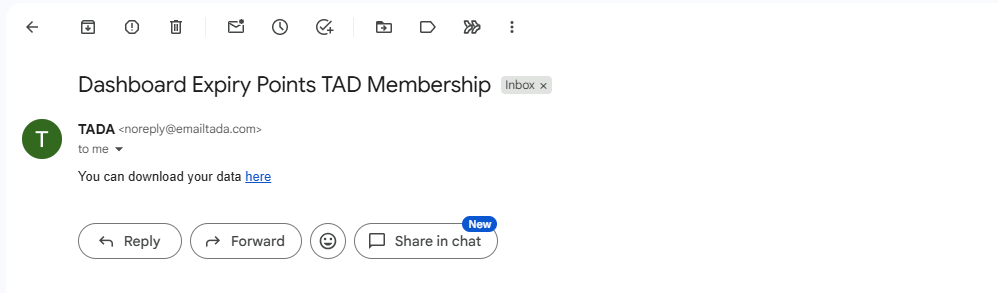
Point Insight
The Point Insight menu is used to monitor member point data, especially points that are approaching their expiration date. Through this menu, brands can view detailed information regarding points that will expire, helping them monitor point liabilities and develop member engagement strategies.
How to Read Point Insight Data
1. Open the "Point Insight" menu.
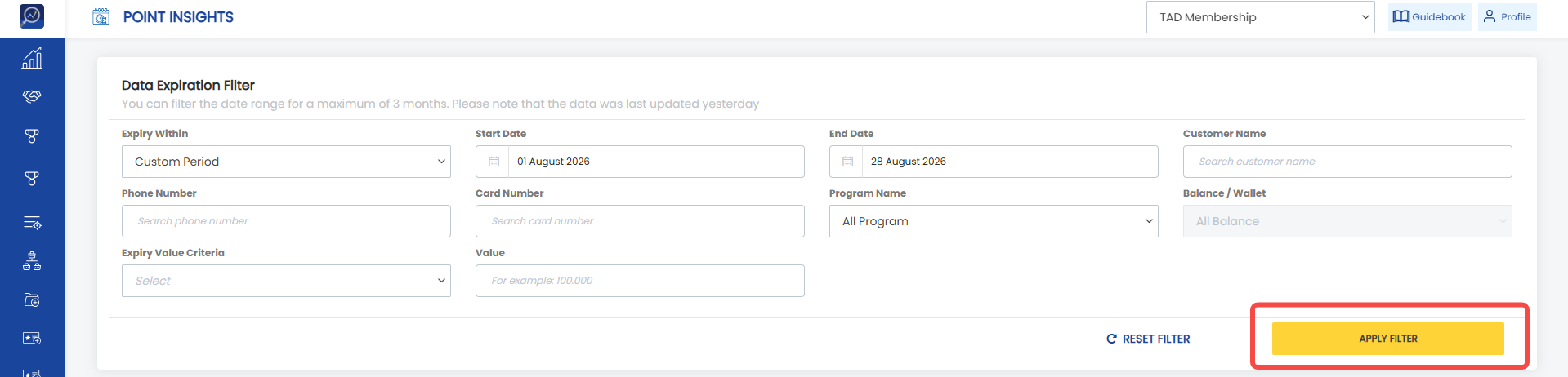
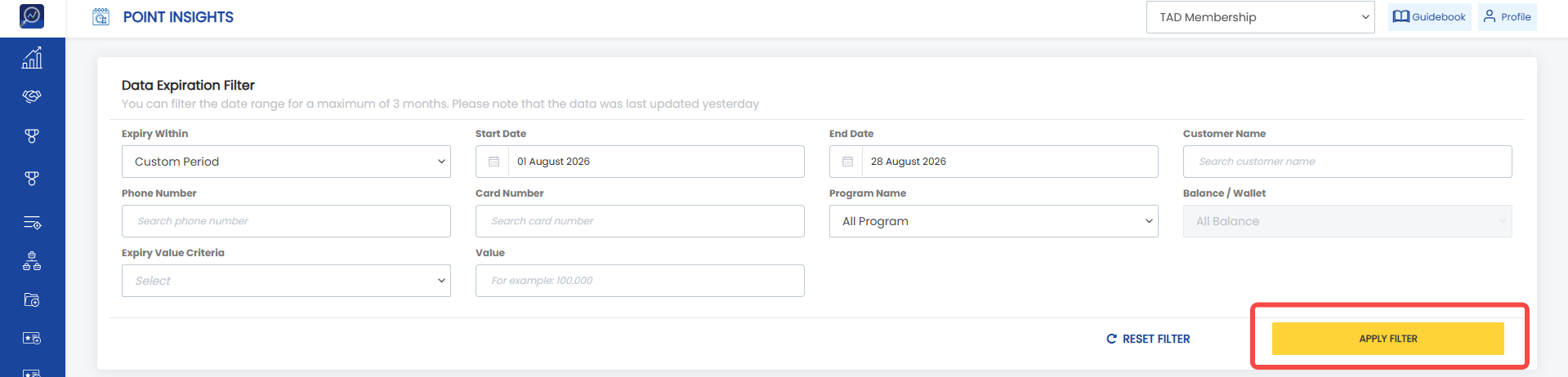
2. Use the available filters to simplify your search. Available filters include:
- Expiry Within: Expiration period, consisting of points expiring within the next 7 days, next month, next 3 months, or a custom period.
- Start and End Date: Appears when Custom Period is selected in Expiry Within. The maximum selectable date range is 3 months.
- Phone number
- Card number
- Program name
- Balance/Wallet
- Expiry value criteria
- Value
3. Click “Apply Filter”
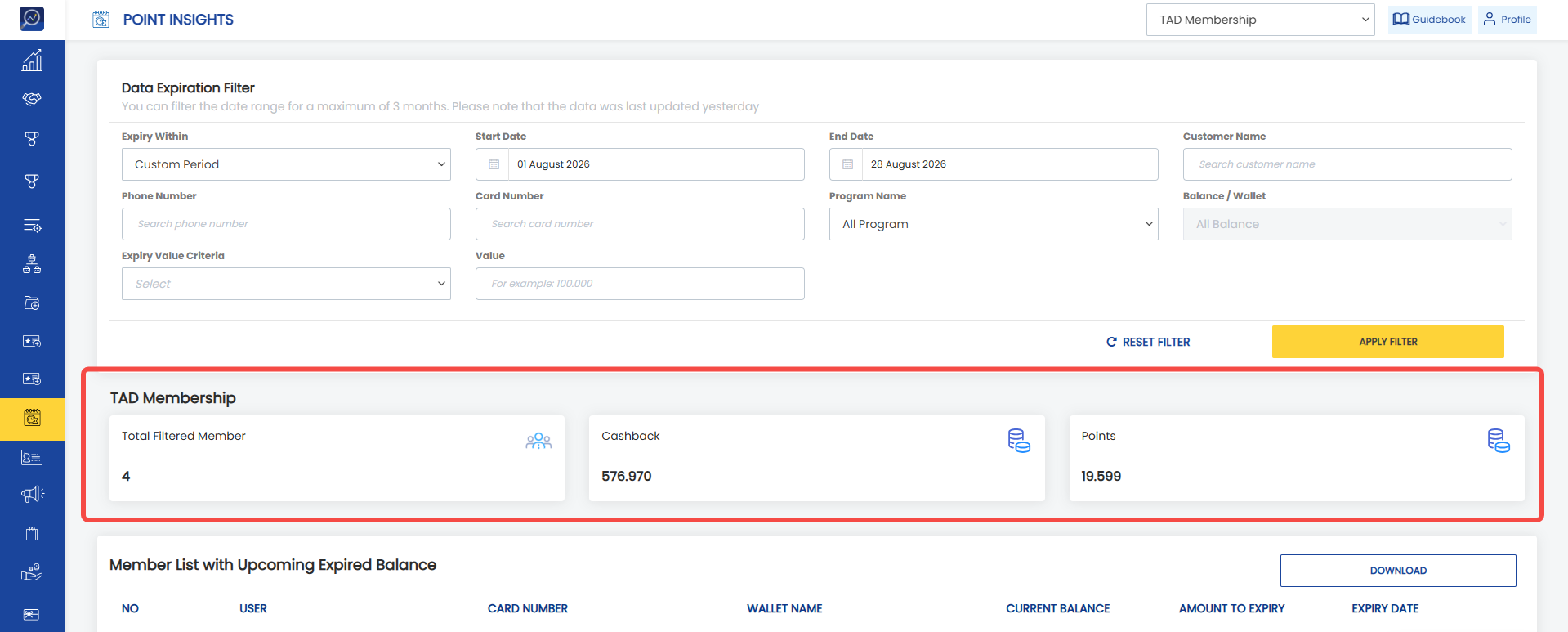
 4. Review the summary of points that are about to expire.
Description:
- Total Filtered Member: Total number of members whose points will expire based on the applied filter.
- [Nama Wallet]: The wallet in which the points will expire.
- Total Point: Total points within each wallet that will expire.
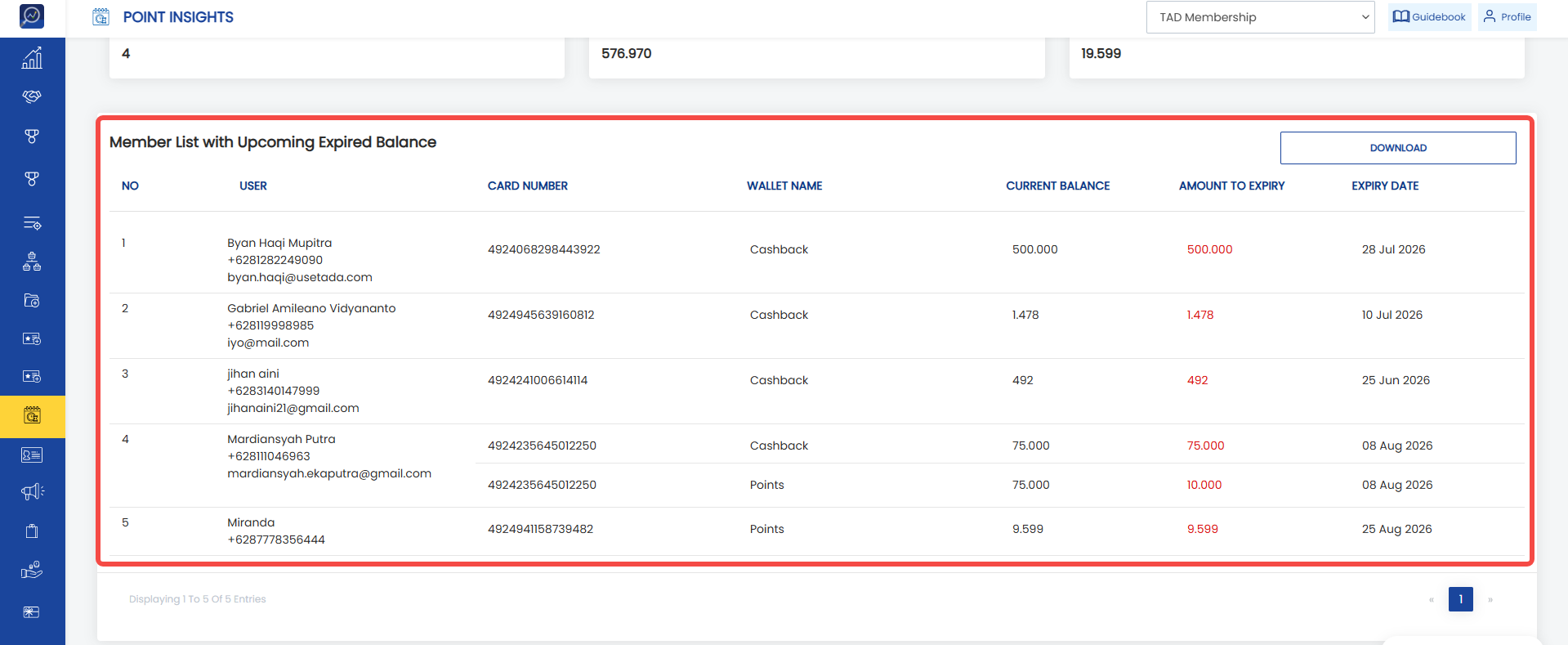
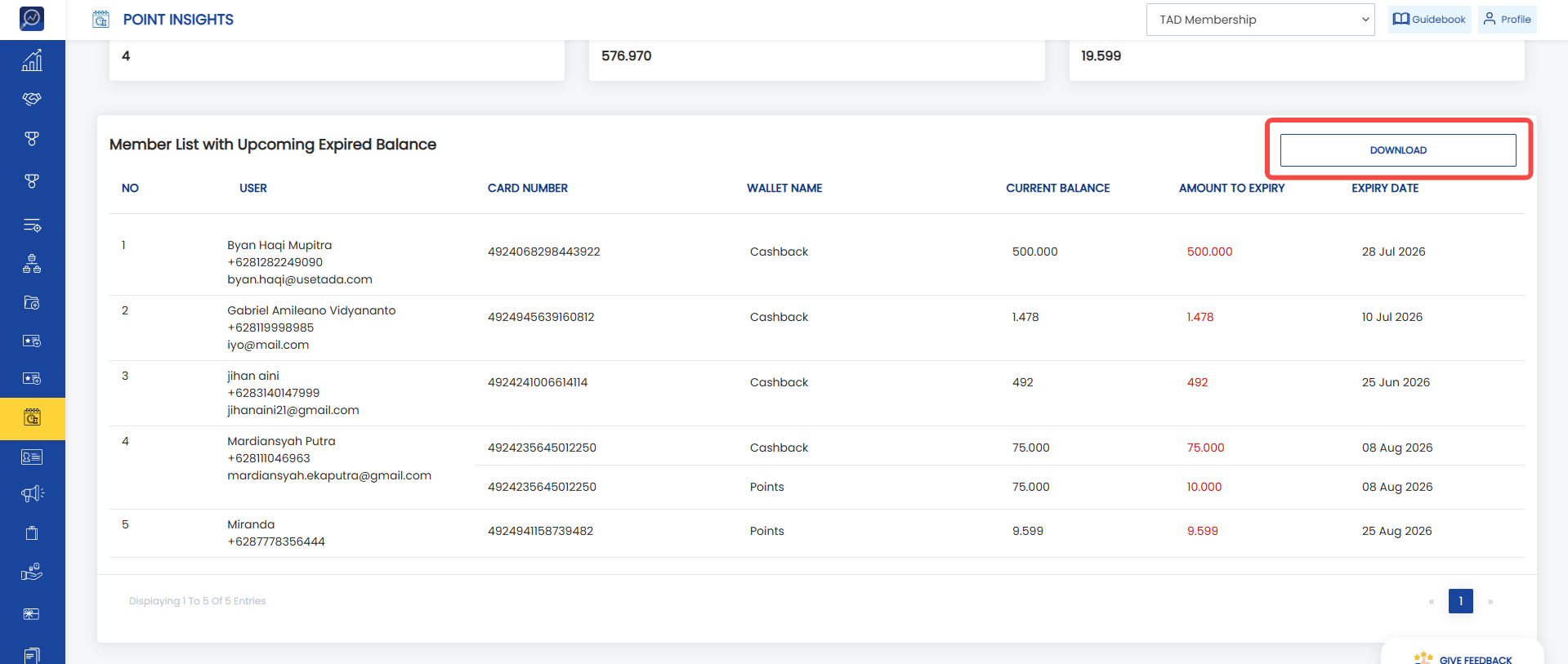
 5. Review the member data whose points are about to expire.
Steps to Download Point Insight Data
1. Open the "Point Insight" menu.
2. Use filters to simplify your search.
3. Click "Apply Filter".
 4. Click "Download List".
 5. The system will display a pop-up.
6. Enter the recipient email address for the report.
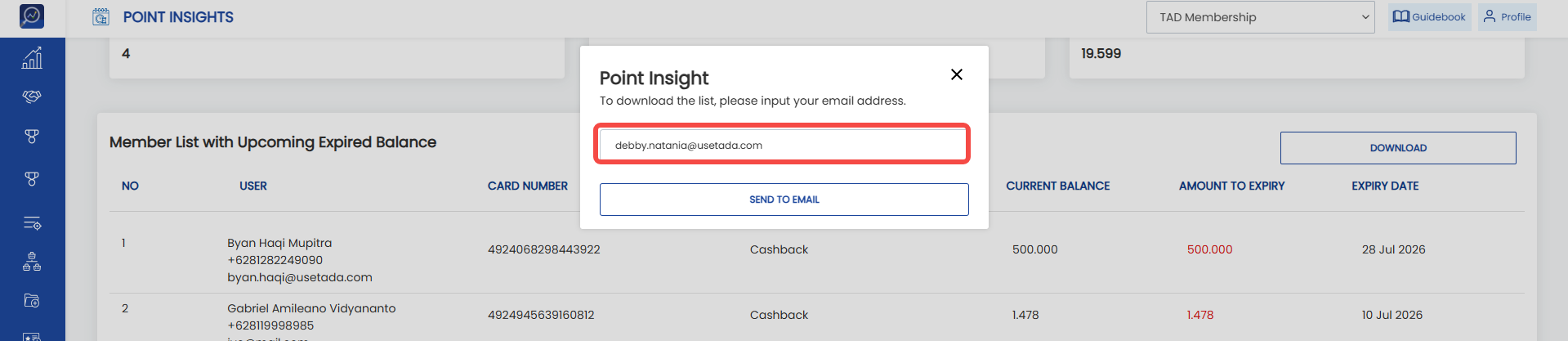 7. Click “Send to email”
 8. The Point Insight report will be sent as a file attachment to the specified email address.