Promo
The Promo menu is used to create and manage promotions that can be used by members. Merchants can create new promotions, view ongoing and expired promotions, and manage promotion periods and usage terms. Promo codes can only be used in the Shop and Virtual Franchise programs.
How to Create a Promo
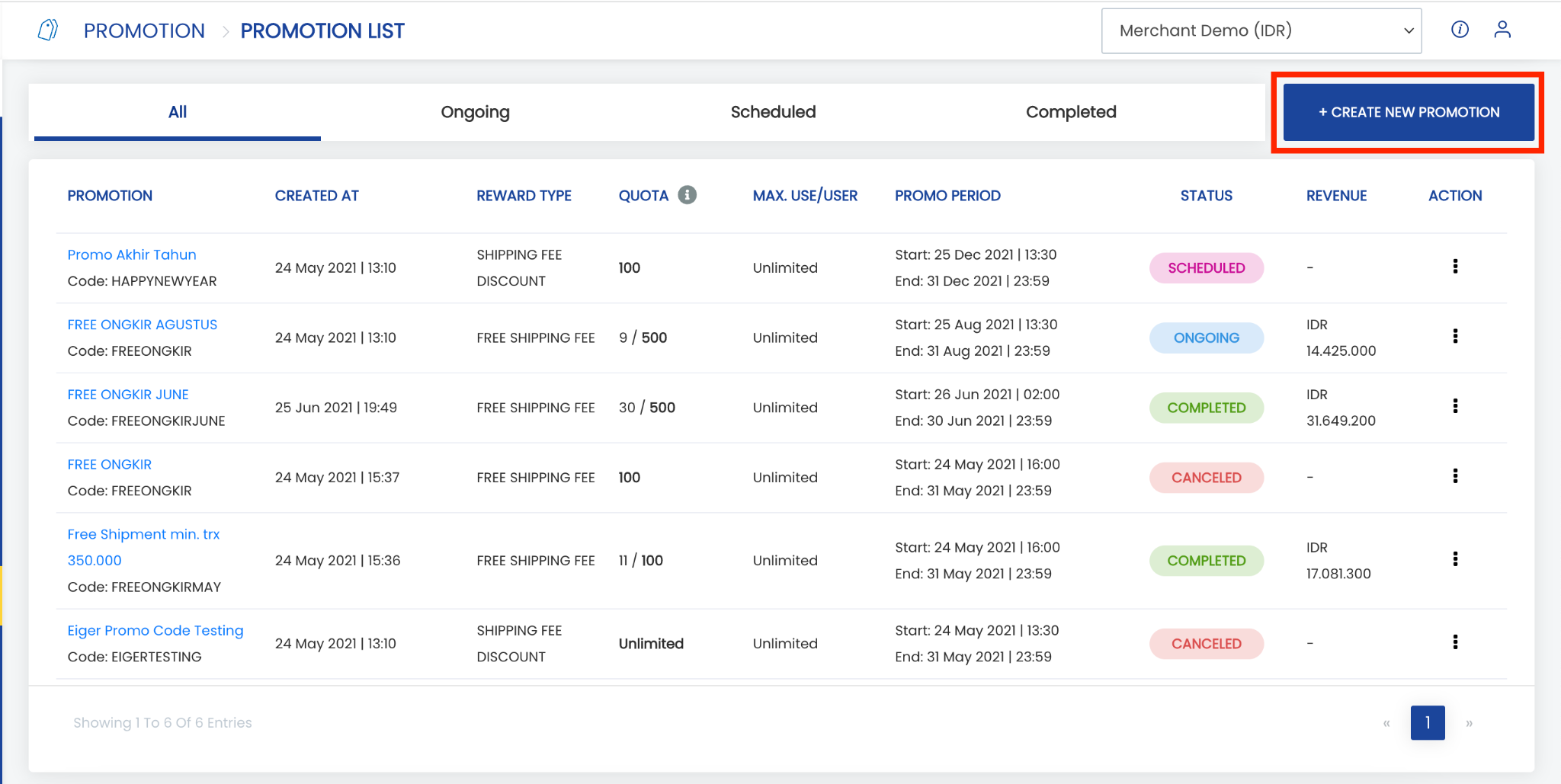
1. Open the “Promo” menu.
2. Click “Create New Promotion”.
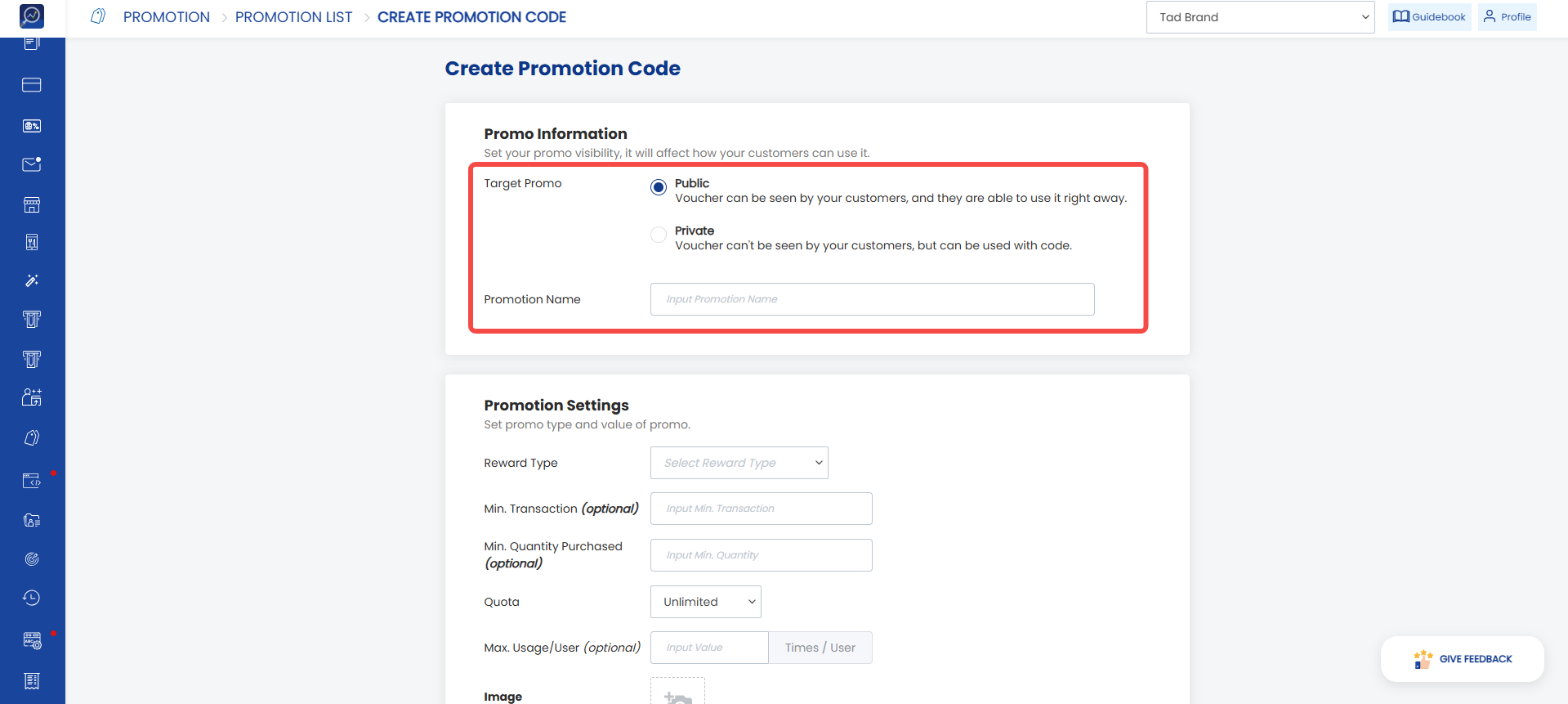
 3. Select “Target Promo”.
Note: If the promo should be visible and selectable directly by customers, select “Public”. However, if the promo can only be used by customers who have a promo code, select “Private”.
4. Enter the “Promotion Name” as the title of the promo being created.
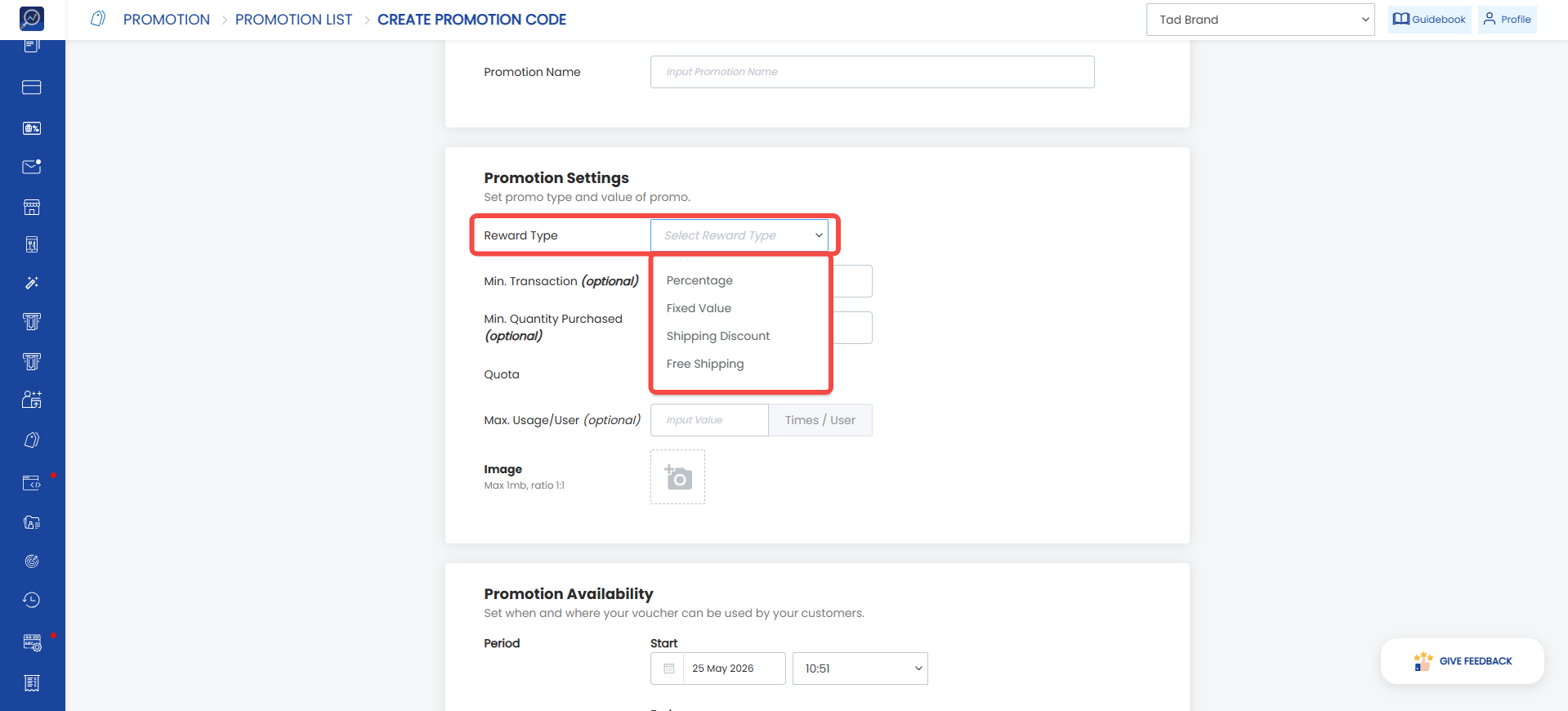
 5. Select one “Reward Type”, which can be percentage, fixed value, shipping discount, or free shipping.
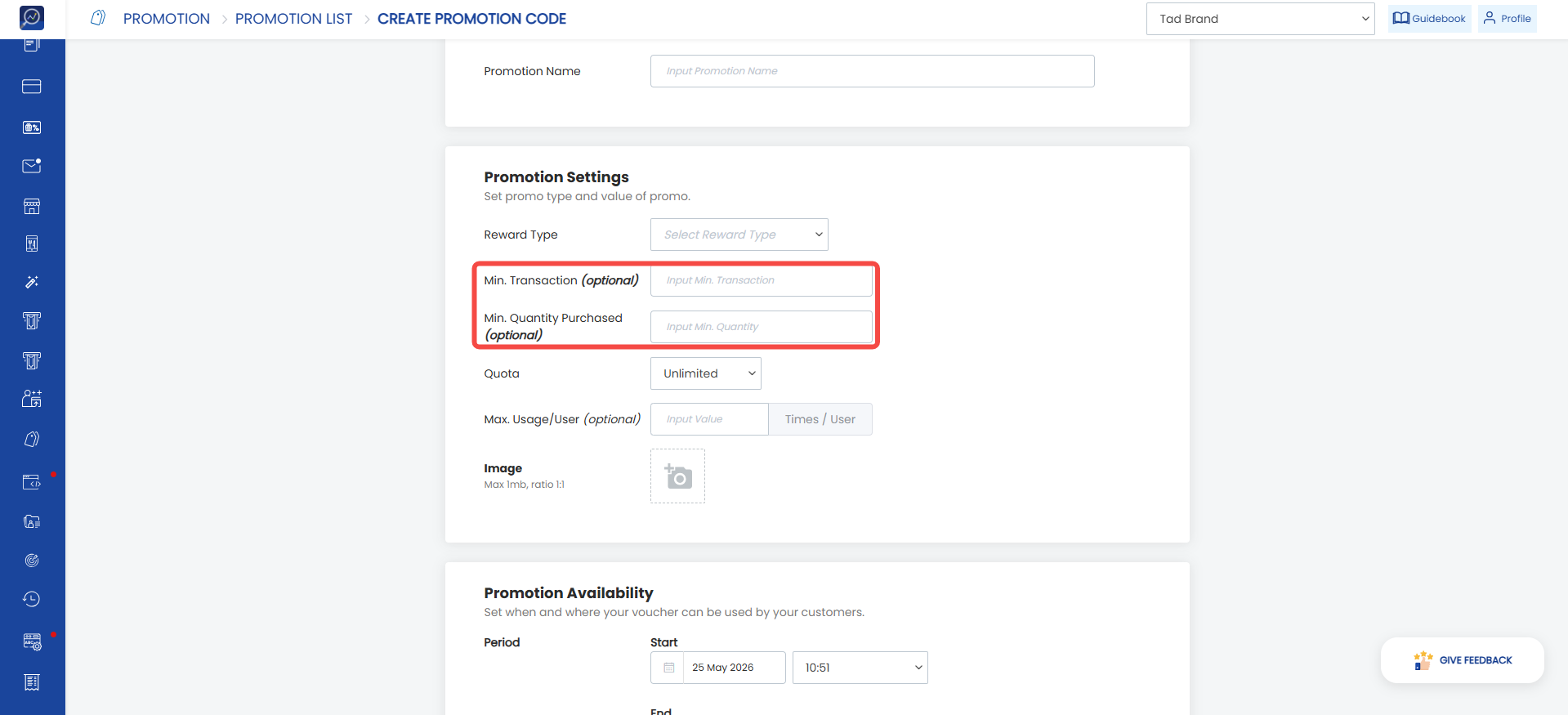
 6. Complete the “Min. Transaction” field if the promo can only be used when a transaction reaches a certain amount. This parameter is optional and may be left empty if there is no minimum transaction requirement.
7. Complete the “Min. Quantity Purchased” field if the promo can only be used when a transaction reaches a certain quantity. This parameter is optional and may be left empty if there is no minimum quantity requirement.
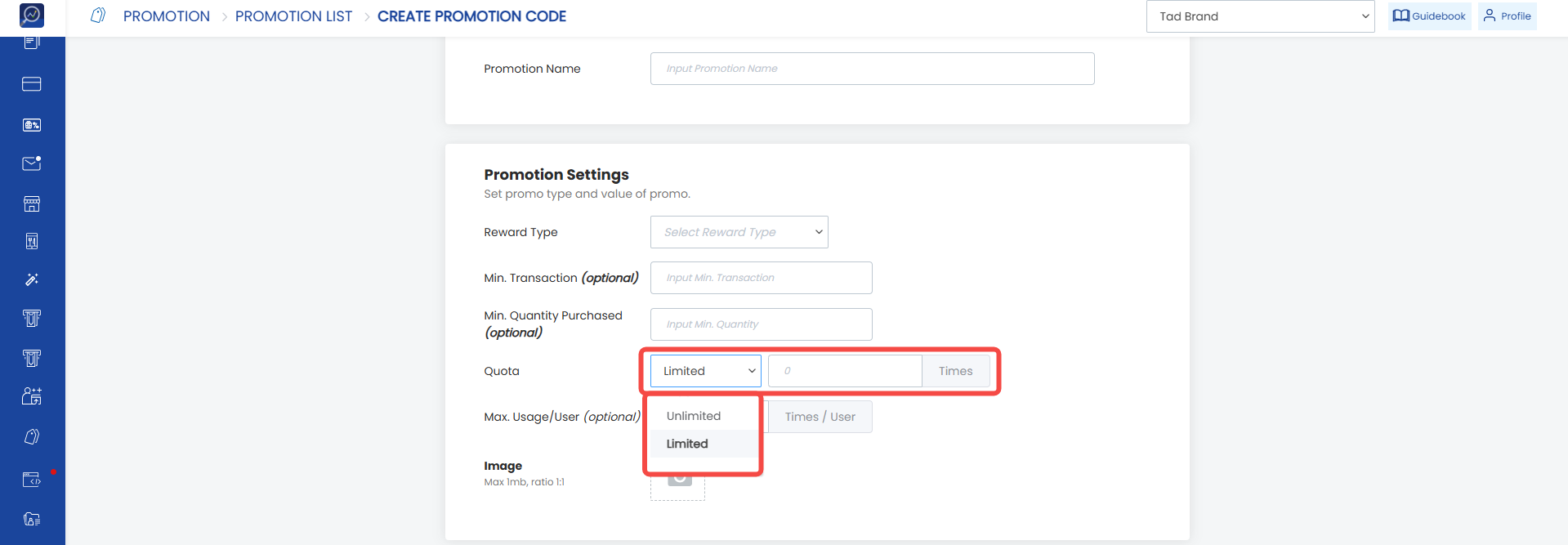
 8. Select “Quota” to determine the promo usage quota.
Note: If the promo has no usage limit, select “Unlimited”. However, if the promo has a usage limit, select “Limited”. When selecting “Limited”, specify the usage limit in the field provided.
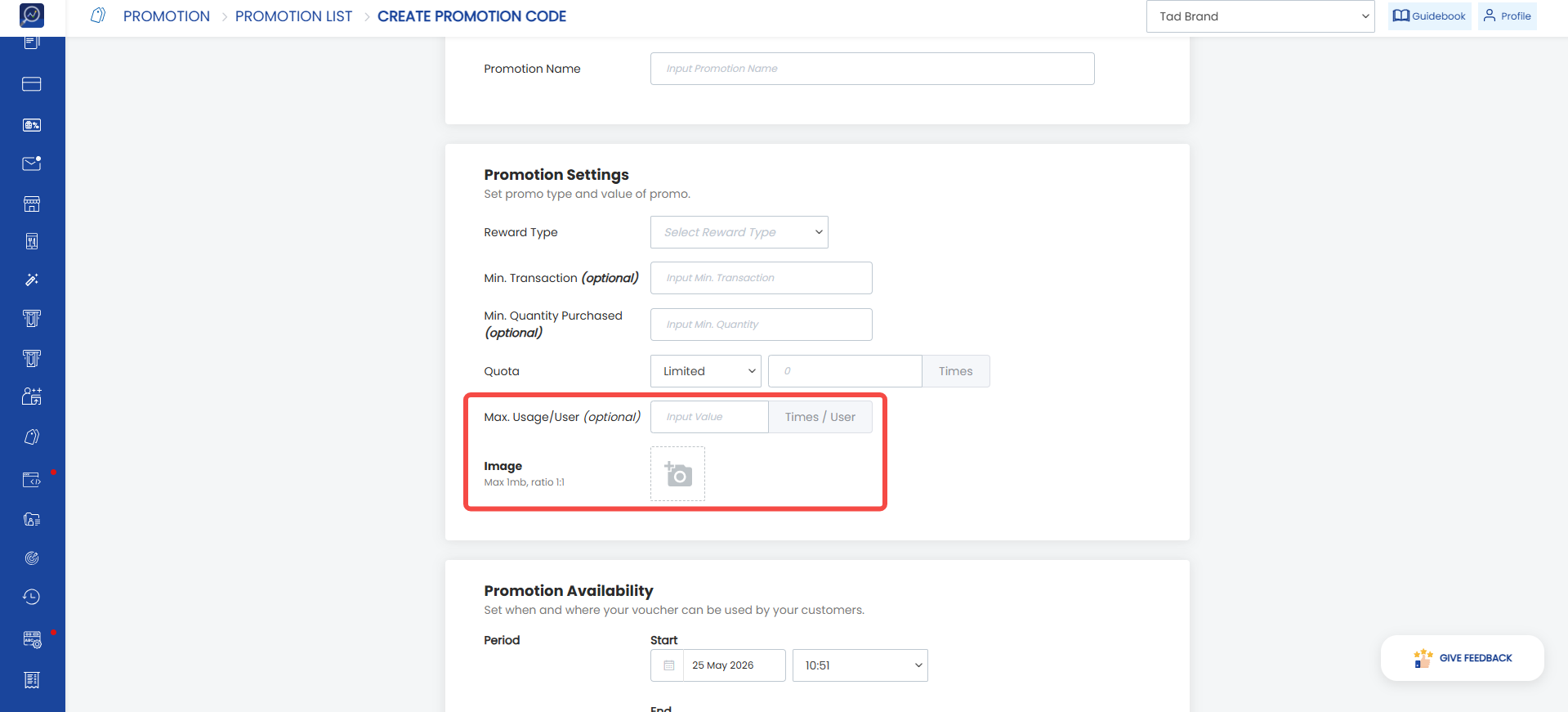
 9. Complete the “Max. Usage/User” field to determine the usage limit per user. Enter a number to define how many times a customer can use the promo. This parameter is optional and may be left empty if there is no usage limit per user.
10. Upload an “Image” that customers will see when using the promo. The recommended ratio is 1:1 with a maximum size of 1 MB.
 11. Complete the “Period” by entering the promo usage period in the “Start” and “End” fields.
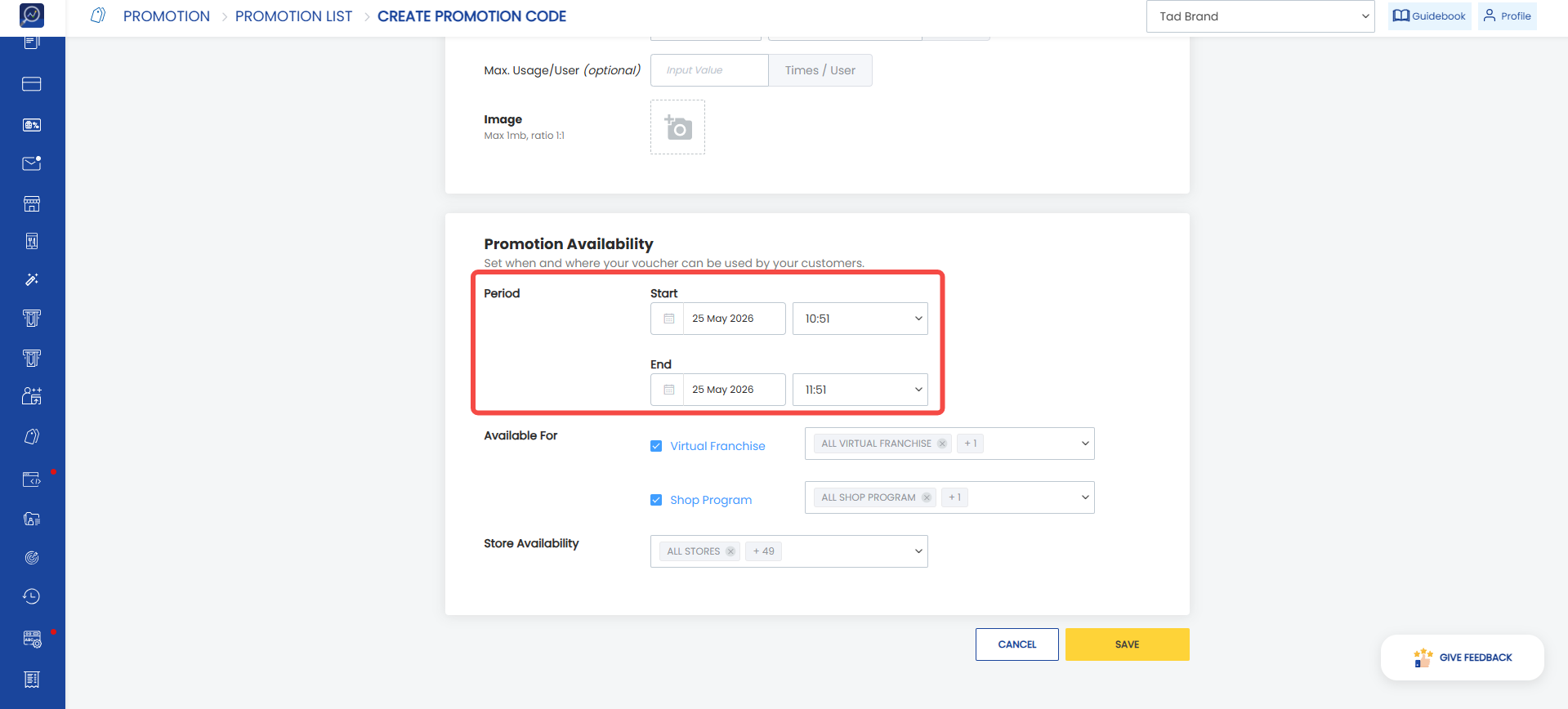 12. Select whether the promo applies to the Shop or Virtual Franchise program.
13. Determine which stores can use the promo under “Store Availability”.
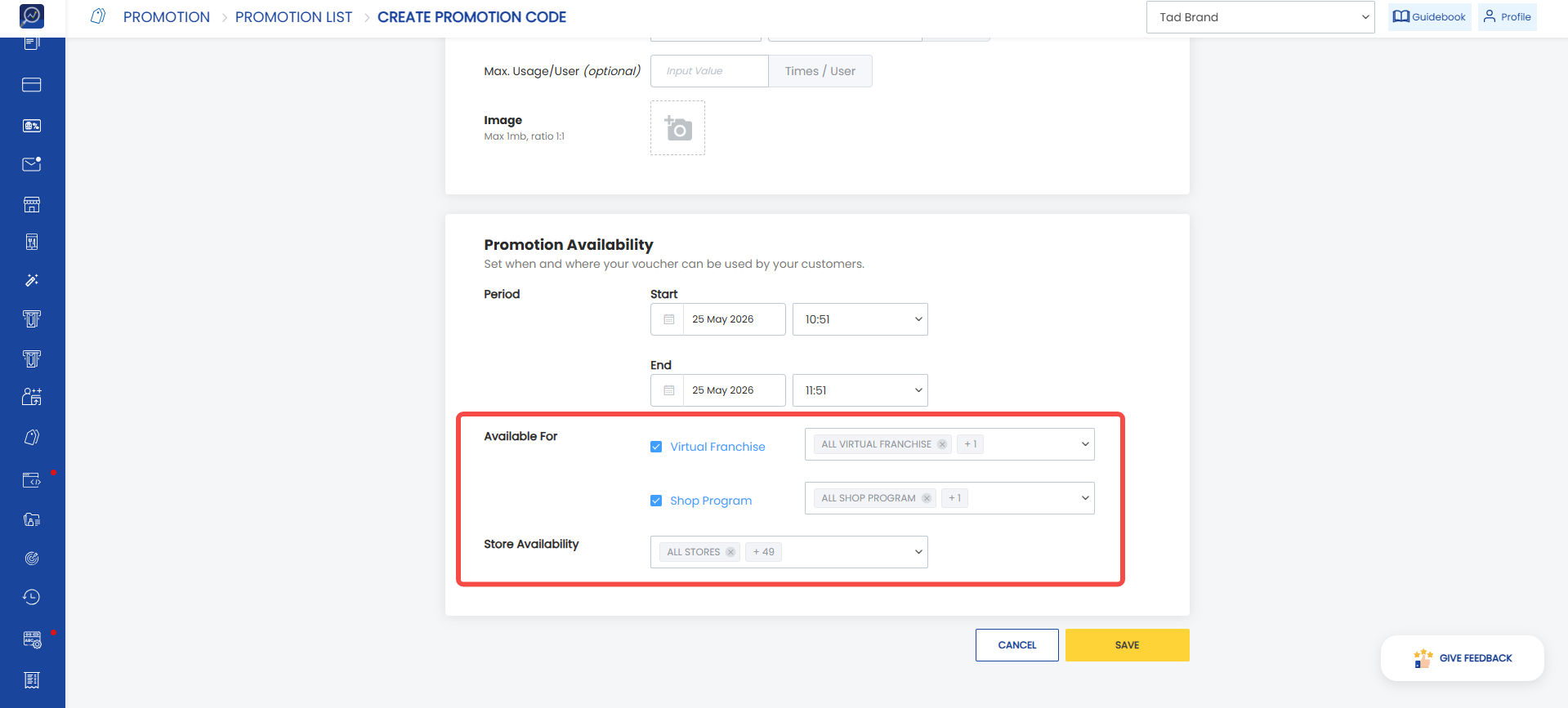 14. Click “Save” to complete the promo creation process.
How to End a Promo
1. Open the “Promo” menu.
2. Select a promo with the status On Going or Scheduled.
3. Click the three-dot icon on the right side, then select “End”.
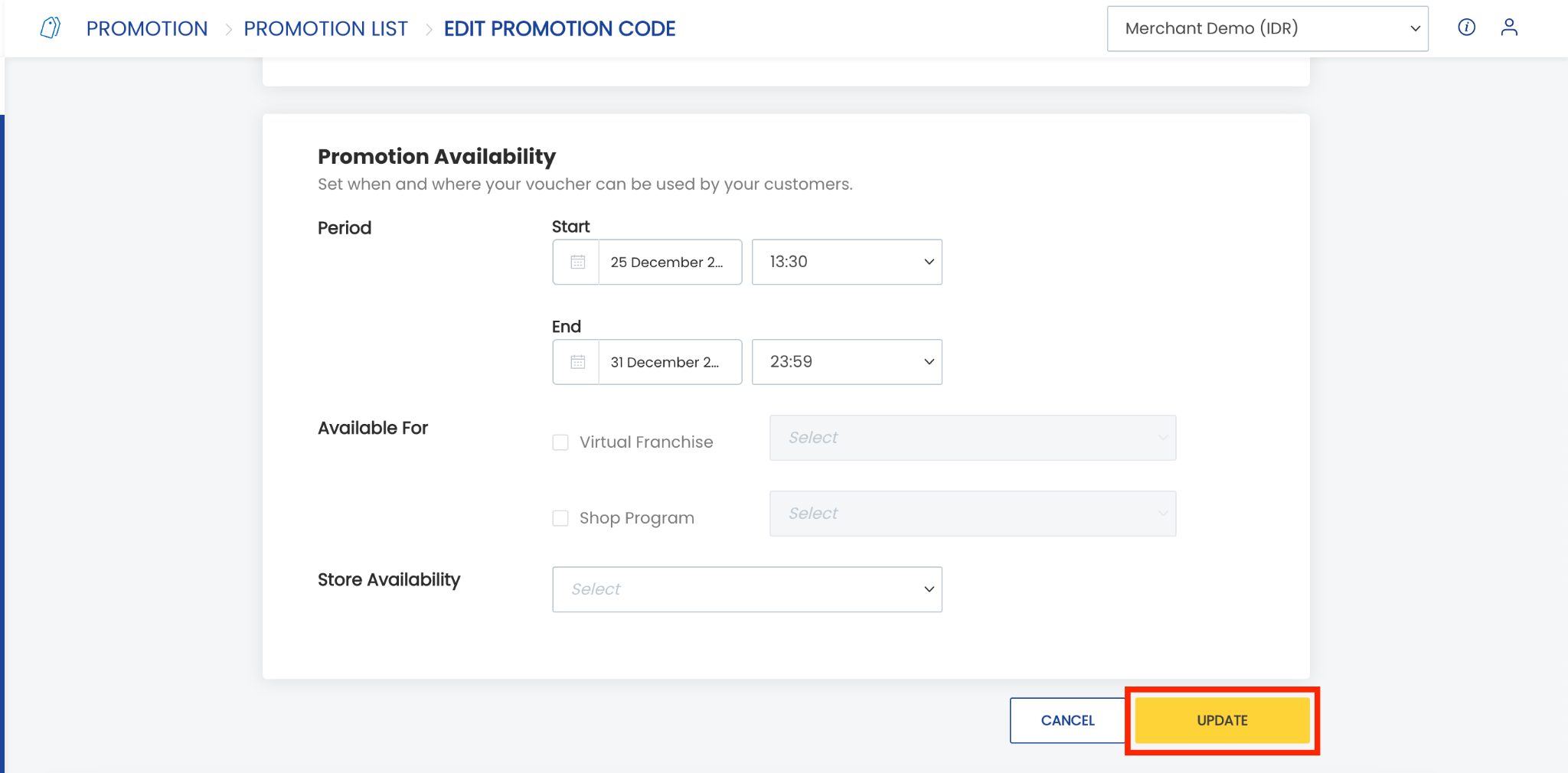
How to Edit an Existing Promo
1. Open the “Promo” menu.
2. Select a promo with the status Scheduled.
3. Click the three-dot icon on the right side, then select “Edit”.
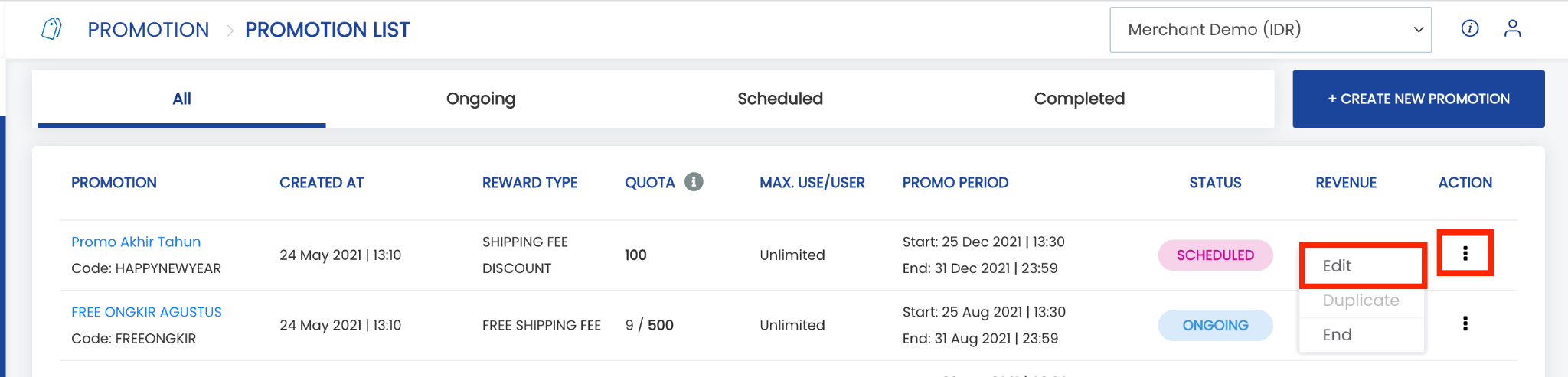 4. Modify the required data.
5. Click “Update”