
Virtual Franchise
The Virtual Franchise feature in the Tada Dashboard allows brands to build a digital reseller or franchisee network through a link-sharing system. Through this program, franchisees can:
- Share the brand’s catalog or products
- Sell products or services
- Invite new franchisees
- Earn commissions from sales and referral activities
This feature is suitable for products or services that can be marketed online, such as fashion, beauty, food and beverage, and retail products. In addition, it can also be used for food or beverage e-vouchers that can be redeemed directly at selected merchants.
How to View Virtual Franchise Data
The Summary menu is used to view the performance of the Virtual Franchise program based on sharing activity, sales, and commissions.
1. Open the “Virtual Franchise” menu, then select the “Summary” sub-menu.
2. Apply a filter by clicking “Date filter” and selecting one of the available filters.
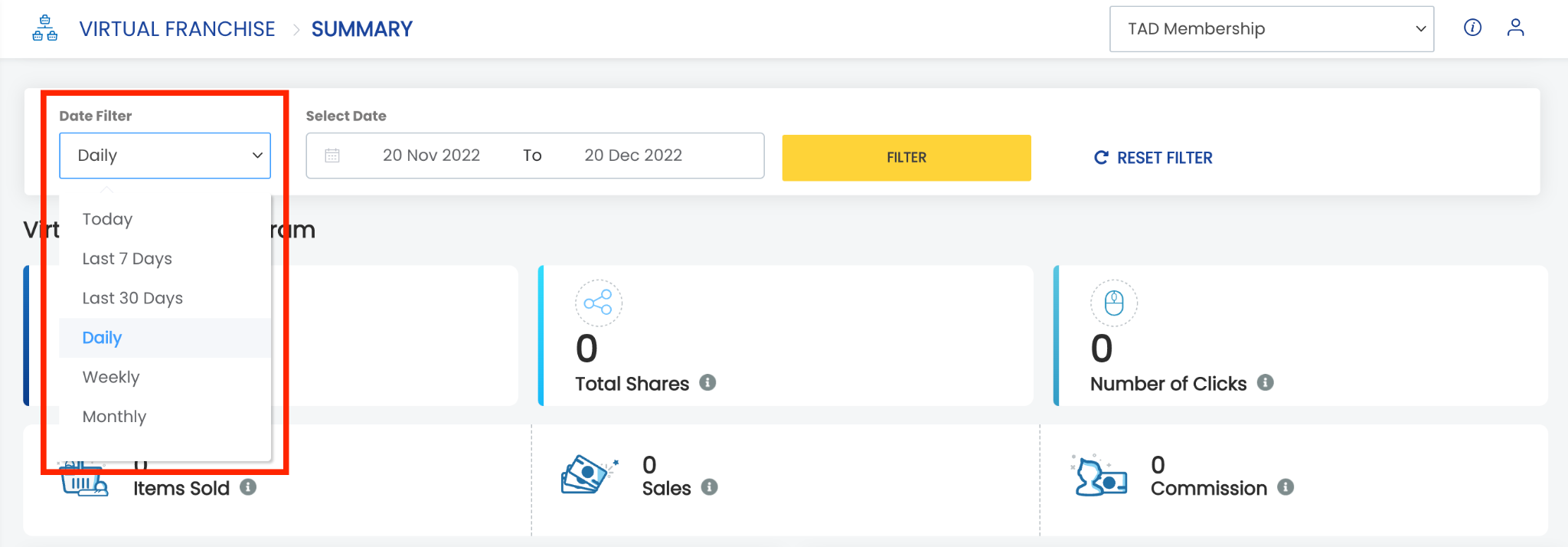 3. If the user selects daily/weekly/monthly, enter the desired range in “Select date”.
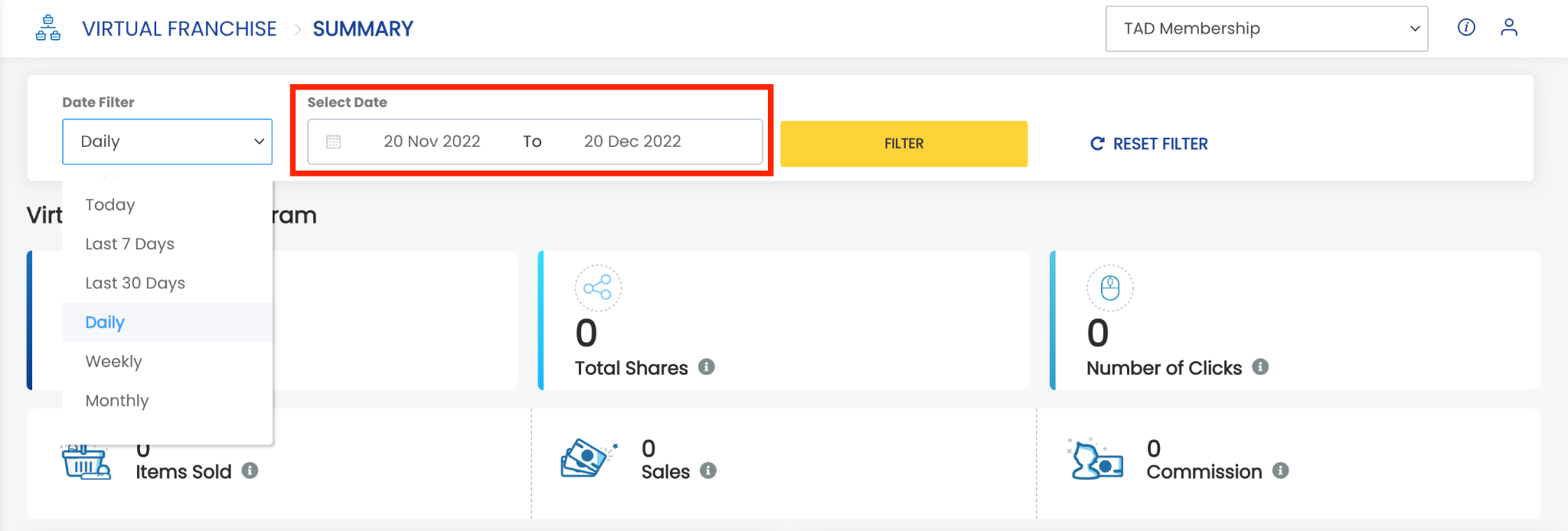 4. Click “Filter”
 Terms in Virtual Franchise
Below are several terms used in Virtual Franchise:
- Virtual franchisee: Total number of members who have shared a Virtual Franchise link at least once.
- Total shares: Total number of catalog or item shares made by franchisees.
- Number of clicks: Total number of customers who opened the shared Virtual Franchise link.
- Item sold: Total number of items successfully sold through the Virtual Franchise program.
- Sales: Total revenue generated from the Virtual Franchise program.
- Commission: Total commission earned by franchisees.
How to Download Virtual Franchise Data
Follow these steps to download Virtual Franchise data:
1. Open the “Virtual Franchise” menu, then select the “Summary” sub-menu.
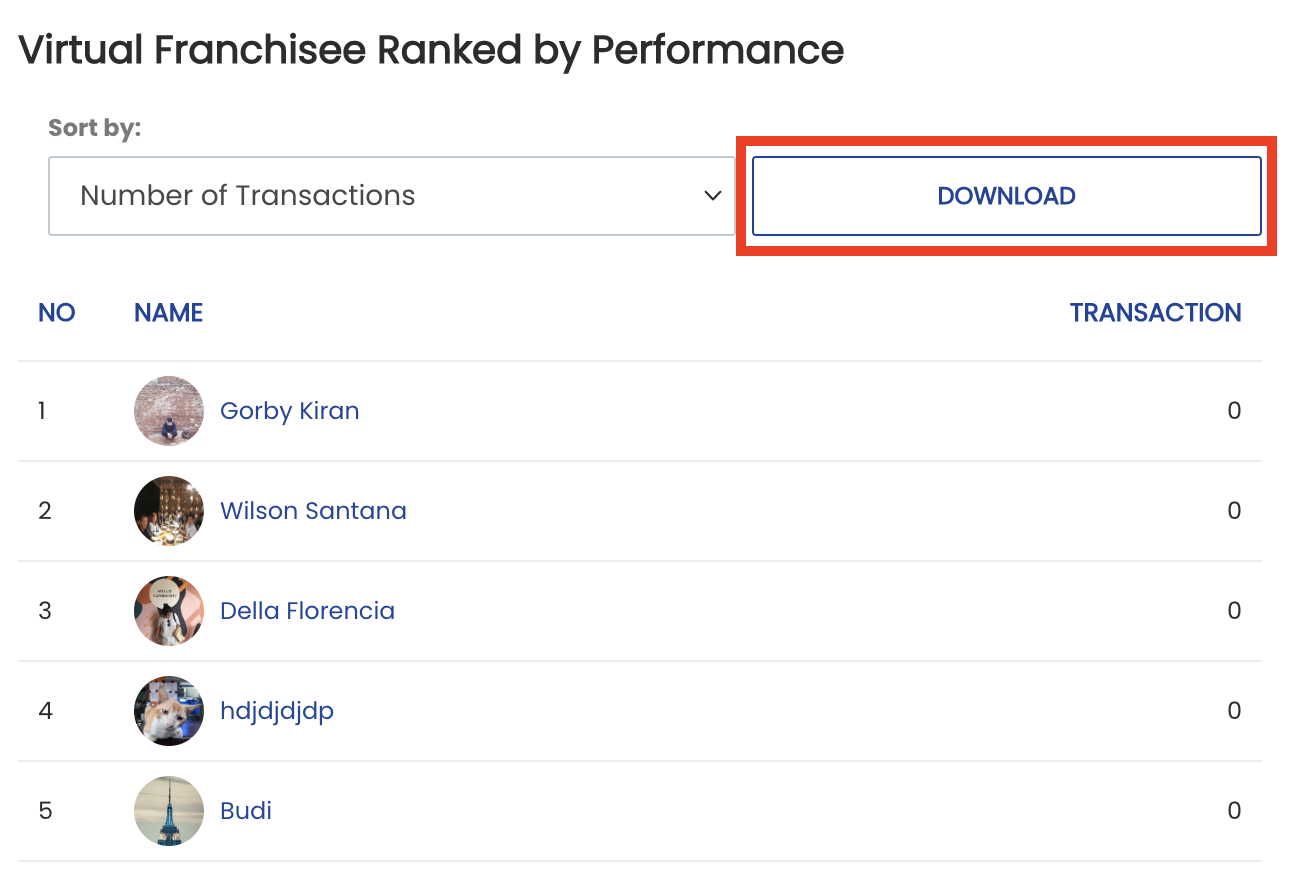
2. In the “Virtual Franchise Ranked by Performance” section, click “Download”.
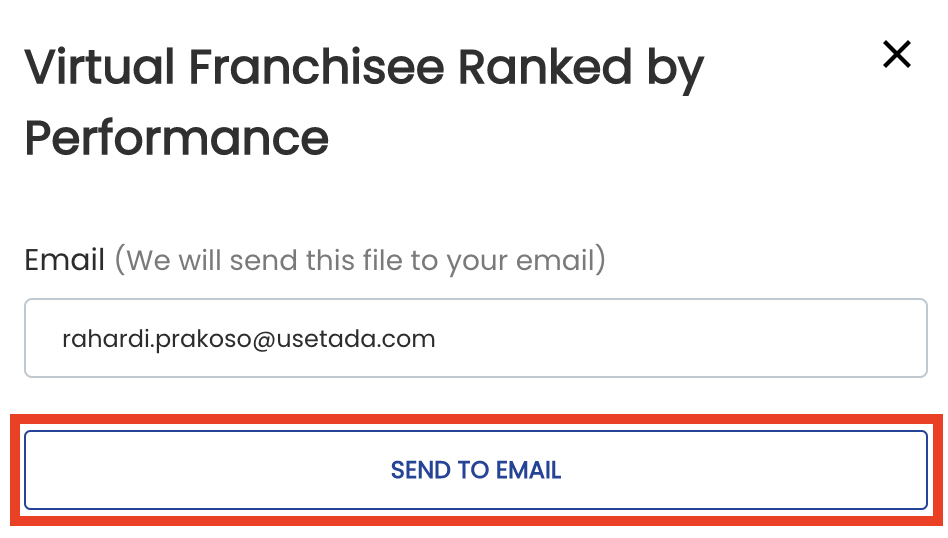
 3. Enter your email address, then click “Send to email”.
How to Change Virtual Franchise Messages
The Message Settings feature is used to manage the message displayed when franchisees share catalogs or items with customers.
1. Open the “Virtual Franchise” menu, then select the “Message Settings” sub-menu.
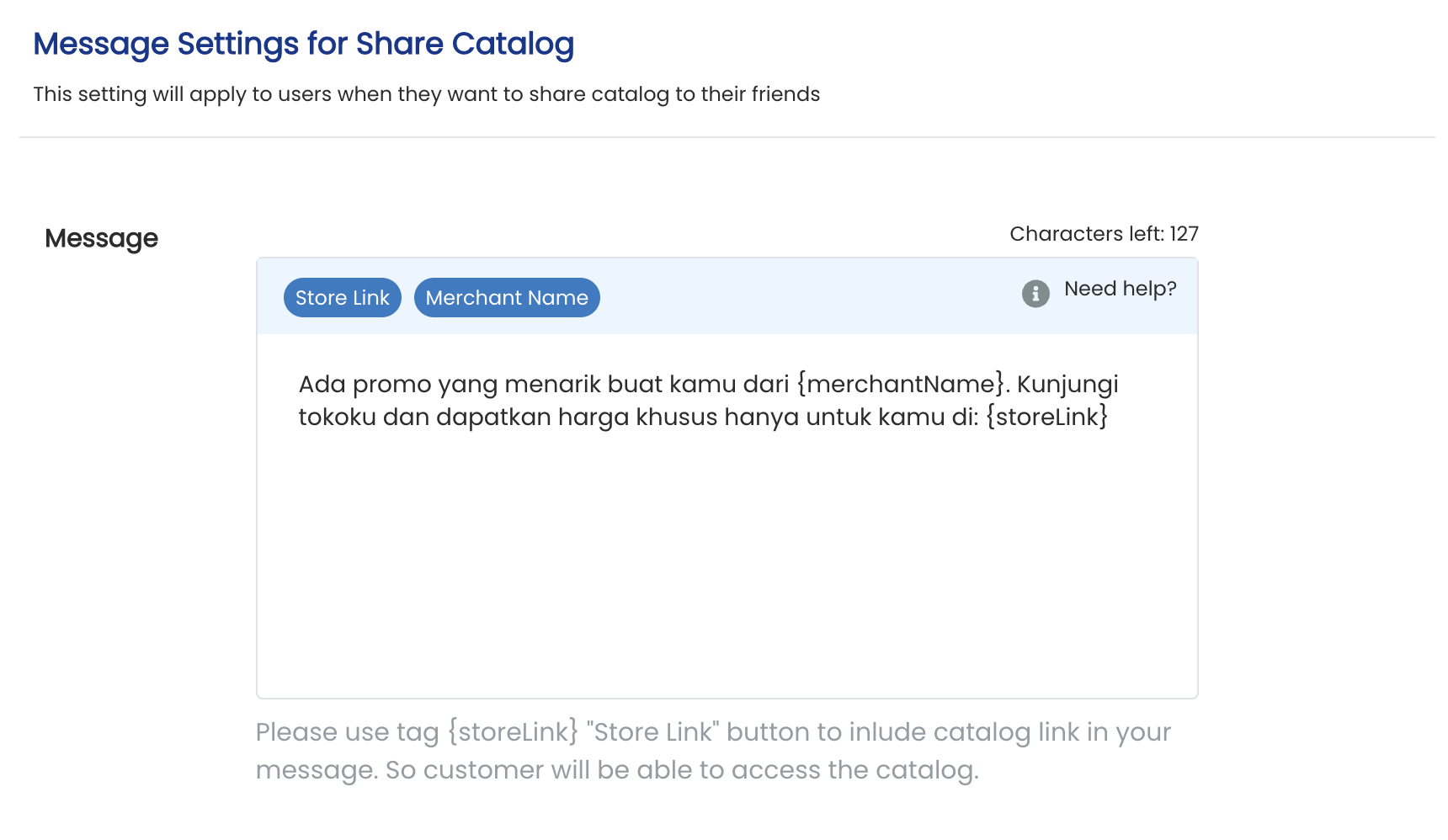
2. To change the message for all catalogs, edit the message in the “Message Settings for Share Catalog” section.
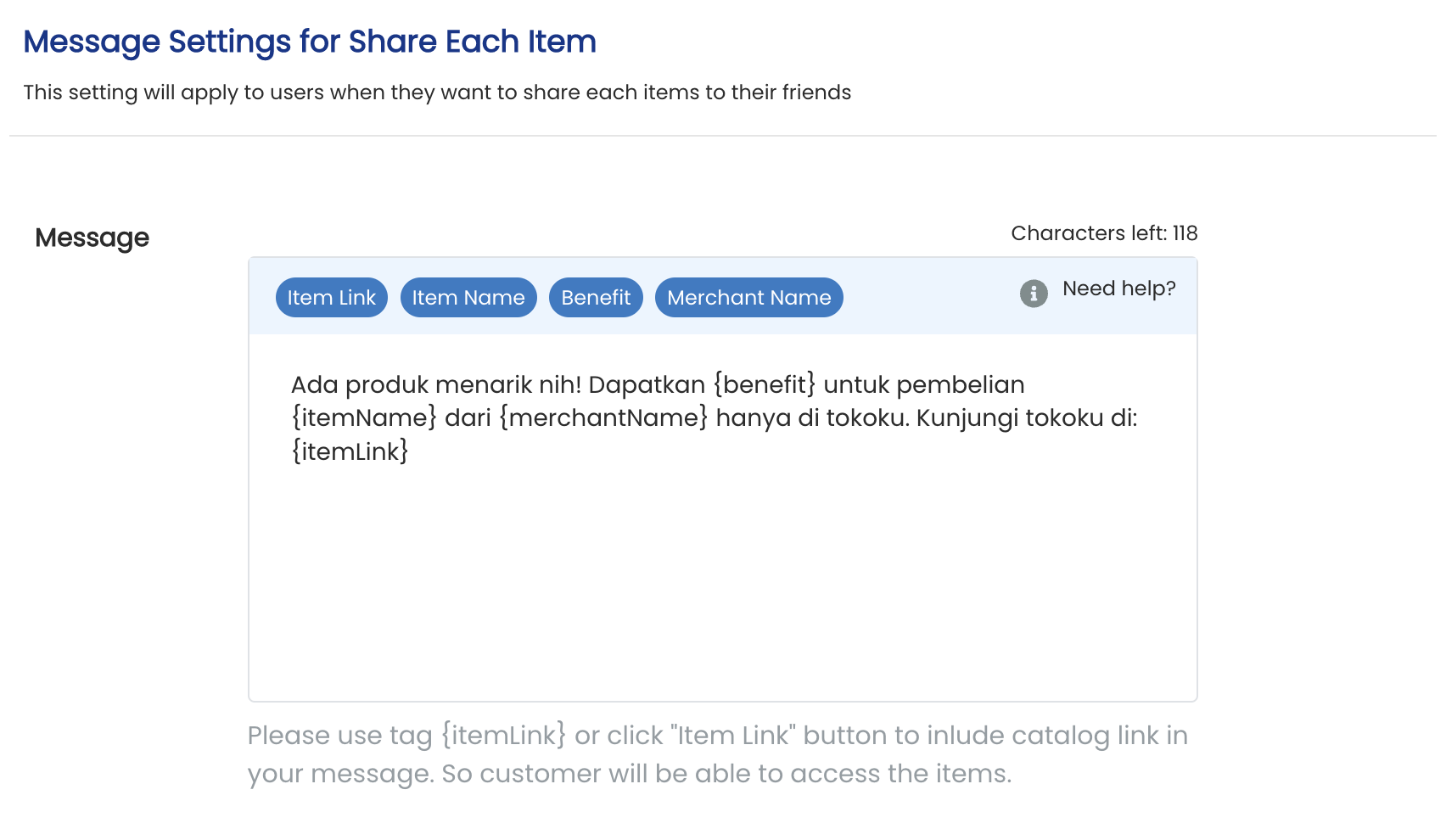
 3. To change the message for a specific item, edit the message in the “Message Settings for Share Each Item” section.
 4. Click “Save”