Process Monitoring
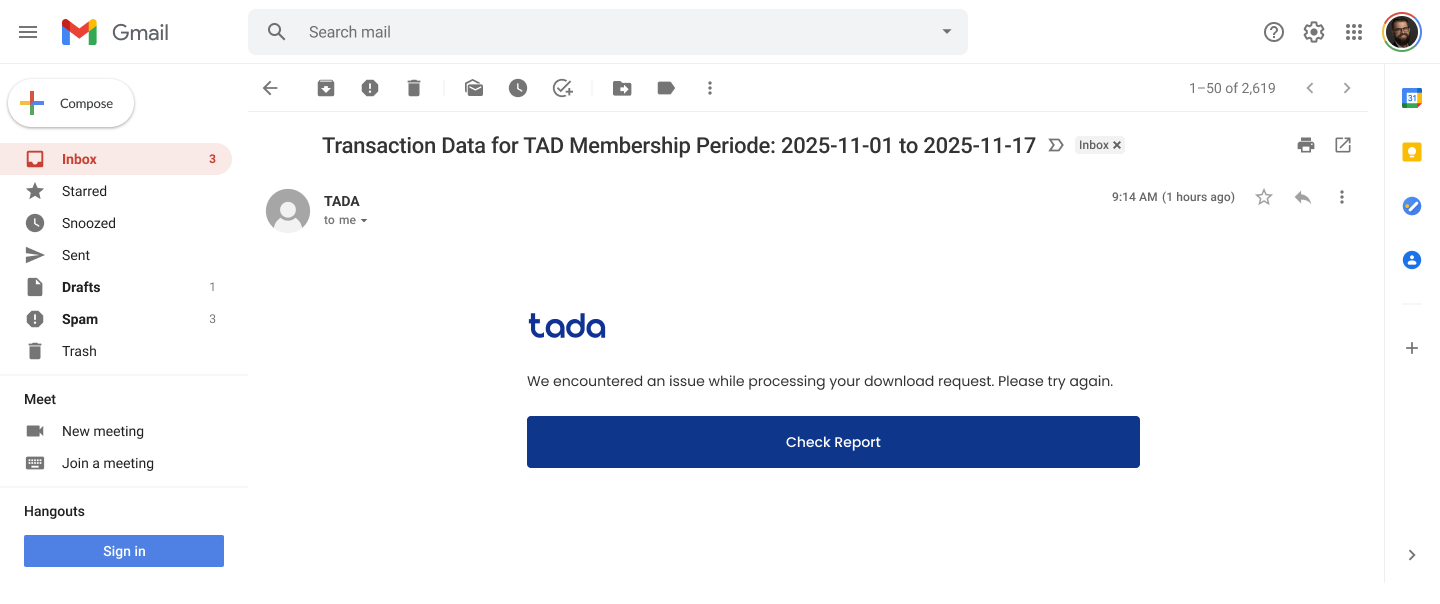
The Process Monitoring menu is used to monitor all document upload and download activities in real time through a centralized page. Through this menu, users can view progress, status, and process details without switching menus or waiting for email notifications.
How to Check Document Upload Status
1. Upload a document through the desired menu.
2. Once completed, click the "Process Monitoring" menu.
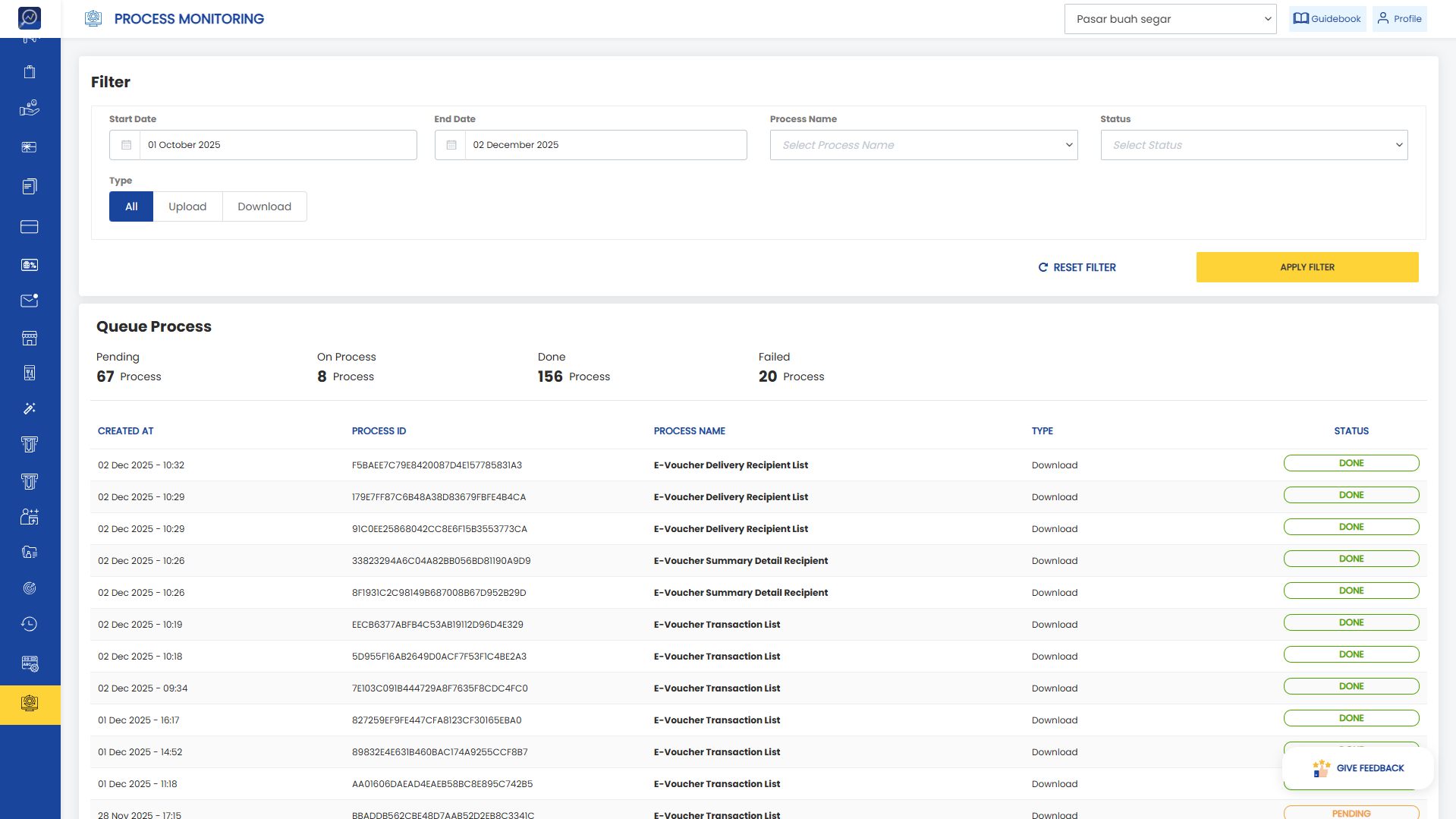 3. View the list of all ongoing and completed processes.
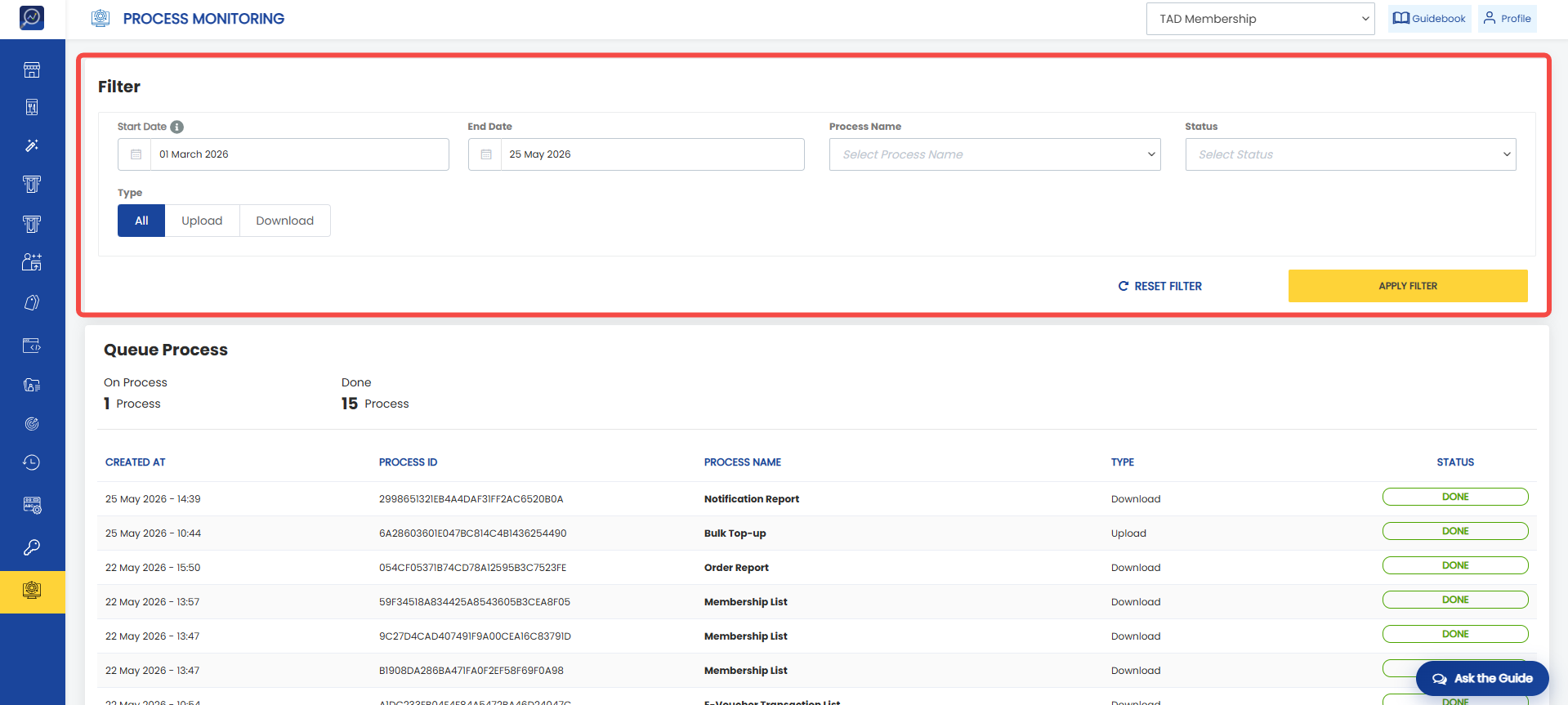
4. Use the filters at the top to make document searches easier. Available filters:
- Start date
- End date
- Process name
- Status
- Type
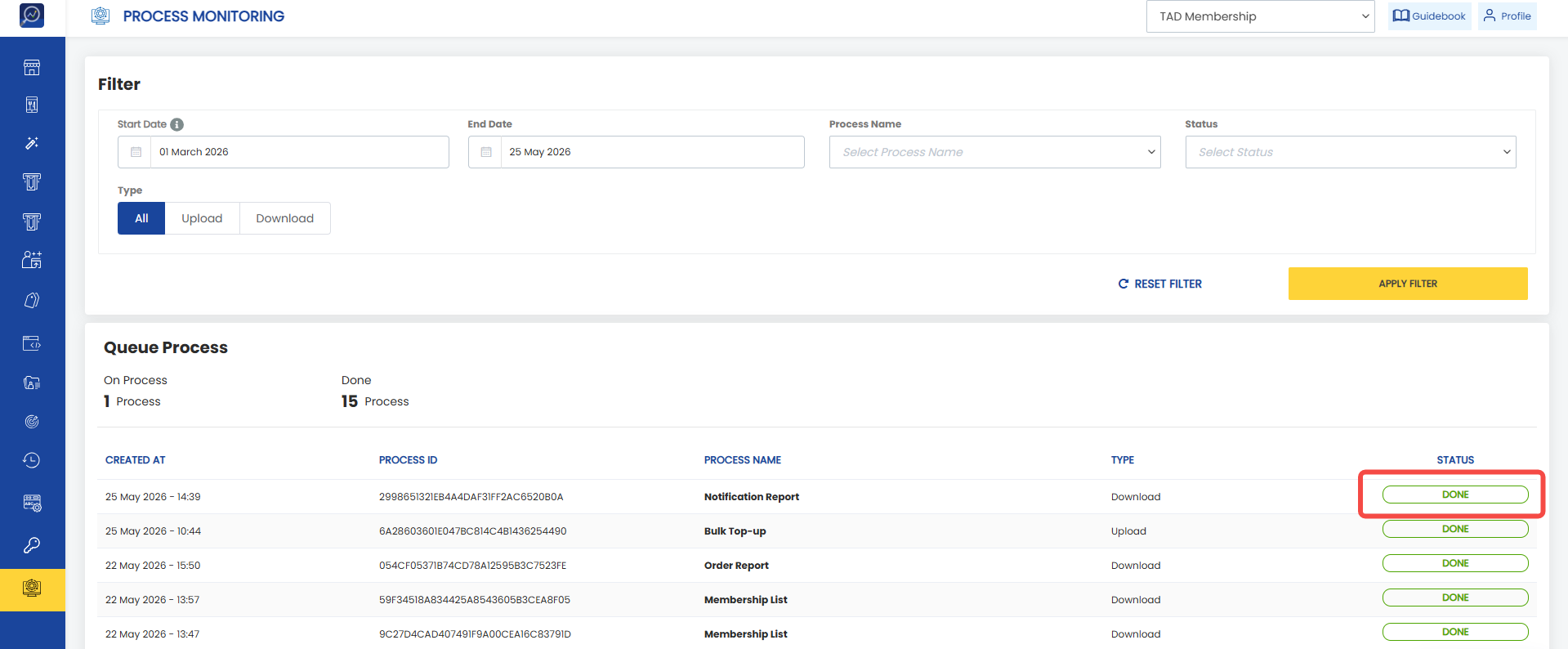
 5. Check the upload process status in the "Status" column.
How to Check Document Download Status
1. Download a document from the desired menu.
2. Once completed, click the "Process Monitoring" menu.
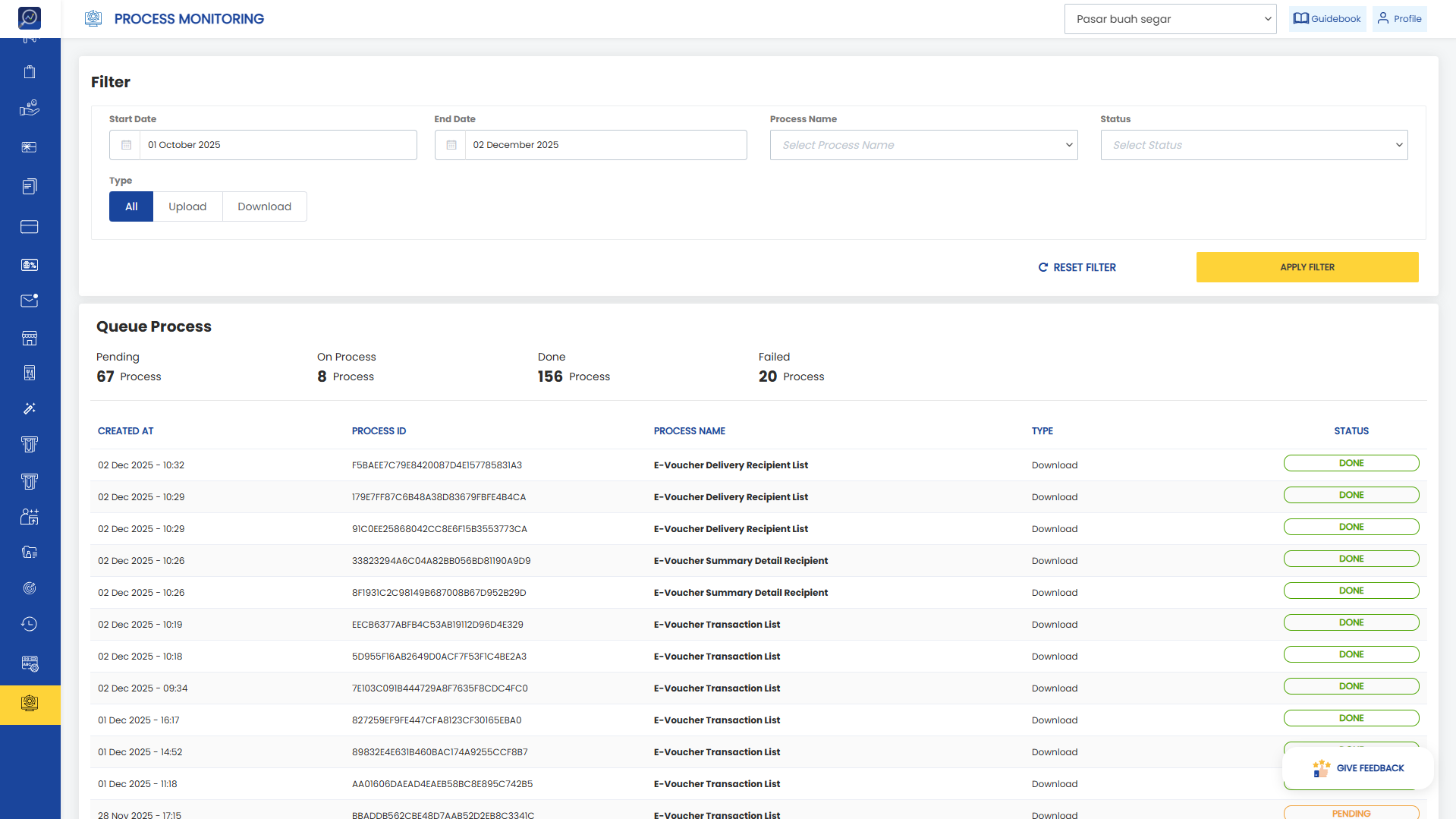 3. View the list of all ongoing and completed processes.
4. Use the filters at the top to make document searches easier. Available filters:
- Start date
- End date
- Process name
- Status
- Type
5. If the status shows "Done", download the document from the email address entered during the download request.
Email Notification for Failed Downloads
The system will automatically send an email notification if a download process fails. This feature helps users stay informed about download failures without manually checking the system.
The failed download notification flow is as follows:
1. The user requests a file download through the Dashboard.
2. The system processes the download request.
3. If the download is successful, the file is delivered as usual.
4. If the download fails (Status: Failed):
- The system automatically sends a failure notification email.
- The email is sent to the address entered in the download confirmation popup.