Notification Report
Menu Notification Report is used to monitor all notifications sent by the system to members through SMS, Email, and WhatsApp. Merchants can also resend notifications through this menu.
How to View SMS / WhatsApp / Email Notification Lists
1. Open the “Notification Report” menu.
2. Select the tab according to the notification channel you want to view.
Note: Available channels are SMS, Email, and WhatsApp.
3. Use filters to simplify notification searches. The available filters include:
- Start date
- End date
- Phone number / email
- Reference
- Status
- Action
- Message Type
a. SMS
- OTP
- Adding Member
- Send e-Voucher
- e-Voucher PIN
- Campaign
- Comeback
- Lapsed
- Lost
- Activation
- Redemption
- Referral
- Tada Partner OTP
- Reset PIN
- Wallet top-up Non-member
b. Email
- Dashboard Access
- Top Up
- Send e-Voucher
- Email Egift PIN
- Email Egroup PIN
- Campaign
- Welcome Email
- Comeback
- Lapsed
- Lost
- Order status notification
- OTP
- Adding Member
- Delivery Order Notification
- Reminder Balance Experience
- Reminder e-Voucher Expiration
- Birthday Rewards
- Tada Partner OTP
- Fraud indication
- Recovery Link Tada Partner
- Reset Password Tada Partner
- Wallet Topup Non-member
c. Whatsapp
- Adding Member
- OTP
- Send e-Voucher
- Comeback
- Lapsed
- Lost
- Order Status Notification
- Approved Privilege Submission
- Rejected Privilege Submission
- Approved Membership
- Rejected membership
- Wallet Topup
- Wallet Topup Non-member
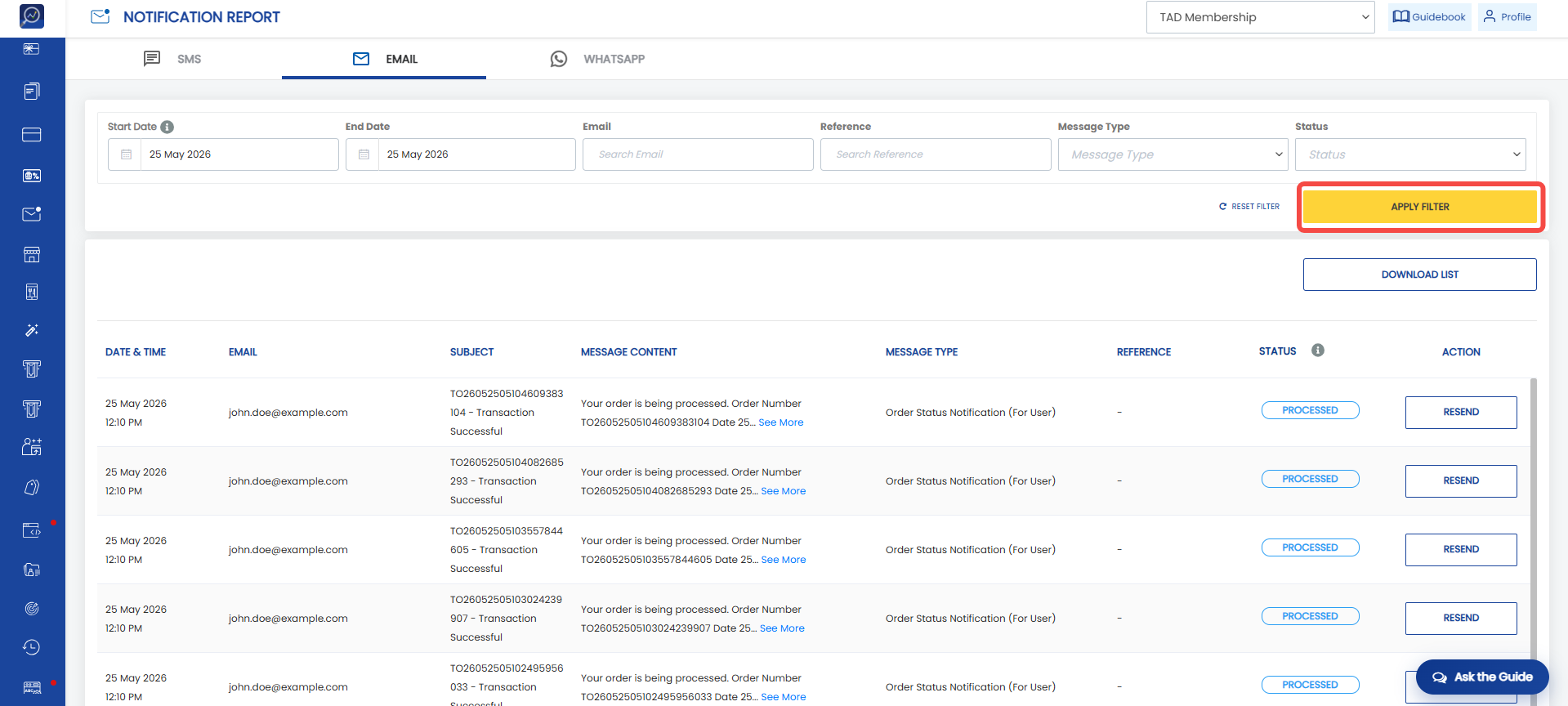
4. Click “Apply filter”
Status Definitions for Each Notification Report Channel
The following statuses are available for each notification type.
SMS
- Delivered: SMS has been received by the recipient
- Undelivered: The system failed to send the SMS to the recipient
- Processing: The message is being processed from Tada to the provider
- Sent: The message has been successfully sent and is waiting to be received by the recipient
- Delivered: Email has been received by the recipient
- Clicked: The email has been opened and clicked by the recipient (if the email contains a CTA button)
- Opened: The email has been opened by the recipient
- Processed: The system is processing the email delivery to the recipient
- Failed: The system failed to send the email to the recipient.
- Dropped: The recipient previously received a bounced status
- Bounced: The recipient's email server could not accept the email
- Deferred: The recipient's email server requested the system to stop sending emails
- Unsubscribe: The recipient unsubscribed from receiving email
- Report as spam: The recipient marked the brand's email as spam
- Delivered: The WhatsApp message has been received by the recipient
- Read: The WhatsApp message has been opened and read by the recipient
- Pending: The system is processing the WhatsApp message to the recipient
- Failed: The system failed to send the WhatsApp message to the recipient
Steps to Download Notification Report Data
1. Open the “Notification Report” menu.
2. Select the tab according to the notification channel you want to view.
Note: Available channels are SMS, Email, and WhatsApp.
3. Use filters to simplify notification searches.
4. Click “Apply filter”.
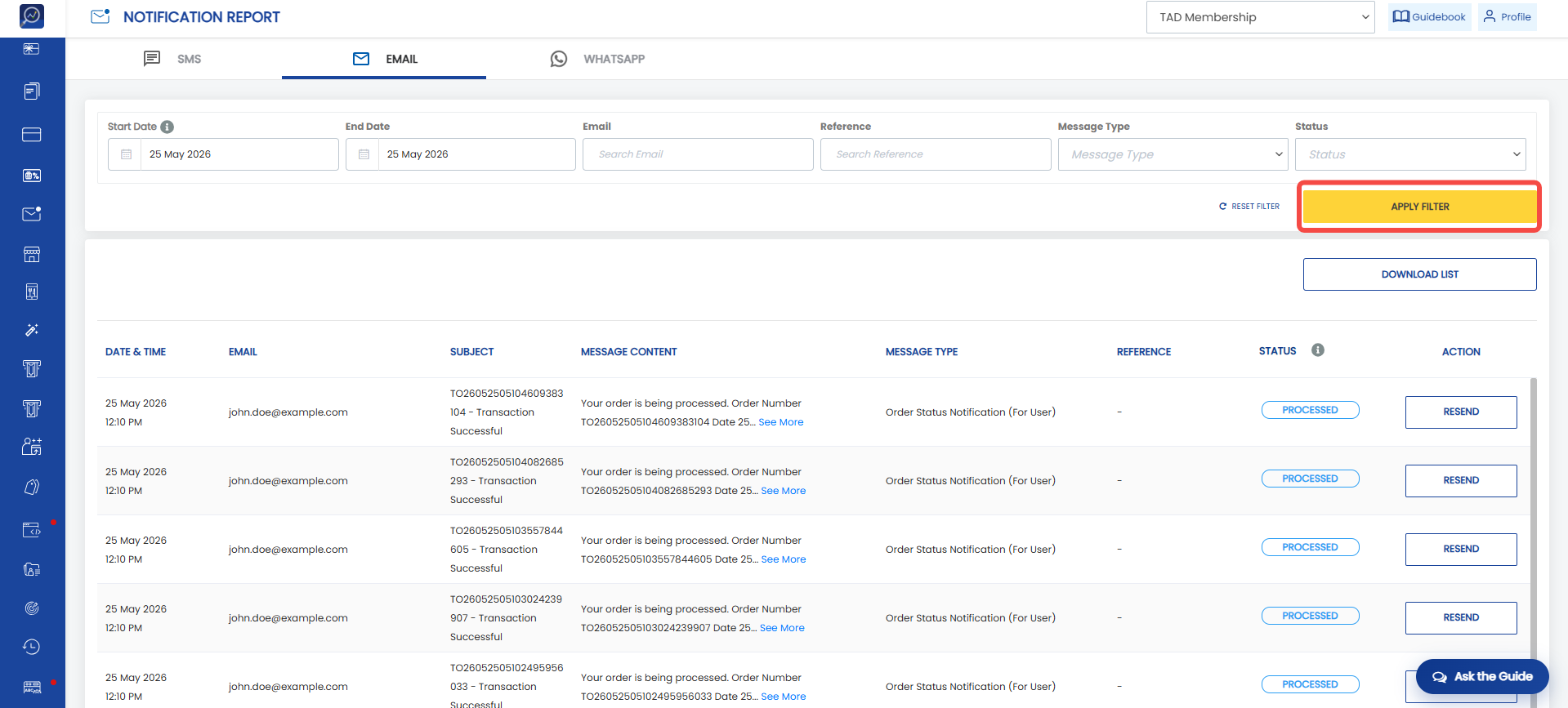 5. Click “Download list”
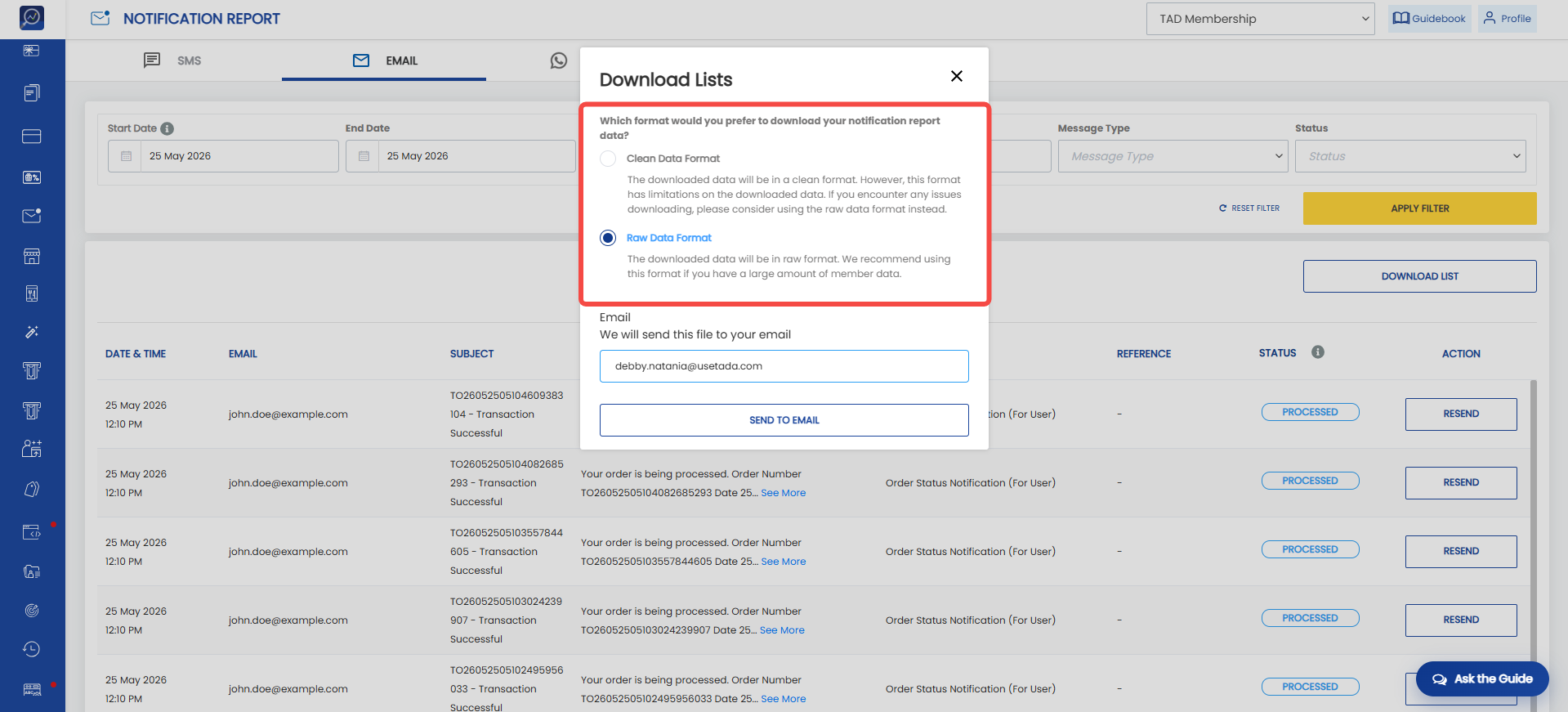
 6. The system will display a pop-up. Select the data format you want to download, either clean or raw data format.
Note:
- Clean format : The downloaded data will be displayed in a cleaner format. However, this format has limitations on the amount of data that can be processed during download (maximum 10,000 rows).
- Raw format : The downloaded data will be displayed in its original raw format as stored in the system. We recommend this format for downloading large amounts of data to ensure optimal download performance.
 7. Enter the email address to receive the report document.
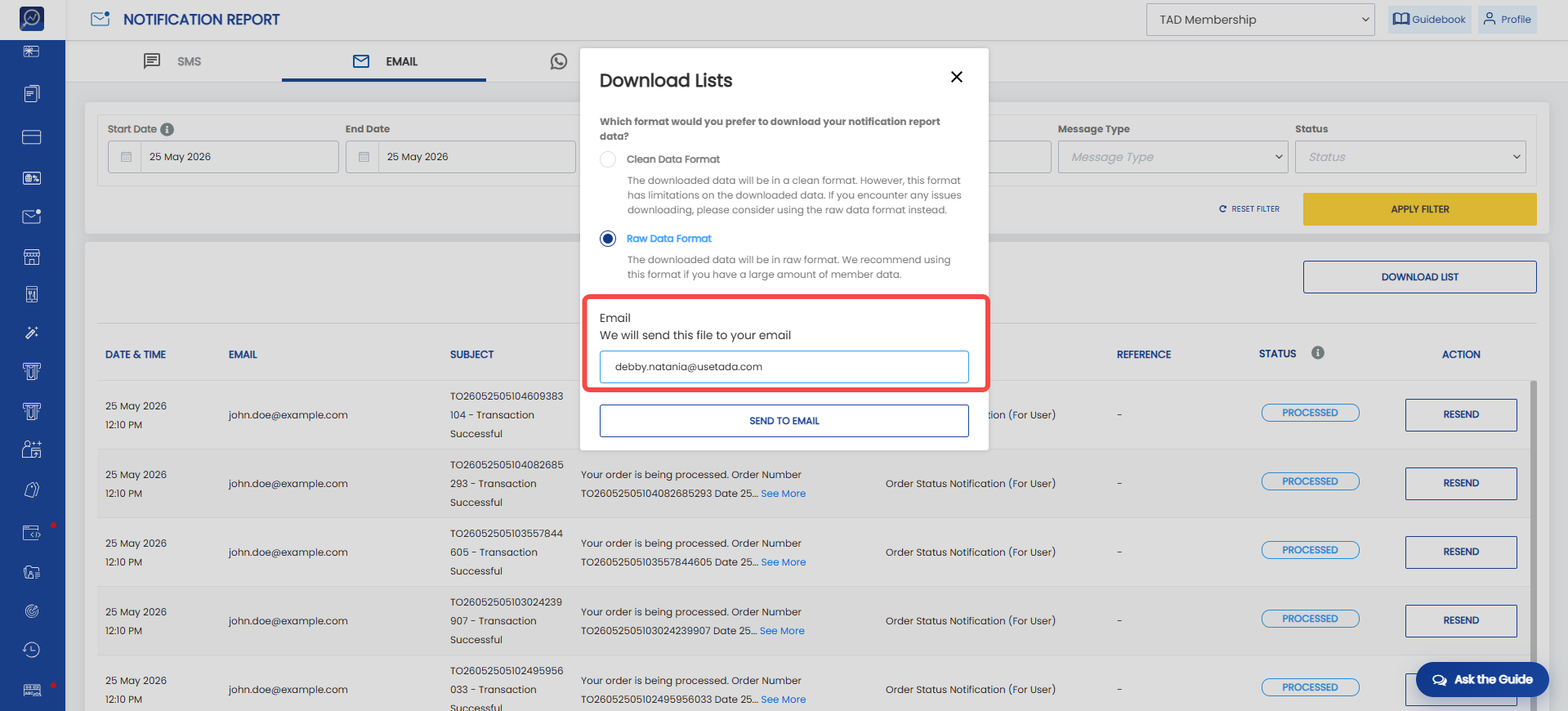 8. Click “Send to email”
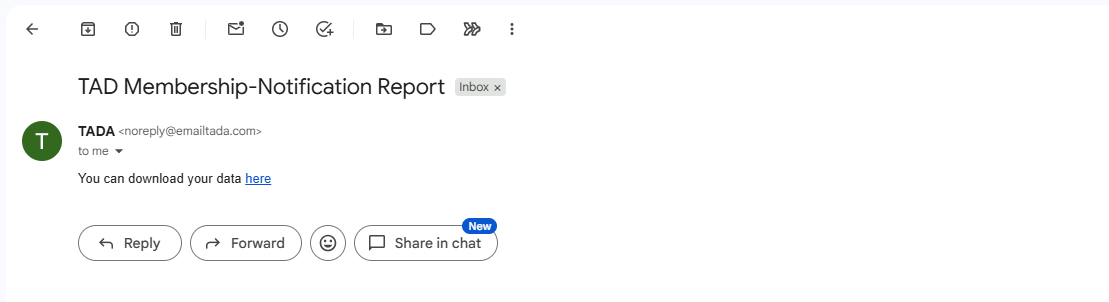
9. The transaction report will be sent as a file attachment to the specified email address.
How to Resend SMS / WhatsApp / Email Notifications
1. Open the “Notification Report” menu.
2. Select the tab according to the notification channel you want to view.
Note: Available channels are SMS, Email, and WhatsApp.
3. Use filters to simplify notification searches.
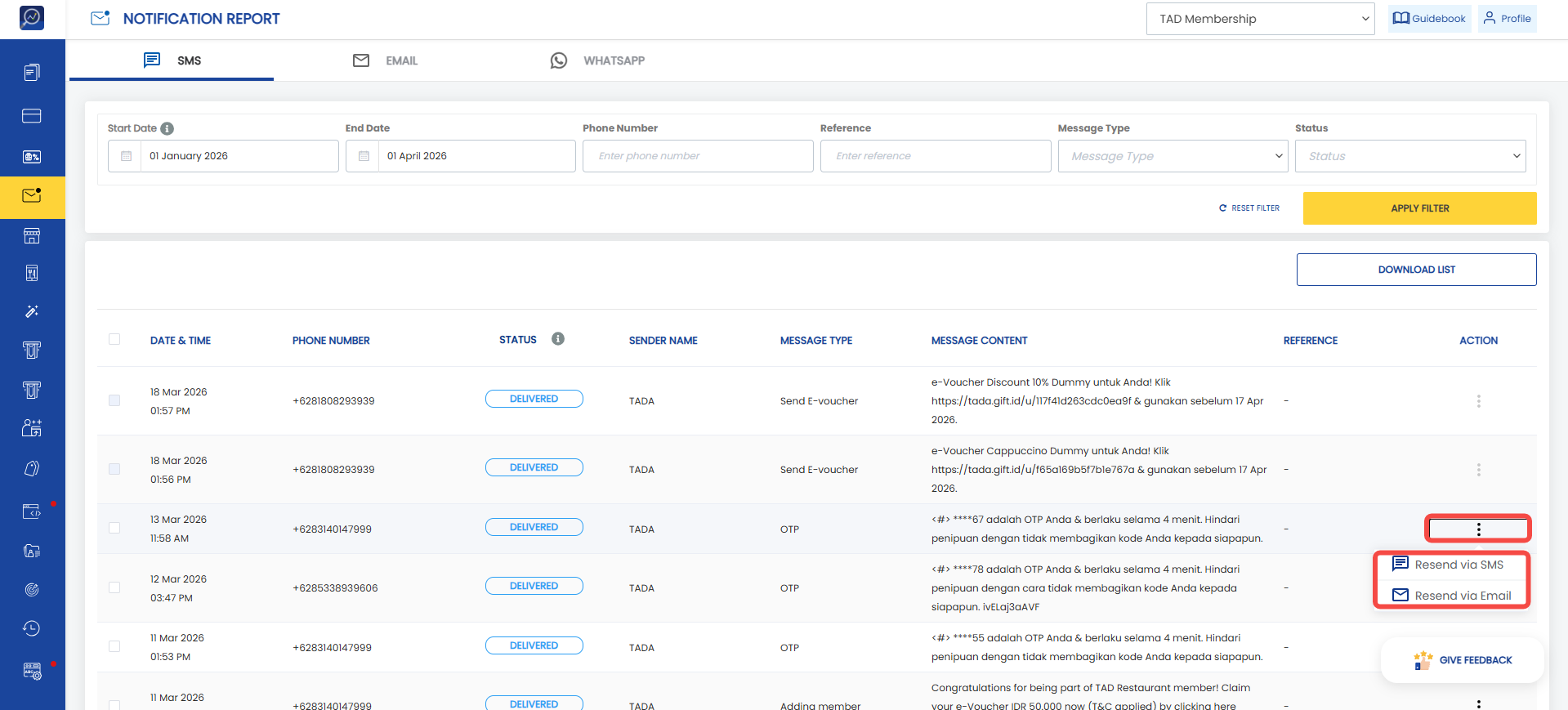
4. Select the notification to be resent, then click the three-dot icon on the right side of the table and select “Resend”.
Note:
- SMS notifications can be resent via SMS or email.
- Email notifications can be resent via email.
- WhatsApp notifications can be resent via WhatsApp or email.
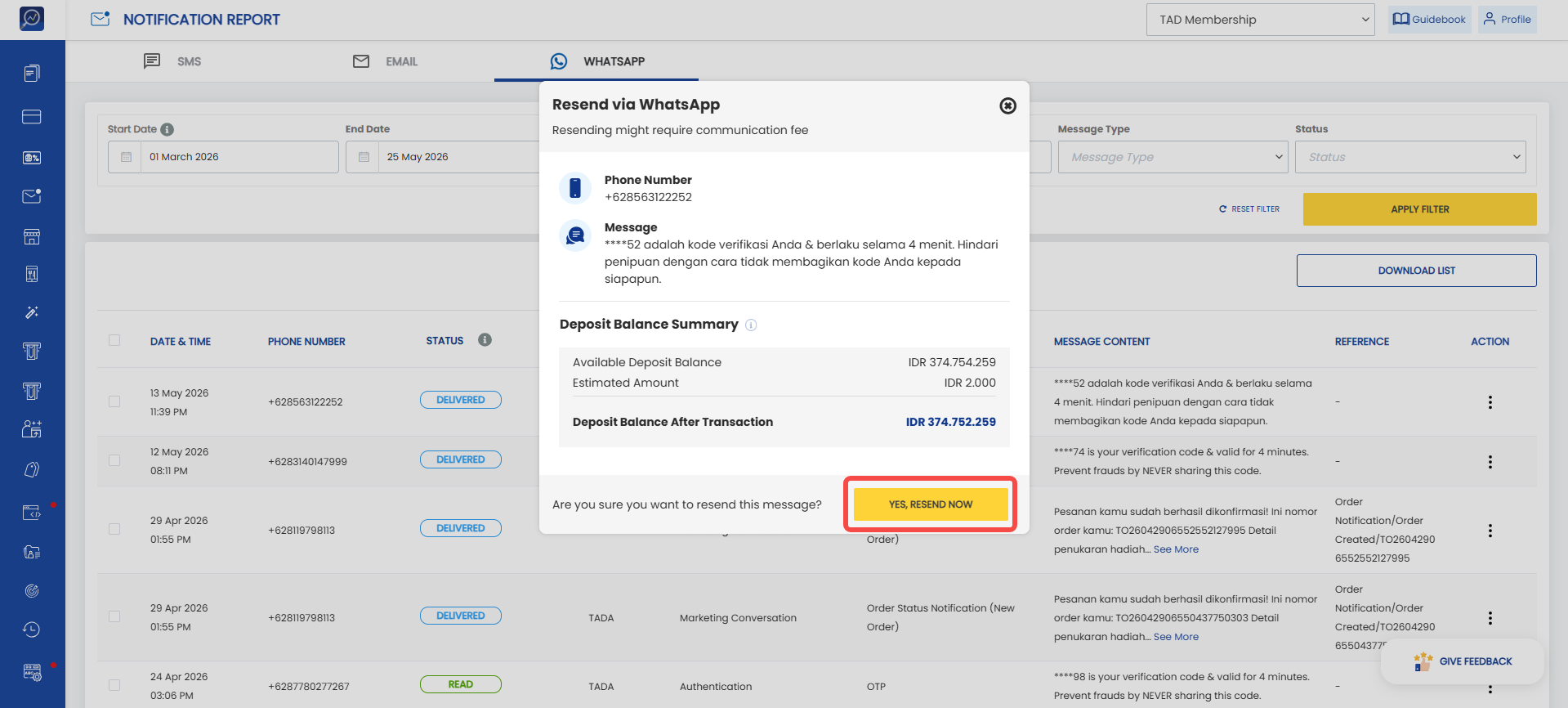
 5. The system will display a resend confirmation pop-up. Ensure the displayed data is correct and click “Yes, Resend Now”.